Accounts payable clerk, Accounts payable manager, Chief financial officer and 6 more roles
Business process
Define accounts payable policies
Menu item
VendPaymFeeInquiry
Main table
CustVendPaymJournalFee
Data entity
CustomerPaymentJournalFeeEntity
Setup steps
1 on this page
Show what matters for
SETUP GUIDEHow to set it up8 sections. Choose a role to highlight what matters to you.
Everyone
1What it is and why
What it is
The page where vendor payment fees are defined; a fee is added to a vendor payment automatically when a set of conditions applies.
What you do here
Use this page to set up fees that are either charged to the vendor (posted through the vendor posting profile) or expensed to a main account when the Charge field is set to Ledger.
Example
Your bank charges 1.00 for each wire transfer that you process, and the wire fee is expensed to a bank fee expense account.
The page in Dynamics 365. page title tab to open what to set or check
About the examples: Examples and screenshots in this guide use BEAT, a demo company in a Dynamics 365 test environment. Use your own company's codes and values instead of copying them.
Step by step, with screenshots
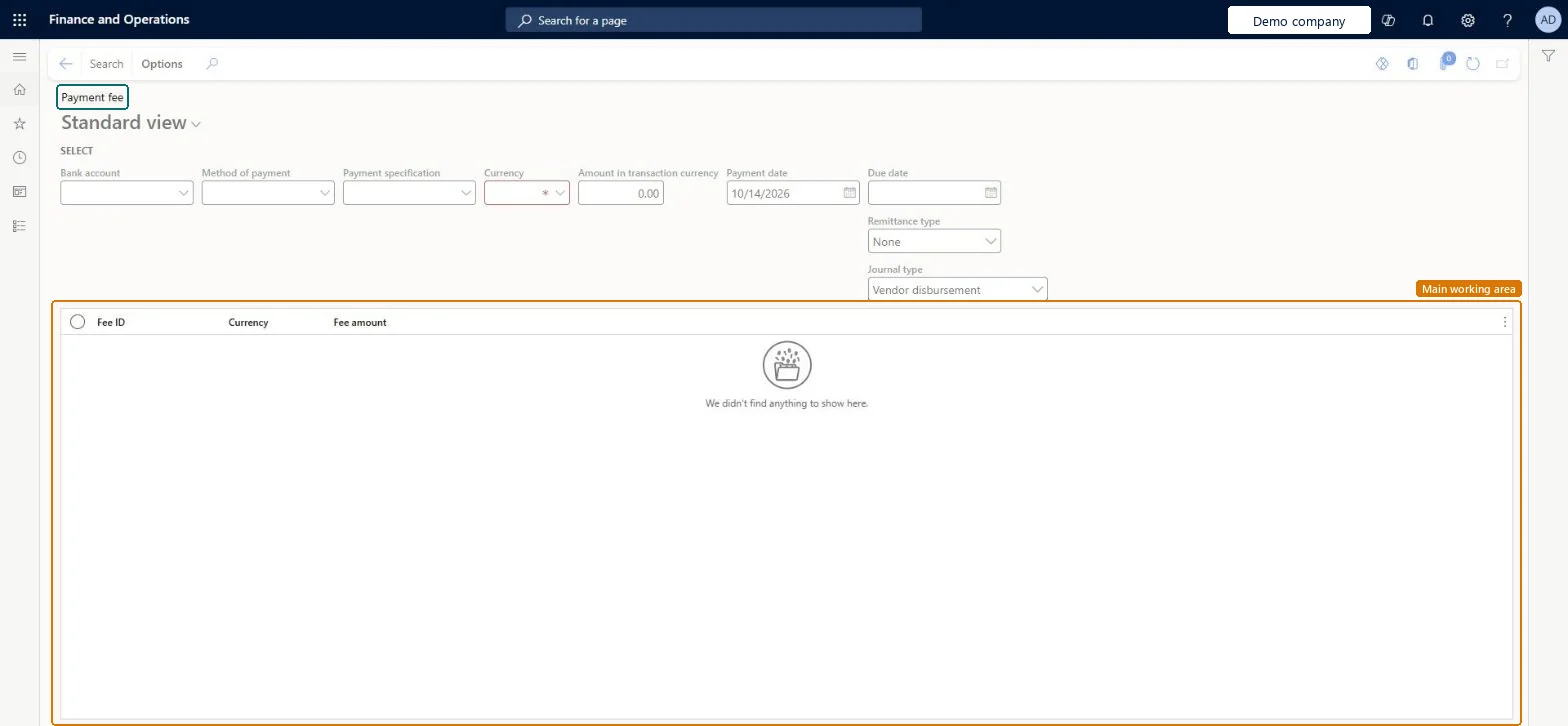
Set up Payment fee1 screen
Create and maintain the payment fees that are associated with vendors.
Screen 1
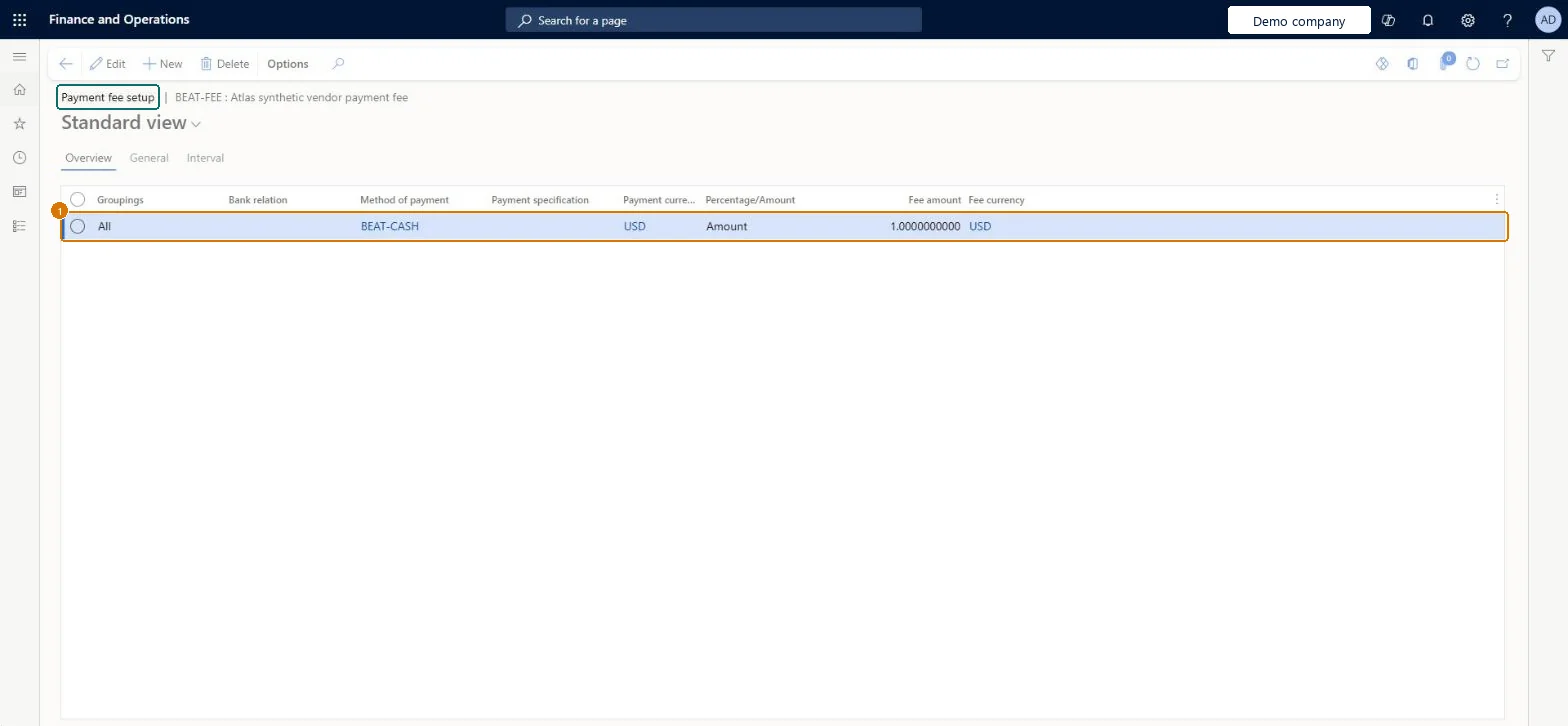
Set the payment fee amount
Go to Accounts payable > Payment setup > Payment fee, Payment fee setup for BEAT-FEE
Select the BEAT-FEE payment fee and open its Payment fee setup
On the Overview tab, select New
Fill in the fee row
1Method of payment
BEAT-CASH
Payment currency
USD
Percentage/Amount
Amount
Fee amount
1.00
Fee currency
USD
Show the full screen page title tab to open what to set or check
How to use it
Go to Accounts payable > Inquiries and reports > Payment > Payment fee.
Under Select, choose the Bank account, Method of payment and Payment specification.
Choose the Currency, which is required, and enter the Amount in transaction currency.
Enter the Payment date and Due date, and choose the Remittance type and Journal type.
Select Search to list the matching fees by Fee ID, Currency and Fee amount.
Source: Checked in Dynamics 365
Fields on the page
Field
What it means
Example
Table column
Fee ID
A name that shows when the fee is used, such as for electronic funds transfers.Microsoft Learn
FeeId
Charge
Who bears the fee: Ledger when your organization expenses it, Vendor when it is charged to the vendor.Microsoft Learn
Main account
The account the fee is posted to; only needed when Charge is Ledger.Microsoft Learn
Charge = Ledger with an expense main account for bank fees you absorb; Charge = Vendor for fees that are added to the vendor's balanceLearn describes both uses: with Charge = Vendor the Main account is unavailable and the fee posts through the vendor posting profile; with Charge = Ledger you must give the main account, typically an expense account such as bank fee expense.
Setting up the fee but not its criteria in Payment fee setup (method of payment, bank, currency): the fee is only added to a vendor payment when that set of conditions applies.
To use itAccounts payable manager VendInvoiceAccountsPayableManagerAccounting supervisor LedgerAccountingSupervisorAccounting manager LedgerAccountingManagerAccounts payable clerk VendInvoiceAccountsPayableClerkChief financial officer CompanyChiefFinancialOfficerGive people one of these roles. On this system, 9 roles can open this page.Checked in Dynamics 365
CustomerPaymentJournalFeeEntity (Customer payment journal fee): loaded for each company.VendorPaymentJournalFeeEntity (Vendor payment journal fee): loaded for each company.Microsoft Learn
Checked in a working Dynamics 365 system, version 10.0.49: the menu item, form, table and security, the page, the demo records and the values in the screenshots.
To cite this step: AP-PAYSETUP-060, Set up Payment fee. Beyond ERP Atlas Hub, 2026-11-11. https://www.beyonderp.cloud/atlas/step/AP-PAYSETUP-060