About the examples: Examples and screenshots in this guide use BEAT, a demo company in a Dynamics 365 test environment. Use your own company's codes and values instead of copying them.
Step by step, with screenshots
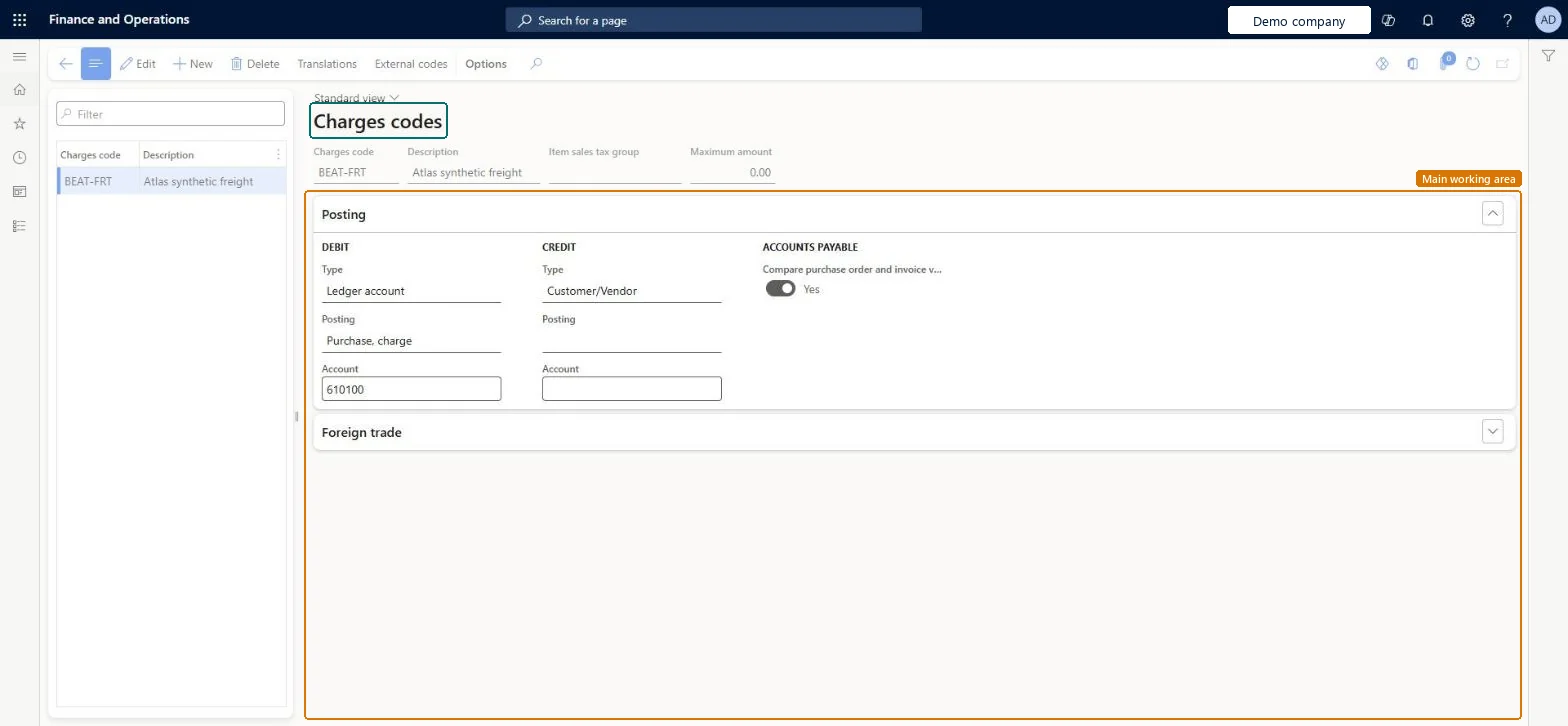
Set up Charges code1 screen
Set up the codes for the charges, such as freight or fees, that are used on purchase orders.
Screen 1
Create the freight charges code
Go to Accounts payable > Charges setup > Charges code, Posting section
Select New and enter the charges code and description
In the Posting section, set the debit and credit types
Turn on Compare purchase order and invoice values
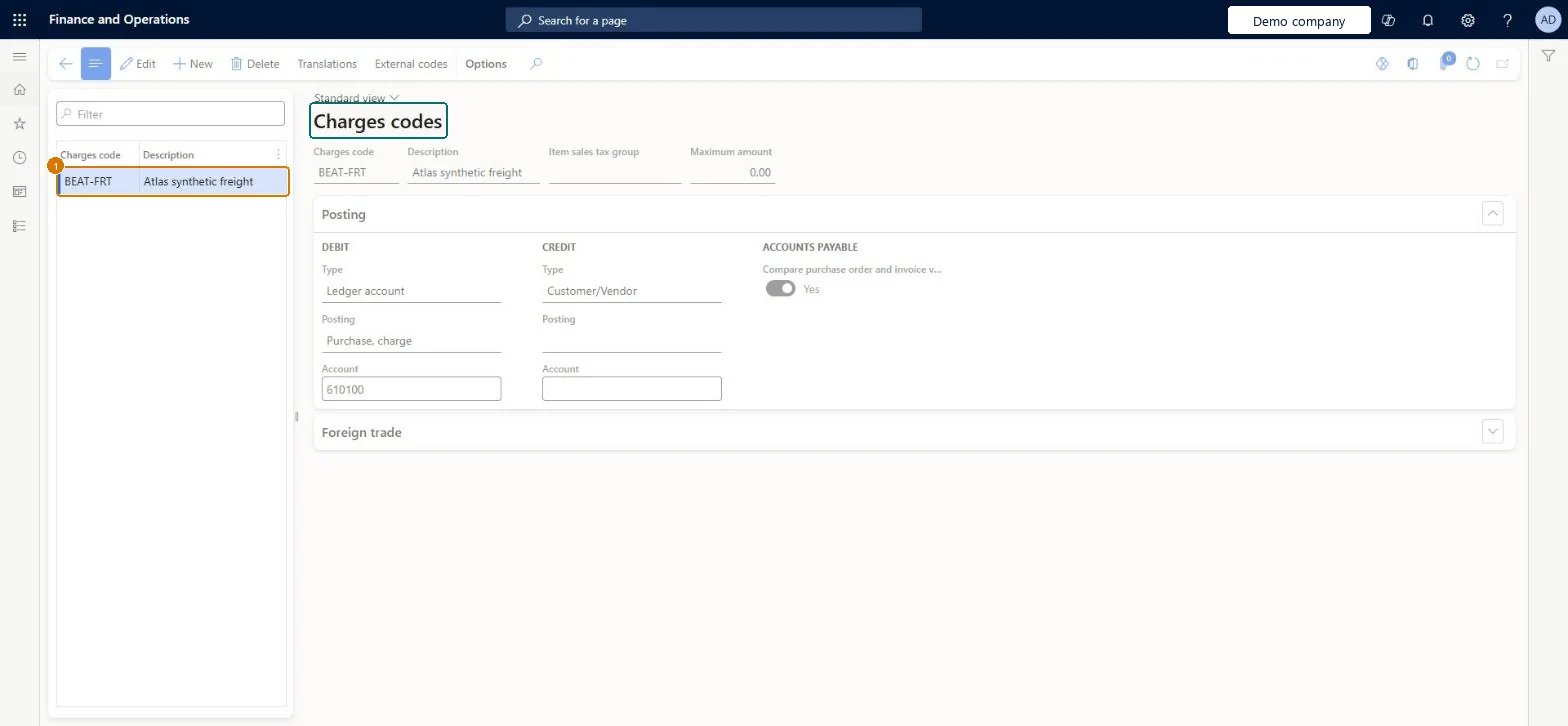
1Charges code
BEAT-FRT
Description
Freight
Maximum amount
0.00
Debit Type
Ledger account
Debit Posting
Purchase, charge
Debit Account
610100
Credit Type
Customer/Vendor
Compare purchase order and invoice values
Yes
Show the full screen page title tab to open what to set or check
Steps from Microsoft
Go to Accounts payable > Charges setup > Charges code.
Select New.
In the Charges code field, enter a code for the charge, and add a description.
Optionally, select an Item sales tax group and enter a Maximum amount for the charge.
On the Posting FastTab, set how the charge is debited and credited, including the posting types and main accounts for ledger postings.
To compare the charge on invoices with the purchase order, turn on Compare purchase order and invoice values.
For a vendor charge recorded as expense: Credit Type Customer/Vendor and Debit Type Ledger account with the expense main accountLearn's example adds the charge to the vendor's account on the credit side and posts the cost to an expense account on the debit side.
Entering a Maximum amount and expecting it to be enforced: validation needs Enable invoice matching validation and a charges-based policy rule type in the vendor invoice policy.
PrivilegesMaintain charges in the purchase process MarkupAutoSetup_VendMaintainView charges in the purchase process MarkupAutoSetup_VendViewDutiesInquire into product sales prices and discount master PriceDiscProdSalesPriceDiscMasterInquirEnable purchase order to invoice process PurchOrderToInvoiceProcessEnableEnable quotation to sales order process RentalSalesQuotationToSlsOrdProcessEnable8 security rolesMCRTestUserRoleRental coordinator agent RentalCoordinatorAgentRental manager RentalManagerRental sales manager RentalSalesManagerPurchasing manager TradePurchasingManagerSales clerk TradeSalesClerkSales manager TradeSalesManagerAccounts payable manager VendInvoiceAccountsPayableManagerChecked in Dynamics 365
Roles to set it up and use it
To set it up or change itAccounts payable manager VendInvoiceAccountsPayableManagerRental manager RentalManagerPurchasing manager TradePurchasingManagerRental coordinator agent RentalCoordinatorAgentRental sales manager RentalSalesManagerTo use itSales manager TradeSalesManagerSales clerk TradeSalesClerkGive people one of these roles. On this system, 7 roles can open this page.Checked in Dynamics 365
Actions on the page
Buttons: Translations, External codesChecked in Dynamics 365
InventoryChargeEntity (Inventory charge codes): loaded for each company, in Microsoft's default template 405 - Transportation management.PurchProcurementChargeEntity (Procurement charge codes): loaded for each company, in Microsoft's default template 120 - Accounts payable.SalesChargeEntity (Sales charge codes): loaded for each company, in Microsoft's default template 140 - Accounts receivable.Load order: Microsoft's default template 405 - Transportation management loads Inventory charge codes at execution unit 1, level 30, sequence 10. Lower levels load first, and entities at the same level load in sequence order.Load first: the default templates at lower levels (System setup to General ledger)Microsoft Learn
Checked in a working Dynamics 365 system, version 10.0.49: the menu item, form, table and security, the page, the demo records and the values in the screenshots.
To cite this step: AP-CHARGES-020, Set up Charges code. Beyond ERP Atlas Hub, 2026-11-11. https://www.beyonderp.cloud/atlas/step/AP-CHARGES-020