Accounts payable manager, Rental coordinator agent, Rental manager and 4 more roles
Business process
Record supplier invoices in Dynamics 365 Finance
Menu item
MarkupAutoSetup_Vend
Main table
MarkupAutoTable
Setup steps
1 on this page
Show what matters for
SETUP GUIDEHow to set it up8 sections. Choose a role to highlight what matters to you.
Everyone
1What it is and why
What it is
A setup page for auto charges, which are applied automatically when a purchase order is created.
What you do here
Use this page to define header or line charges for specific vendors, items, groups or all, with the charges code, category and value, optionally tiered by order amount.
Example
You automatically apply a charge to purchase orders when a vendor is located outside a specific vicinity.
The page in Dynamics 365. page title tab to open what to set or check
About the examples: Examples and screenshots in this guide use BEAT, a demo company in a Dynamics 365 test environment. Use your own company's codes and values instead of copying them.
Step by step, with screenshots
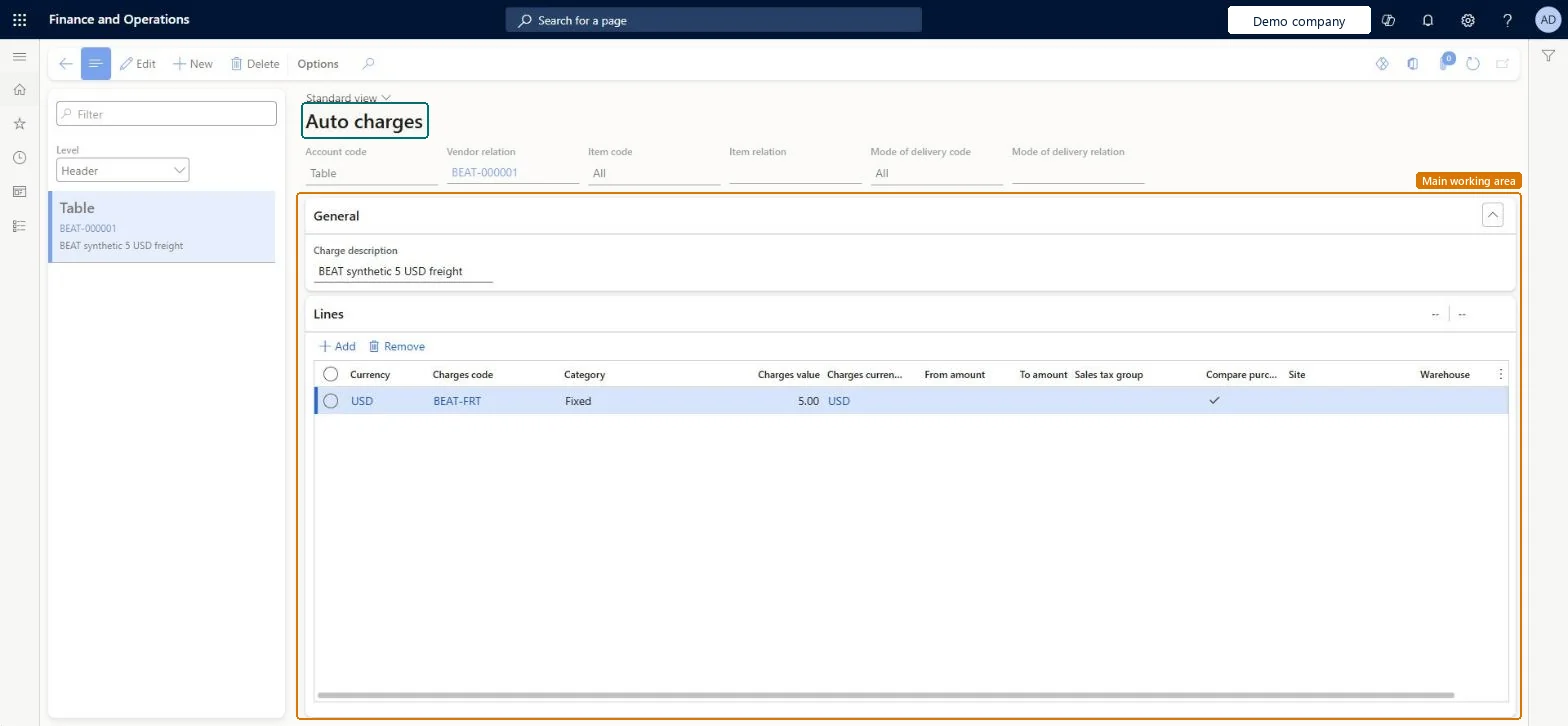
Set up Automatic charges1 screen
Define the charges that are assigned automatically to purchase orders.
Screen 1
Create the automatic charge for the vendor
Go to Accounts payable > Charges setup > Automatic charges
Select New and set the account code and vendor relation
Enter the charge description in the General section
On the Lines section, select Add and fill in the charge line
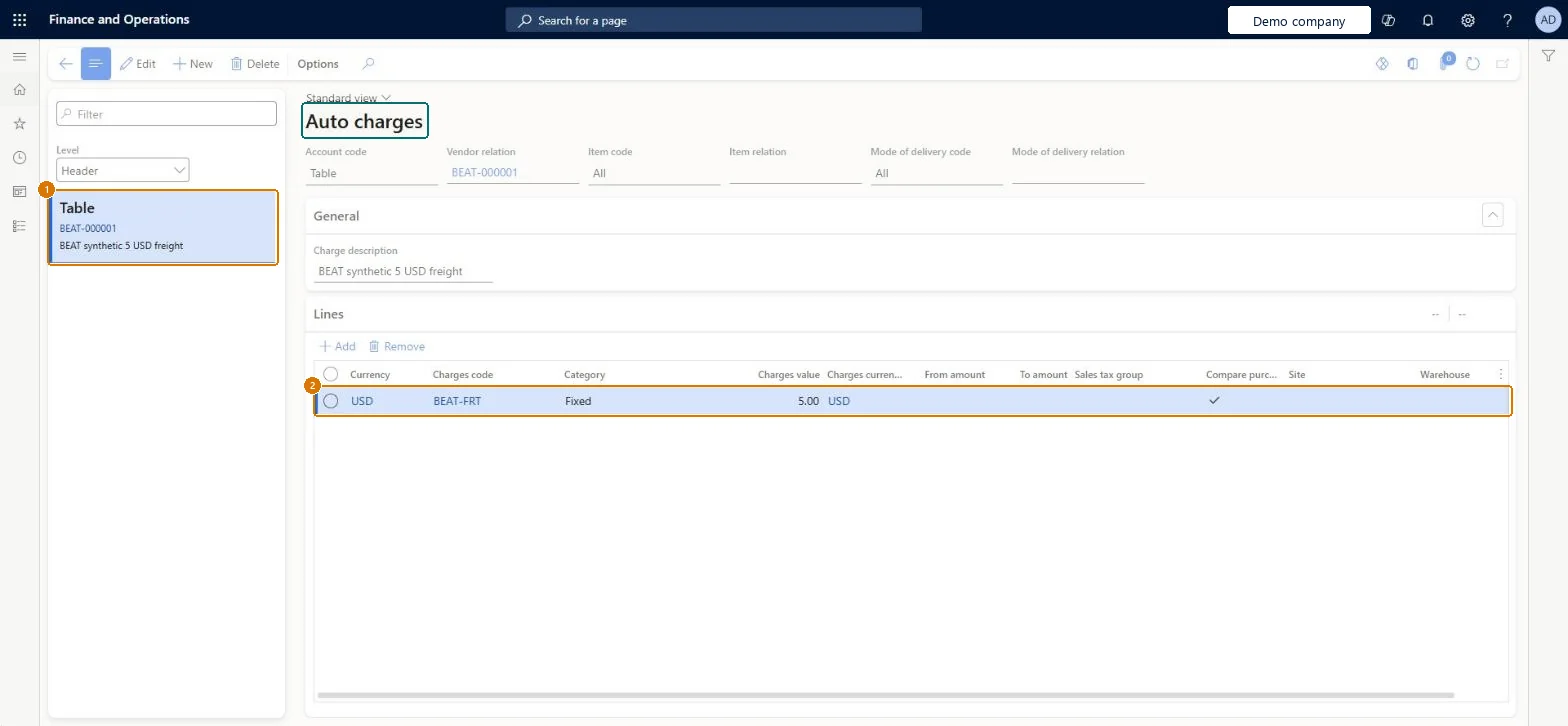
2Charges code
BEAT-FRT
Account code
Table
Vendor relation
BEAT-000001
Item code
All
Mode of delivery code
All
Charge description
5 USD freight
Currency
USD
Category
Fixed
Charges value
5.00
Charges currency
USD
Compare purchase order and invoice values
Yes
Show the full screen page title tab to open what to set or check
Steps from Microsoft
Go to Accounts payable > Charges setup > Automatic charges.
Select New.
In the Level field, choose whether the charge applies to the order header or to order lines.
In the Account code and Vendor relation fields, choose one vendor, a vendor charges group, or all vendors.
For line-level charges, use the Item code and Item relation fields to choose one item, an item charges group, or all items.
On the Lines FastTab, select the Currency and the Charges code.
Choose how the charge is calculated in the Category field and enter the Charges value.
Optionally, enter From amount and To amount to apply the charge only to orders in that range.
Header auto charges with Category Fixed or Percent for order-level charges, tiered by From amount and To amount where the charge depends on order valueTiered charges by order total are only possible at header level with Fixed or Percent, and auto charges are applied when the purchase order is created.
Setting a fixed auto charge above the charges code's Maximum amount when charges are validated: the value must be less than that maximum.
Reversible: Auto charges are applied when a purchase order is created, so changes affect new orders only.
Technical architect
6Technical
Menu item
MarkupAutoSetup_VendChecked in Dynamics 365
Form
MarkupAutoSetupChecked in Dynamics 365
Table
MarkupAutoTableShown as “Auto charges transactions” in Record infoChecked in Dynamics 365
Data entities
Automatic purchase document charges, Automatic purchase document line charges
Who can open it
PrivilegesMaintain charges in the purchase process MarkupAutoSetup_VendMaintainView charges in the purchase process MarkupAutoSetup_VendViewDutiesInquire into product sales prices and discount master PriceDiscProdSalesPriceDiscMasterInquirEnable purchase order to invoice process PurchOrderToInvoiceProcessEnableEnable quotation to sales order process RentalSalesQuotationToSlsOrdProcessEnable8 security rolesMCRTestUserRoleRental coordinator agent RentalCoordinatorAgentRental manager RentalManagerRental sales manager RentalSalesManagerPurchasing manager TradePurchasingManagerSales clerk TradeSalesClerkSales manager TradeSalesManagerAccounts payable manager VendInvoiceAccountsPayableManagerChecked in Dynamics 365
Roles to set it up and use it
To set it up or change itAccounts payable manager VendInvoiceAccountsPayableManagerRental manager RentalManagerPurchasing manager TradePurchasingManagerRental coordinator agent RentalCoordinatorAgentRental sales manager RentalSalesManagerTo use itSales manager TradeSalesManagerSales clerk TradeSalesClerkGive people one of these roles. On this system, 7 roles can open this page.Checked in Dynamics 365
Checked in a working Dynamics 365 system, version 10.0.49: the menu item, form, table and security, the page, the demo records and the values in the screenshots.
To cite this step: AP-CHARGES-010, Set up Automatic charges. Beyond ERP Atlas Hub, 2026-11-11. https://www.beyonderp.cloud/atlas/step/AP-CHARGES-010