Lease accountant, Lease manager, Accountant and 1 more role
Business process
Define leasing policies
Menu item
AssetLeaseWorkflowConfigurationLease
Main table
WorkflowTable
Setup steps
1 on this page
Show what matters for
SETUP GUIDEHow to set it up8 sections. Choose a role to highlight what matters to you.
Everyone
1What it is and why
What it is
A setup page that lists the Asset leasing approval workflows, where you create one with the workflow editor, see its versions and make a version active.
What you do here
Use this page to design an approval workflow that runs when a new lease is created, assign approvers, and make a workflow version active.
Example
For example, BEAT sets up a lease approval workflow so the lease accounting manager approves each new lease from Work items assigned to me before its payment schedule is confirmed.
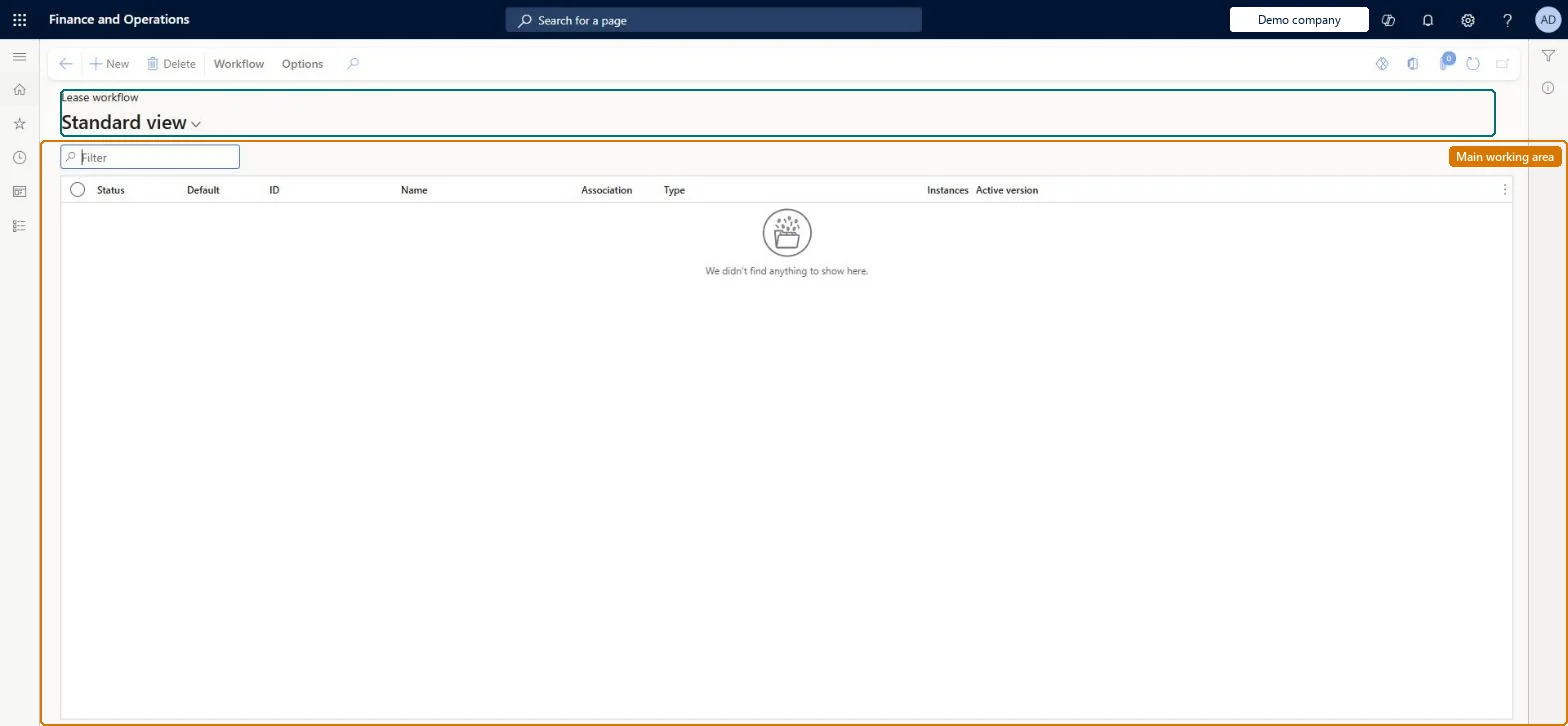
The page in Dynamics 365. page title tab to open what to set or check
About the examples: Examples and screenshots in this guide use BEAT, a demo company in a Dynamics 365 test environment. Use your own company's codes and values instead of copying them.
Setup steps on this page
Set up the lease approval workflow
Make new leases, adjustments and impairments go through approval before they post.
Steps from Microsoft
Go to Asset leasing > Setup > Lease workflow.
Select New.
Under Workflow type, select the Lease workflow link.
Drag the Lease workflow approval element onto the workflow and connect Start to it and it to End.
Set the workflow properties, then the step name, subject, instructions and assignment.
Select Save and close, and then select OK.
Select the new workflow, select Versions, and then select Make active.
Create one lease approval workflow with one approval step assigned to the lease accounting manager, and make its version active before go-live.With an active workflow, a lease is submitted from Book details > Workflow and approved from the approver's work items, which separates entry from approval.
Asset leasing must be turned on in Feature management (feature Asset leasing). Microsoft Learn describes three Asset leasing roles: Maintain lease (add, edit and post leases), View lease (view leases and schedules and run reports) and Lease clerk (create new leases only). Maintain lease users set up workflows; approvers work from Work items assigned to me.
Per company or organization: each workflow applies to the company or organization in its Association. Checked in Dynamics 365
Can it be undone
Reversible: A version can be made inactive at any time; leases already approved stay approved.
If you change it later
Once a version is active, new leases must be submitted and approved before they go on; adjustments and impairments with an active workflow can't be finished or posted until approved. Make a version inactive to stop it. Microsoft Learn
Technical architect
6Technical
Menu item
AssetLeaseWorkflowConfigurationLeaseChecked in Dynamics 365
Form
WorkflowTableListPageRnrChecked in Dynamics 365
Table
WorkflowTableShown as “WORKFLOW CONFIGURATIONS” in Record infoKey field: SequenceNumberChecked in Dynamics 365
To set it up or change itLease accountant AssetLeaseLeaseMaintainAccountant LedgerAccountantTo use itLease manager AssetLeaseLeaseViewAccounting manager LedgerAccountingManagerGive people one of these roles. On this system, 4 roles can open this page.Checked in Dynamics 365
Actions on the page
Workflow: Manage, HierarchyChecked in Dynamics 365
Load order: A lease workflow has no data entity in Data management, so it can't be loaded from a file or a configuration template. Build the workflow in the workflow editor in each environment and make its version active.Microsoft Learn
Checked in a working Dynamics 365 system, version 10.0.49: the menu item, form, table and security, the page.
To cite this step: AL-SETUP-080, Set up the lease approval workflow. Beyond ERP Atlas Hub, 2026-11-11. https://www.beyonderp.cloud/atlas/step/AL-SETUP-080