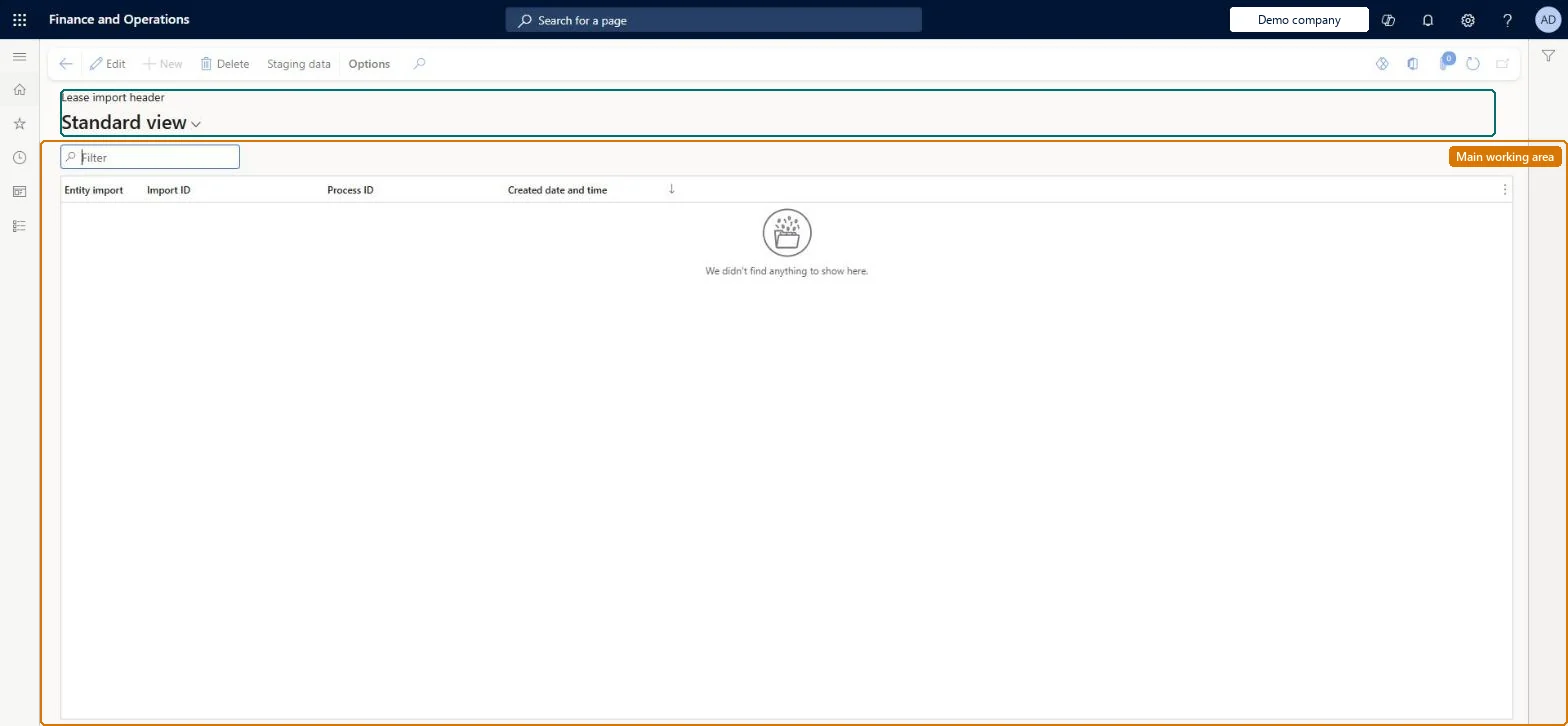
About the examples: Examples and screenshots in this guide use BEAT, a demo company in a Dynamics 365 test environment. Use your own company's codes and values instead of copying them.
Setup steps on this page
Review a lease import before migrating it
Check each staged import, its process type and its staged values before it changes leases.
Steps from Microsoft
Go to Asset leasing > Lease import framework > Import header.
Select an import, and then select Staging data.
Select a lease, and then select Compare; use See differences to review values.
The action the system performs when the lease is migrated: add, update or adjust a record.Microsoft Learn
Add record
New Value
The staged value, which you can change before migration and save with Update staging.Microsoft Learn
Common errors and fixes
Message
What to do
Compare shows nothing for an import
Compare doesn't work for the Add record process type; it compares staged values with existing leases. Validate and migrate Add record imports directly. Microsoft Learn
Migrated leases have no posted entries
Add record creates the lease only. Confirm each payment schedule and post initial recognition; Adjust record leaves the new schedule unconfirmed and the adjustment journal unposted. Microsoft Learn
Test checklist
Import a file through the Lease staging, Payment contract staging and Executory contract staging entities and check the import appears on Import header.
For an Update record or Adjust record line, select Compare, then See differences, and check current and staging values side by side.
Select Validate and fix any record that fails before migrating.
Select Migrate lease records and check that an Add record lease still needs its payment schedule confirmed and initial recognition posted.
For an Adjust record line, check that a new payment schedule exists and that the adjustment entry isn't posted yet.
Use one process type per import (Add record, Update record or Adjust record), open Staging data to check the values, and run Compare and the Differences report before migrating an Update or Adjust import.Update record overwrites only the fields in Update fields selection without adjusting the lease, while Adjust record is a financial modification that creates a new payment schedule; mixing them in one import makes the result hard to check.
Asset leasing must be turned on in Feature management (feature Asset leasing). Microsoft Learn describes three Asset leasing roles: Maintain lease (add, edit and post leases), View lease (view leases and schedules and run reports) and Lease clerk (create new leases only). Maintain lease users run imports; the upload itself needs access to Data management.
Per company: leases with their books, schedules and journals belong to the legal entity you are working in, and Lease ID numbers come from a number sequence set per company. Turn on Cross entity batch in Asset leasing parameters to create journals for other legal entities from the current one. Microsoft Learn
Can it be undone
Reversible: Staged imports change nothing until Migrate lease records runs; import records can be deleted (version 10.0.41 and later).
If you change it later
Migrating a record with the Adjust record process type makes a financial modification of the lease and creates a new payment schedule. Microsoft Learn
Technical architect
6Technical
Menu item
AssetLeaseLeaseImportHeaderChecked in Dynamics 365
Form
AssetLeaseLeaseImportHeaderChecked in Dynamics 365
Table
AssetLeaseLeaseImportHeaShown as “LEASE IMPORT HEADER” in Record infoKey field: ProcessIdChecked in Dynamics 365
Data entities
AssetLeaseLeaseImportHeaderDataEntityLease import header Checked in Dynamics 365
To set it up or change itLease accountant AssetLeaseLeaseMaintainAccountant LedgerAccountantTo use itLease manager AssetLeaseLeaseViewAccounting manager LedgerAccountingManagerGive people one of these roles. On this system, 4 roles can open this page.Checked in Dynamics 365
Actions on the page
(Action Pane without tabs): Staging dataChecked in Dynamics 365
AssetLeaseLeaseImportHeaderDataEntity data entity Checked in Dynamics 365
Data migration
AssetLeaseLeaseImportHeaderDataEntity (Lease import header): reads the import headers. Upload the file in the Data management workspace into Lease staging, Payment contract staging and Executory contract staging; each upload shows as one import on Import header.Load order: Load the Asset leasing setup in Microsoft's order: lease books, lease groups, then the parameters (journal names, posting accounts, executory cost accounts), expense types, payment amount types, index rate types and locations, and only then the leases. Then upload the staging entities, Compare (not for Add record), Validate and Migrate lease records.Load first: Lease books, Lease groups, Update fields selectionMicrosoft Learn
Checked in a working Dynamics 365 system, version 10.0.49: the menu item, form, table and security, the page.
To cite this step: AL-IMPORT-020, Review a lease import before migrating it. Beyond ERP Atlas Hub, 2026-11-11. https://www.beyonderp.cloud/atlas/step/AL-IMPORT-020