SETUP GUIDEHow to set it up8 sections. Choose a role to highlight what matters to you.
Everyone
1What it is and why
What it is
A log page that lists the actions autonomous agents performed, such as agent interactions and task completions.
What you do here
Use this page to follow what agents did, filtered by user, agent, status and a date range. The log is kept in a Dataverse table for 90 days by default.
Example
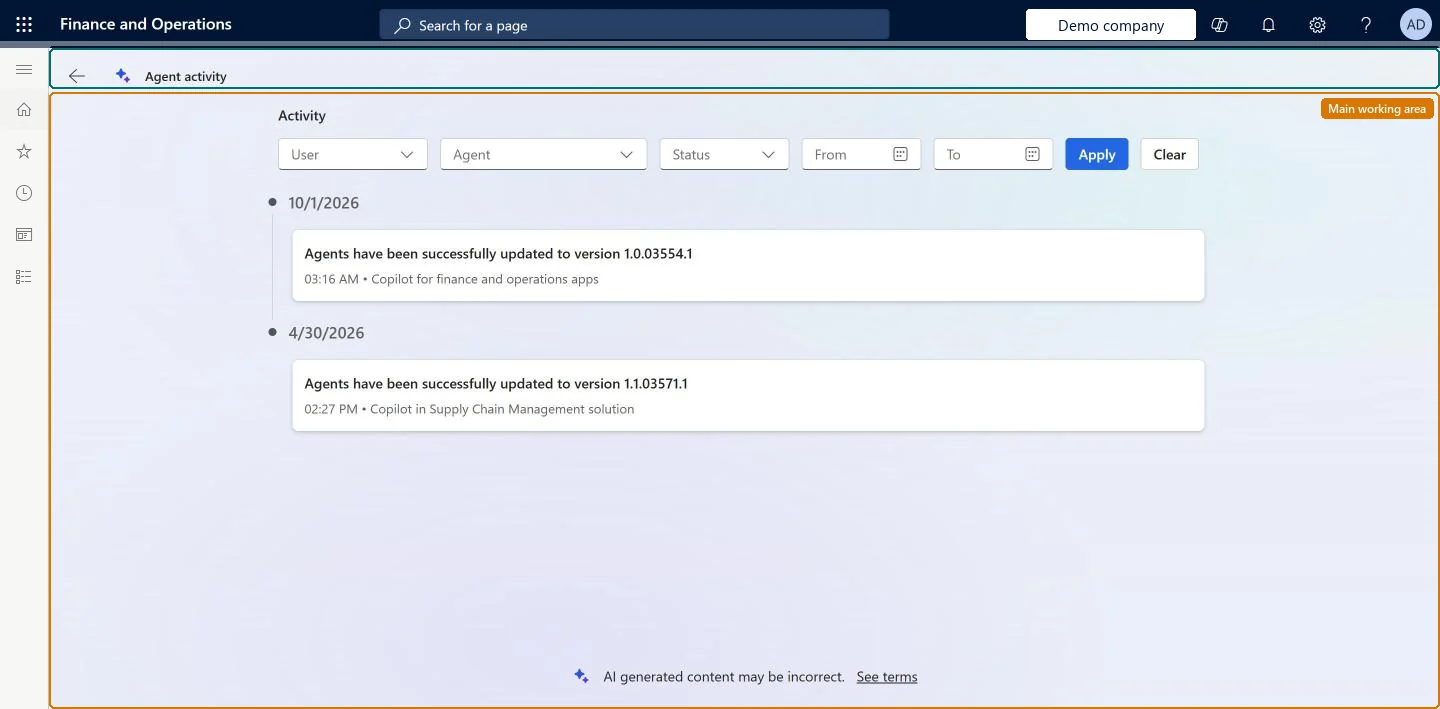
For example, BEAT's administrator opens Agent activity after the October 2026 update and sees two entries: on 10/1/2026 at 03:16 AM, Copilot for finance and operations apps updated the agents to version 1.0.03554.1, and on 4/30/2026 at 02:27 PM, the Copilot in Supply Chain Management solution updated them to version 1.1.03571.1.
The page in Dynamics 365. page title tab to open what to set or check
About the examples: Examples and screenshots in this guide use BEAT, a demo company in a Dynamics 365 test environment. Use your own company's codes and values instead of copying them.
Setup steps on this page
Review agent activity
Check what autonomous agents did, for which user and with what result, before you widen their use.
Steps from Microsoft
Go to Agents > Agent Activity, or select View activity on Immersive Home.
Set the User, Agent, Status, From and To filters and select Apply.
Read the entries under each date: the action, the time and the agent that ran it.
To stop an action an agent runs for a user, go to System administration > Inquiries > Batch jobs, find the job by agent name in Job description or by user in Created by, and delete it.
Filter: shows only the actions agents ran for this user.Checked in Dynamics 365
The accounts payable clerk whose purchase order follow-ups an agent handles.
Agent
Filter: shows only the actions of this agent.Checked in Dynamics 365
Status
Filter: shows only actions with this status.Checked in Dynamics 365
From / To
Filter: the date range of the actions to show. Select Apply to run the filters and Clear to remove them.Checked in Dynamics 365
From 10/1/2026 to 10/31/2026.
Activity entry
One logged action, grouped under its date: what happened, the time and the agent or solution that did it.Checked in Dynamics 365
Agents have been successfully updated to version 1.0.03554.1, 03:16 AM, Copilot for finance and operations apps.
Common errors and fixes
Message
What to do
Actions from more than 90 days ago are missing
The Dataverse system job Delete Copilot for finance and operations Agent activity records older than 90 days removes them. To keep a longer history, have the environment administrator change that job's retention period in the Power Platform environment settings. Microsoft Learn
The list is empty although agents are active
Select Clear to remove old filters, then check the From and To dates. Agent activity is shown only when AI agents are enabled in the environment. Microsoft Learn
Test checklist
Activate one agent on Agents > Agents.
Open Agent activity, set Agent to that agent and a From date of today, and select Apply.
Check that the agent's actions are listed with today's date.
Select Clear and check that the entries of all agents come back.
Filter on one Agent and a From and To range first, then add User or StatusThe log lists every agent's actions under each date, so without an agent filter one agent's actions are mixed with solution updates and other agents' work.
How long should agent activity be kept?Reading an empty or short list as no agent activity: entries older than the retention period (90 days by default) are deleted by a Dataverse system job, and filters from an earlier visit may still be set.Test: Filter the agent activity log
Feature management and licence
Feature to turn on
Agent management (Must be on)
Licence or add-in
Each deployed agent is billed against Copilot Studio credits. On the live system, the System user role can open this page.
The log is stored in the Copilot for Finance and Operations Agent Activity Dataverse table (msdyn_erpagentactivity) of the Dataverse environment linked to finance and operations. The page filters by user, agent, status and date; it has no legal entity filter. Microsoft Learn
Can it be undone
Reversible: The inquiry changes no data. Deleted log entries can't be restored.
If you change it later
Administrators change how long the activity history is kept through the Dataverse system job that deletes records older than the retention period (90 days by default). The job is created only after the first activity records exist. Microsoft Learn
Technical architect
6Technical
Menu item
AppCopilotAgentActivityChecked in Dynamics 365
Form
AppCopilotAgentActivityPageChecked in Dynamics 365
Table
msdyn_erpagentactivityShown as “Copilot for Finance and Operations Agent Activity (Dataverse table)” in Record infoChecked in Dynamics 365
Roles to set it up and use it
To set it up or change itSystem user SystemUserTestEssentialsRole Give people one of these roles. On this system, 2 roles can open this page.Checked in Dynamics 365
Load order: Agent Activity has no data entity in Data management. The agents write the log to the Dataverse table msdyn_erpagentactivity, so there is nothing to migrate; to keep entries longer, change the retention system job in the Power Platform environment settings.Load first: active agents on Agents > AgentsMicrosoft Learn