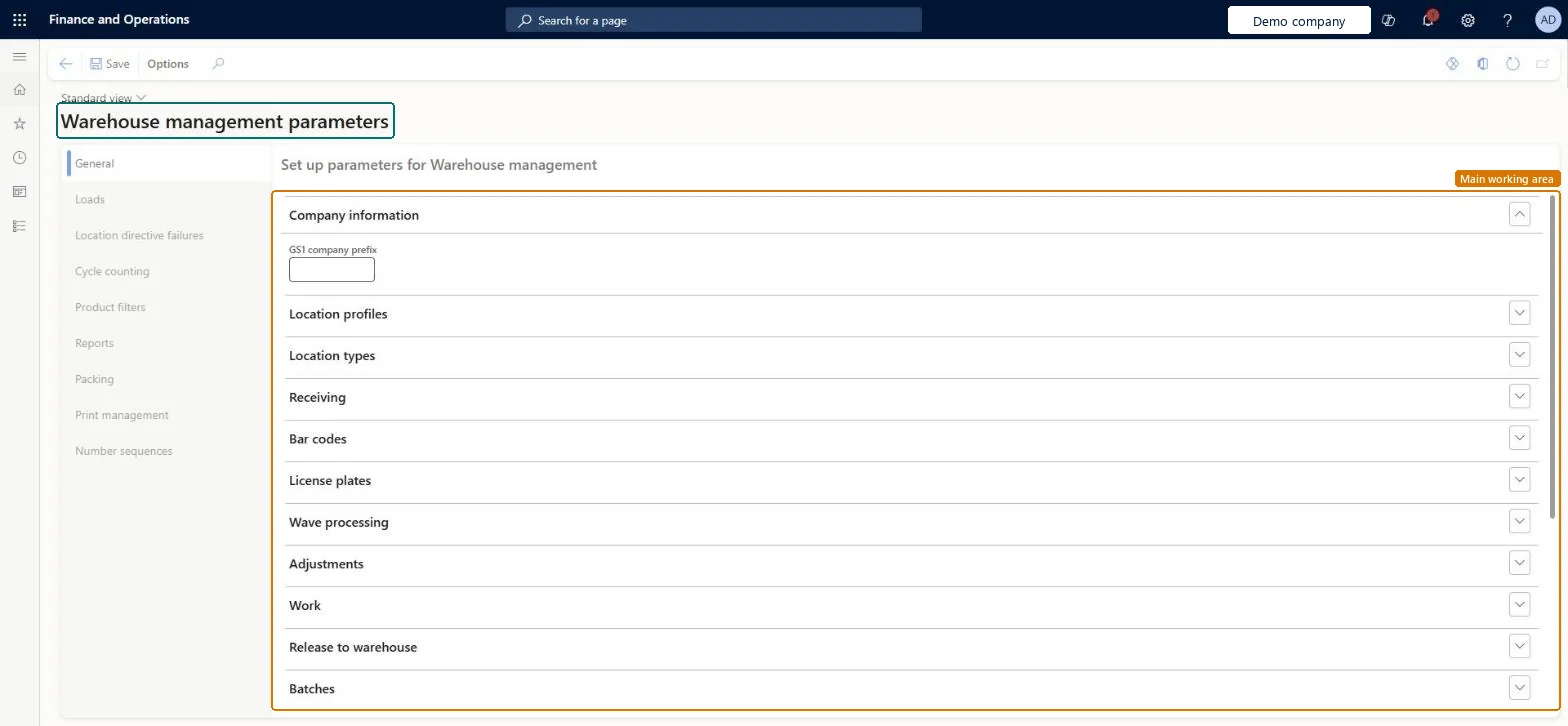
A setup page where you set the module-wide parameters for Warehouse management, grouped on the General, Loads, Location directive failures, Cycle counting, Product filters, Reports, Packing, Print management and Number sequences tabs.
Field Service Integration User, Materials manager, Production supervisor and 4 more roles
Business process
Manage warehouse operations
Menu item
WHSParameters
Main table
WHSParameters
Data entity
WHSWarehouseManagementParametersV2Entity
Setup steps
1 on this page
Show what matters for
PAGE GUIDEWhat the page does and how to use it8 sections. Choose a role to highlight what matters to you.
Everyone
1What it is and why
What it is
A setup page where you set the module-wide parameters for Warehouse management, grouped on the General, Loads, Location directive failures, Cycle counting, Product filters, Reports, Packing, Print management and Number sequences tabs.
What you do here
Use this page to set the parameters that the rest of the Warehouse management setup depends on, such as the user location profile and the staging and final shipping location types.
The page in Dynamics 365. page title tab to open what to set or check
About the examples: Examples and screenshots in this guide use BEAT, a demo company in a Dynamics 365 test environment. Use your own company's codes and values instead of copying them.
Setup steps on this page
Set up Warehouse management parameters
Use this page to set the parameters that the rest of the Warehouse management setup depends on, such as the user location profile and the staging and final shipping location types.
Steps from Microsoft
Go to Warehouse management > Setup > Warehouse management parameters.
Expand the Location profiles section and, in the User location field, select the user location profile.
Expand the Location types section.
In the Staging location type field, select the staging location type.
In the Final shipping location type field, select the final shipping location type.
Set User location profile, Staging location type and Final shipping location type before any outbound work; enter the GS1 company prefix only if you print GS1 labelsThe staging and final shipping location types tell the system where outbound work is staged and where it ends; when work ends at a final shipping location, the outbound transactions update to Picked.
Leaving Batch reservation policy for non advanced warehouses on its default, Simple, when WMS batch items are also stocked in non-WMS warehouses. FEFO and batch disposition codes are then not applied, so a batch marked unavailable can still be reserved on sales orders.Test: Outbound work ends at the final shipping location
Number sequences
Reference
Shared or per company
Note
Load ID
Per company
BEAT uses number sequence Ware_3. Checked in Dynamics 365
Shipment ID
Per company
BEAT uses number sequence Ware_7. Checked in Dynamics 365
Work transaction ID
Per company
BEAT uses number sequence Ware_11. Checked in Dynamics 365
Work ID
Per company
BEAT uses number sequence Ware_15. Checked in Dynamics 365
Work voucher
Per company
BEAT uses number sequence Ware_19. Checked in Dynamics 365
License plate
Per company
BEAT uses number sequence Ware_23. Checked in Dynamics 365
Label ID
Per company
BEAT uses number sequence Ware_27. Checked in Dynamics 365
Work creation ID
Per company
BEAT uses number sequence Ware_31. Checked in Dynamics 365
Work grouping ID
Per company
BEAT uses number sequence Ware_35. Checked in Dynamics 365
Wave ID
Per company
BEAT uses number sequence Ware_39. Checked in Dynamics 365
Release to warehouse ID
Per company
BEAT uses number sequence Ware_43. Checked in Dynamics 365
Bill of lading ID
Per company
BEAT uses number sequence Ware_47. Checked in Dynamics 365
Container transaction ID
Per company
BEAT uses number sequence Ware_51. Checked in Dynamics 365
Temporary tote ID
Per company
BEAT uses number sequence Ware_55. Checked in Dynamics 365
Wave processing ID
Per company
BEAT uses number sequence Ware_59. Checked in Dynamics 365
Cluster ID
Per company
BEAT uses number sequence Ware_63. Checked in Dynamics 365
Container ID
Per company
BEAT uses number sequence Ware_67. Checked in Dynamics 365
Containerization process ID
Per company
BEAT uses number sequence Ware_71. Checked in Dynamics 365
Warehouse receipt ID
Per company
BEAT uses number sequence Ware_75. Checked in Dynamics 365
Return ID
Per company
BEAT uses number sequence Ware_79. Checked in Dynamics 365
Reversible: Parameters can be changed at any time and act on work, reservations and numbers created afterwards. Changing the GS1 company prefix changes every number sequence extension that uses the GS1 prefix segment. Microsoft Learn
If you change it later
Changing the GS1 company prefix affects all number sequences that include the GS1 prefix as a segment. Microsoft Learn
Technical architect
6Technical
Menu item
WHSParametersChecked in Dynamics 365
Form
WHSParametersChecked in Dynamics 365
Table
WHSParametersShown as “WAREHOUSE MANAGEMENT PARAMETERS” in Record infoChecked in Dynamics 365
Data entities
WHSWarehouseManagementParametersV2EntityWarehouse management parameters V2 Microsoft data model
Who can open it
PrivilegesMaintain warehouse management parameters WHSParametersMaintainView warehouse management parameters WHSParametersViewDutiesInquire into warehouse operation master WMSWarehouseOperationMasterInquireMaintain warehouse operation master WMSWarehouseOperationMasterMaintainInquire into warehouse operation policies WMSWarehouseOperationPoliciesInquireEnable warehouse operation process WMSWarehouseOperationProcessEnable7 security rolesField Service Integration User FieldServiceIntegrationUserMaterials manager InventMaterialsManagerProduction supervisor ProdProductionSupervisorProcess engineer RouteProcessEngineerProcess engineering manager RouteProcessEngineeringManagerWarehouse planner WHSWarehousePlannerWarehouse manager WMSWarehouseManagerChecked in Dynamics 365
Roles to set it up and use it
To set it up or change itWarehouse manager WMSWarehouseManagerProcess engineer RouteProcessEngineerTo use itWarehouse planner WHSWarehousePlannerProduction supervisor ProdProductionSupervisorProcess engineering manager RouteProcessEngineeringManagerField Service Integration User FieldServiceIntegrationUserMaterials manager InventMaterialsManagerGive people one of these roles. On this system, 7 roles can open this page.Checked in Dynamics 365