PAGE GUIDEWhat the page does and how to use it7 sections. Choose a role to highlight what matters to you.
Everyone
1What it is and why
What it is
A periodic task that sets up the batch job that adds shipment lines that could not be allocated to a new wave and creates work for them.
What you do here
Use this task to schedule the batch job that automatically rewaves shipment lines that failed during wave processing, so that nobody has to monitor and recreate that work by hand.
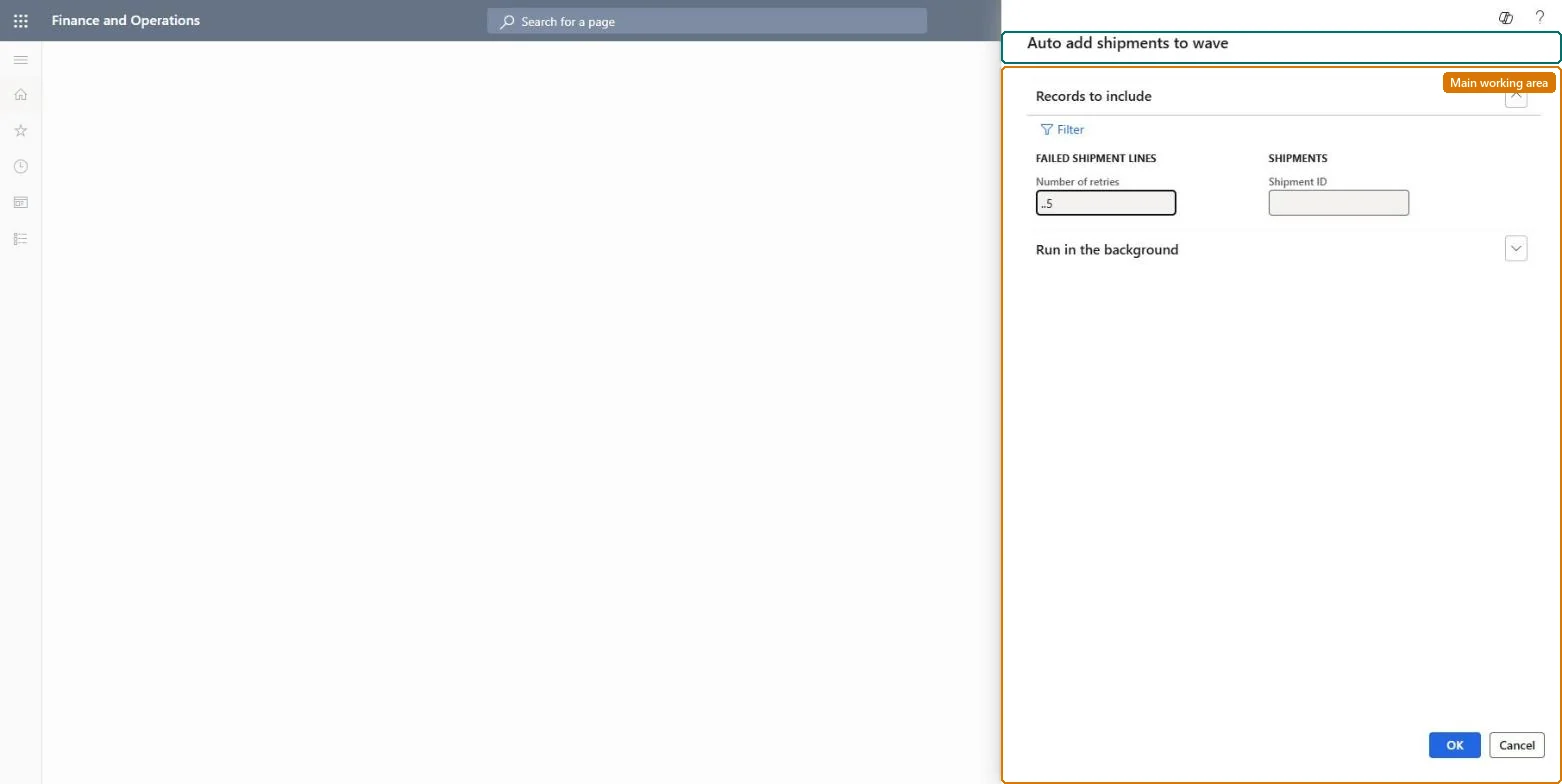
The page in Dynamics 365. page title tab to open what to set or check
About the examples: Examples and screenshots in this guide use BEAT, a demo company in a Dynamics 365 test environment. Use your own company's codes and values instead of copying them.
When to run it
When to run it
After inventory shortages during wave processing leave shipment lines unallocated, so they are added to a new wave once replenishment has brought stock to the picking locations.
How often
As often as your replenishment cycle makes stock available again; you choose the interval, with each line retried at most five times.
Batch settings
Run it as a recurring batch job together with the Wave processing removed shipment cleanup job.
What the output shows
New waves and work for shipment lines that failed allocation earlier, and removal of placeholders for lines that were rewaved. A line marked Failed after five tries needs manual attention: let the cleanup remove it, then add it to a wave by hand.
Go to Warehouse management > Outbound waves > Auto add shipments to wave.
First set Process waves in batch to Yes in Warehouse management parameters; rewaving only works when waves are processed in batch.
Note the Task description (default Auto add shipments to wave) or change it, so you can find the job again on the Batch jobs page.
Schedule the job with a recurrence that sets how often and how long it runs, and limit the shipment lines it looks at with the query if needed. The Number of retries filter is always 5 and read-only.
Also schedule Wave processing removed shipment cleanup, which removes failed and old lines from the Failed shipment lines table.
Watch Warehouse management > Shipments > Failed shipment lines for the status, failure reason and retry count of each line.
Partly: Waves and work that the job created can be cancelled like any other wave before picking; the retry count of a line isn't reset. Microsoft Learn
If you change it later
Creates waves and work for previously failed shipment lines and removes their placeholders from the Failed shipment lines table. Microsoft Learn
Technical architect
5Technical
Menu item
action:WHSAutoAddShipmentsToWave
Roles to set it up and use it
To use itWarehouse planner WHSWarehousePlannerGive people one of these roles. On this system, 1 role can run this page.Checked in Dynamics 365