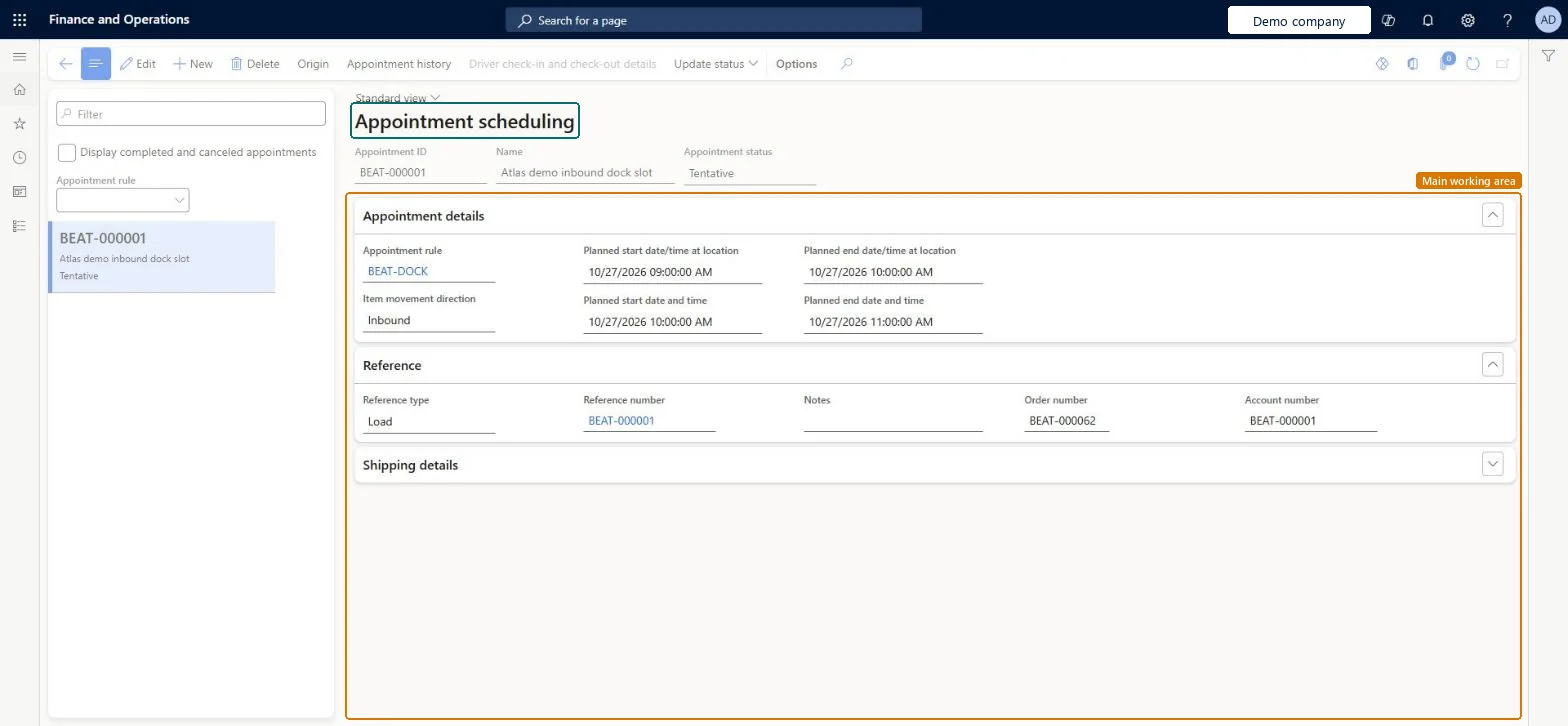
A details page where you set up and plan dock appointments for inbound and outbound loads, each reflecting a date and time agreed with the carrier for picking up or dropping off a load.
PAGE GUIDEWhat the page does and how to use it7 sections. Choose a role to highlight what matters to you.
Everyone
1What it is and why
What it is
A details page where you set up and plan dock appointments for inbound and outbound loads, each reflecting a date and time agreed with the carrier for picking up or dropping off a load.
What you do here
Use this page to keep track of dock appointments and to plan ahead so that there is enough capacity to handle the trucks that arrive for loading and unloading.
Example
For example, appointments help ensure that docks are available and prevent several carriers from arriving at the same location at the same time.
The page in Dynamics 365. page title tab to open what to set or check
About the examples: Examples and screenshots in this guide use BEAT, a demo company in a Dynamics 365 test environment. Use your own company's codes and values instead of copying them.
Steps from Microsoft
Go to Transportation management > Planning > Dock appointment scheduling > Appointment scheduling.
On the Action Pane, select New.
In the Appointment rule field, enter or select the loading or unloading dock that you want to schedule the appointment for.
Select a Planned start date/time at location value, using the local time zone at the facility.
Select Save.
Select Update status > Firm, and then select Save.
Reversible: An appointment is planned against an appointment rule and can be updated until the driver checks in. After you firm it, the status is Waiting until check-in. Enter the Planned start date/time at location in the facility's local time; the system-time fields are derived from it. Microsoft Learn
Technical architect
5Technical
Menu item
TMSAppointmentChecked in Dynamics 365
Form
TMSAppointmentChecked in Dynamics 365
Table
TMSAppointmentShown as “APPOINTMENT” in Record infoKey field: ApptIdChecked in Dynamics 365
PrivilegesMaintain appointments TMSAppoinmtmentMaintainView appointments TMSAppointmentViewDutiesEnable appointment scheduling processes TMSAppointmentScheduleMaintainInquire into appointment scheduling status TMSAppointmentScheduleStatusInquireReview transportation management process performance TMSTransportationMgmtProcessPerfReview2 security rolesLogistics manager TMSLogisticsManagerTransportation coordinator TMSTransportationCoordinatorChecked in Dynamics 365
Roles to set it up and use it
To set it up or change itTransportation coordinator TMSTransportationCoordinatorTo use itLogistics manager TMSLogisticsManagerGive people one of these roles. On this system, 2 roles can open this page.Checked in Dynamics 365
Actions on the page
(Action Pane without tabs): Origin, Appointment history, Driver check-in and check-out details, Update statusChecked in Dynamics 365