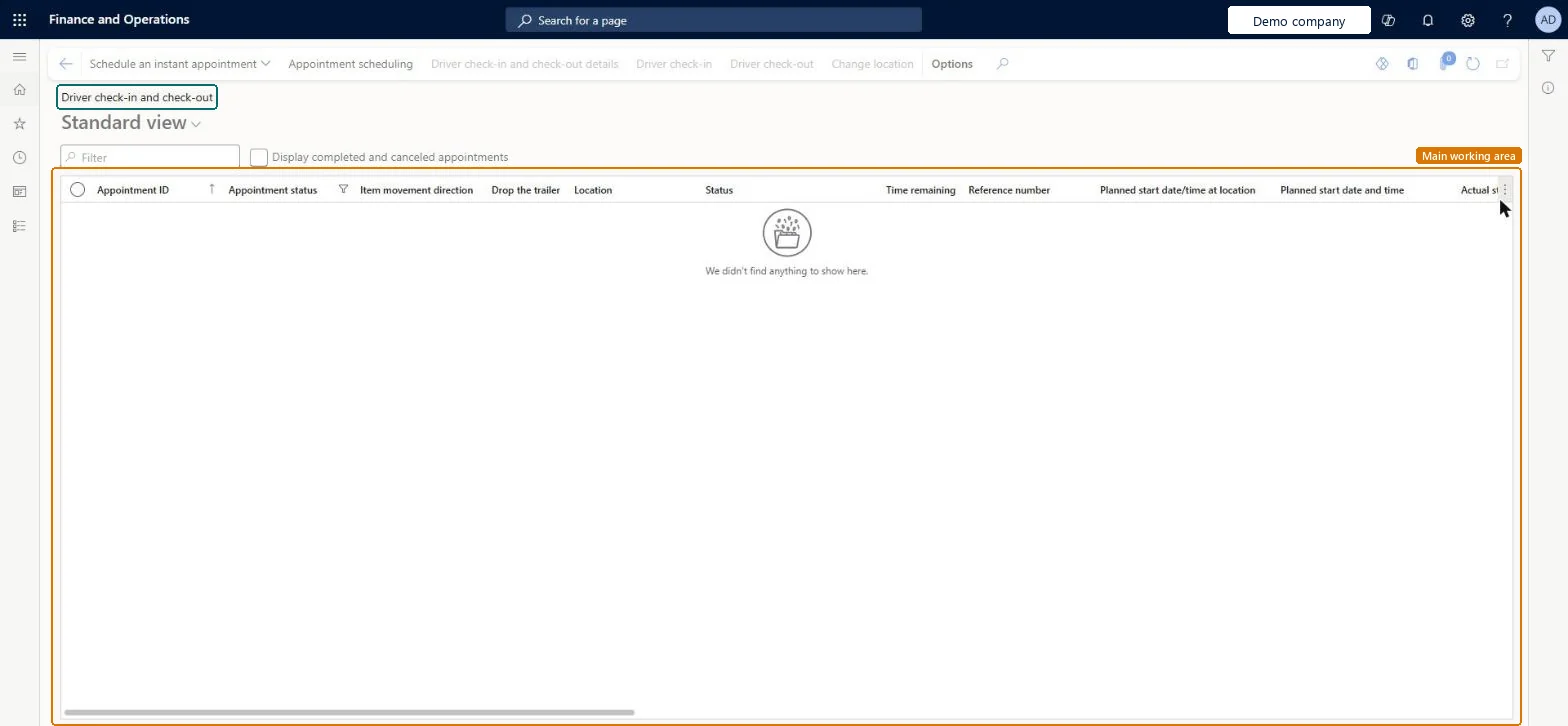
A list page that shows dock appointments and where you register driver check-in and check-out events, which represent drivers arriving at or leaving a facility.
PAGE GUIDEWhat the page does and how to use it7 sections. Choose a role to highlight what matters to you.
Everyone
1What it is and why
What it is
A list page that shows dock appointments and where you register driver check-in and check-out events, which represent drivers arriving at or leaving a facility.
What you do here
Use this page to keep track of whether loads have been picked up or dropped off, and to confirm whether carriers arrive and depart within the agreed appointments.
Example
For example, transportation managers can use the appointment statuses to follow up with carriers on loads that deviated from the plan and to mitigate delays.
The page in Dynamics 365. page title tab to open what to set or check
About the examples: Examples and screenshots in this guide use BEAT, a demo company in a Dynamics 365 test environment. Use your own company's codes and values instead of copying them.
Steps from Microsoft
Go to Transportation management > Planning > Dock appointment scheduling > Driver check-in and check-out.
Set the Display completed and canceled appointments check box as needed.
Select an appointment.
On the Action Pane, select Driver check-in, enter the Actual start date/time at location, fill in the fields in The driver's information dialog as needed, and select OK.
After loading or unloading has finished and the driver has left the facility, select the appointment and, on the Action Pane, select Driver check-out.
Fill in the fields in The driver's information dialog as needed, and select OK.
Shows how the actual driver check-in and check-out times compare to the scheduled times, for example Waiting, Checked in, Completed or Late on check in.Microsoft Learn
ApptStatus
Display completed and canceled appointments
When selected, closed appointments are also shown in the grid.Microsoft Learn
Test checklist
In Transportation management parameters, on the General tab, set Alert interval on the Driver check-in and check out FastTab.
Select a Waiting appointment, select Driver check-in and enter Actual start date/time at location inside the window; check status is Checked in.
Leave it past the alert interval and check the status changes to Late on check out.
Select Driver check-out and check the status becomes Completed late; repeat on time on another appointment and check Completed.
Repeat a check-in on the Warehouse Management mobile app by scanning the load or appointment ID.
Hard to reverse: Check-in and check-out record actual times against the appointment and set its status (Checked in, Completed, Completed late, Late on check out). These statuses feed carrier timeliness trends, so a wrong time distorts reporting. Learn does not describe how to cancel a registered check-in. Microsoft Learn
Technical architect
5Technical
Menu item
TMSDriverLogListPageChecked in Dynamics 365
Form
TMSDriverLogListPageChecked in Dynamics 365
Table
TMSDriverLogShown as “DRIVER LOG” in Record infoKey field: ApptIdChecked in Dynamics 365
Data entities
TMSTransportationAppointmentDriverLogEntityTransportation appointment driver logs Microsoft data model
Who can open it
PrivilegesMaintain driver logs using a list page TMSDriverLogListPageMaintainView driver logs using a list page TMSDriverLogListPageViewDutiesEnable appointment scheduling processes TMSAppointmentScheduleMaintainInquire into appointment scheduling status TMSAppointmentScheduleStatusInquireReview transportation management process performance TMSTransportationMgmtProcessPerfReview2 security rolesLogistics manager TMSLogisticsManagerTransportation coordinator TMSTransportationCoordinatorChecked in Dynamics 365
Roles to set it up and use it
To set it up or change itTransportation coordinator TMSTransportationCoordinatorTo use itLogistics manager TMSLogisticsManagerGive people one of these roles. On this system, 2 roles can open this page.Checked in Dynamics 365
Actions on the page
(Action Pane without tabs): Schedule an instant appointment, Appointment scheduling, Driver check-in and check-out details, Driver check-in, Driver check-out, Change locationChecked in Dynamics 365