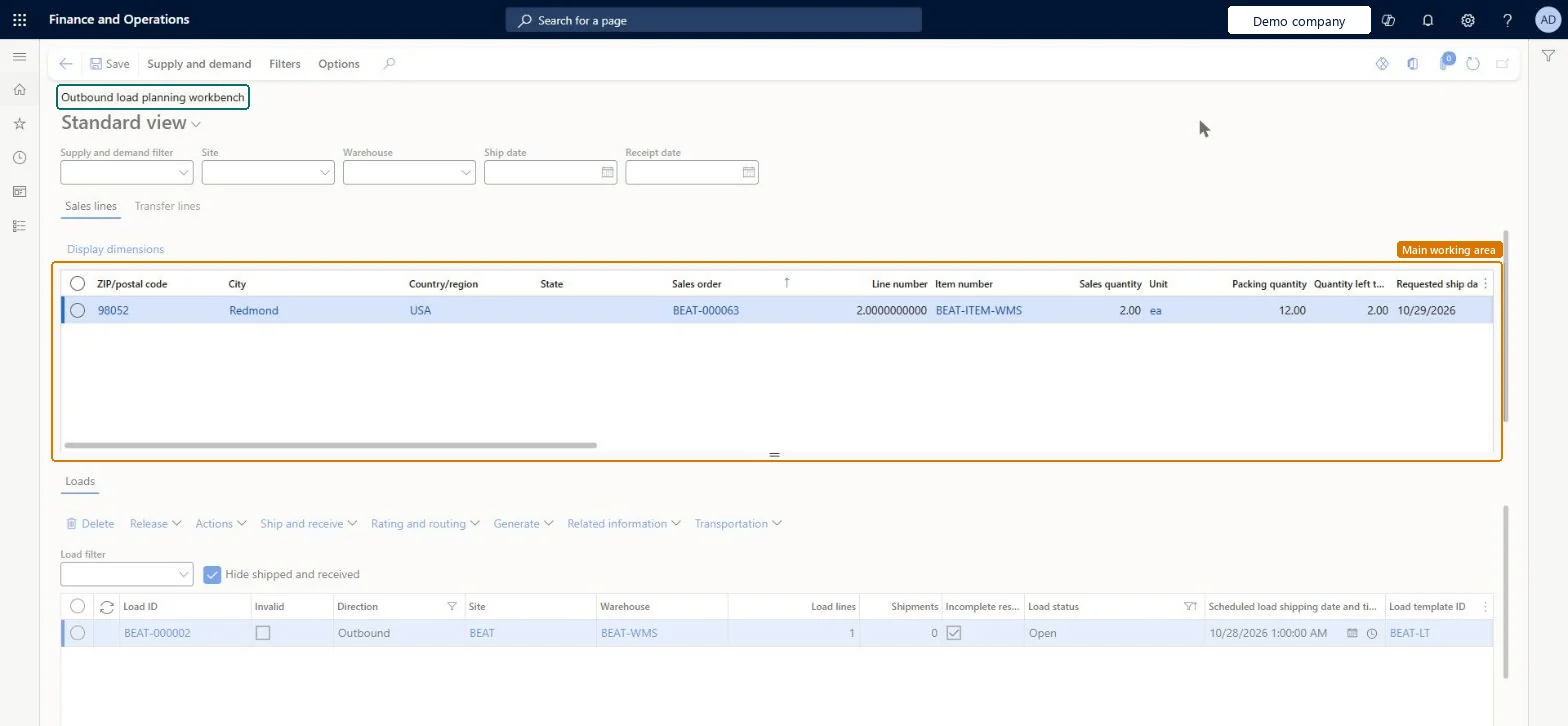
About the examples: Examples and screenshots in this guide use BEAT, a demo company in a Dynamics 365 test environment. Use your own company's codes and values instead of copying them.
Steps from Microsoft
Go to Transportation management > Planning > Outbound load planning workbench.
Select the tab for the type of line to build the load from, for example Sales lines.
Select the order lines to include in the load.
On the Action Pane, open the Supply and demand tab and select To new load.
In the Load template ID field, select the load template that represents the container or vehicle to use.
The load template for the new load. It defines the maximum weight and volume for the whole load, for example the size of a container or a truck.Microsoft Learn
LoadTemplateId
Supply and demand filter
Applies a saved load planning filter so that the page shows only the order lines that match it.Microsoft Learn
Test checklist
In Warehouse management parameters, on the General tab, under Performance settings, check that Transportation management actions usage is Used.
On the Sales lines tab, select open lines and choose Supply and demand > To new load, picking a Load template ID.
Select the load and open Rating and routing > Rate route workbench, then select Rate shop.
Select a result on the Route results FastTab and select Assign; check the carrier, service and rate are on the load.
Create a load planning filter of type Sales order, set it in Supply and demand filter and check that only matching lines show.
Reversible: Loads and filters you build here can be changed until the load is released and shipped. A supply and demand filter you mark with Set as default applies when the workbench opens, and you can change it at any time. Rating needs the load's Loading strategy set to Full load shipping only. Microsoft Learn
Technical architect
5Technical
Menu item
WHSOutboundLoadPlanningWorkbenchChecked in Dynamics 365
Form
WHSOutboundLoadPlanningWorkbenchChecked in Dynamics 365
Table
SalesLineShown as “ORDER LINES” in Record infoKey field: InventTransIdChecked in Dynamics 365
To set it up or change itTransportation coordinator TMSTransportationCoordinatorTo use itLogistics manager TMSLogisticsManagerWarehouse manager WMSWarehouseManagerWarehouse planner WHSWarehousePlannerGive people one of these roles. On this system, 4 roles can open this page.Checked in Dynamics 365
Actions on the page
Supply and demand: Add, Related information, ConsolidateFilters: ManageChecked in Dynamics 365