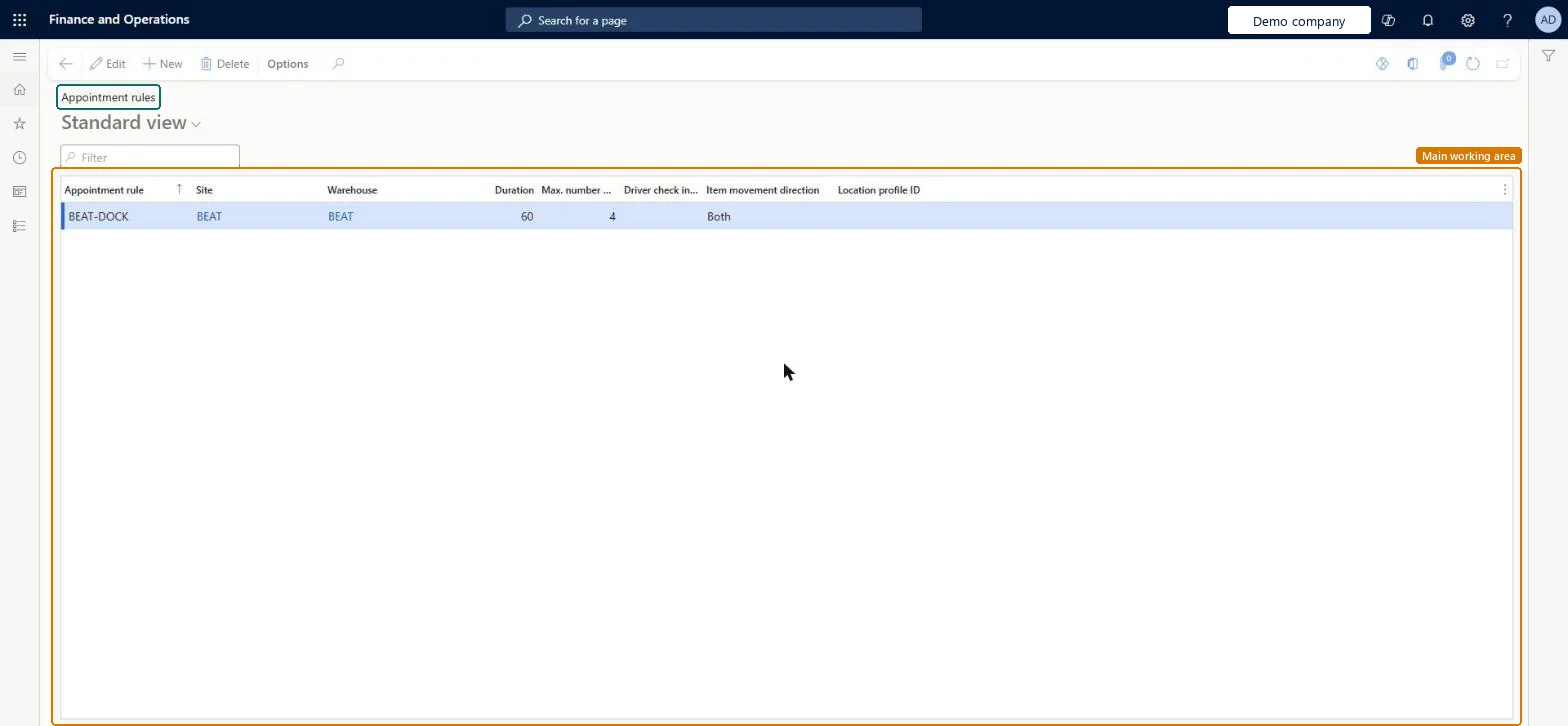
A setup page where you configure appointment rules, which represent the physical loading or unloading docks in a warehouse that dock appointments are scheduled for.
PAGE GUIDEWhat the page does and how to use it8 sections. Choose a role to highlight what matters to you.
Everyone
1What it is and why
What it is
A setup page where you configure appointment rules, which represent the physical loading or unloading docks in a warehouse that dock appointments are scheduled for.
What you do here
Use this page to define how many docks there are per warehouse and whether they can receive inbound or outbound loads, so that appointments for loads can be scheduled against them.
The page in Dynamics 365. page title tab to open what to set or check
About the examples: Examples and screenshots in this guide use BEAT, a demo company in a Dynamics 365 test environment. Use your own company's codes and values instead of copying them.
Setup steps on this page
Set up Appointment rules
Use this page to define how many docks there are per warehouse and whether they can receive inbound or outbound loads, so that appointments for loads can be scheduled against them.
How to use it
Go to Transportation management > Setup > Appointment scheduling > Appointment rules.
Select New.
Enter the Appointment rule, and select the Site and Warehouse.
Enter the Duration and complete the other columns, such as Item movement direction and Location profile ID.
Use the Filter box to find an existing rule, or select Delete to remove one.
Source: Checked in Dynamics 365
Fields on the page
Field
What it means
Table column
Duration
The length of an appointment. When an appointment is scheduled with this rule, the planned end date and time is filled in from this value.Microsoft Learn
DefaultDuration
Test checklist
Create a rule for a warehouse with direction set for outbound loads and a Duration of your standard slot.
Create an appointment for an outbound load using this rule.
Check Planned end date/time at location equals the start plus the Duration.
Try the rule on an inbound load and check it is only offered when the rule allows inbound.
One rule per physical dock or dock group per warehouse, set for inbound and/or outbound, with a Duration that covers arrival, loading or unloading, shipping documents and departureThe appointment rule stands for the physical dock, and its Duration sets the planned end of every appointment, so it must cover the full time the truck occupies the dock.
A Duration that only covers loading time makes appointments end too early, so docks look free when they are not and drivers show as late on check-out.Test: Appointment rule sets the appointment end time
Reversible: The rule's Duration is copied into the planned end time when an appointment is created, so a change applies to new appointments only. Microsoft Learn
Technical architect
6Technical
Menu item
TMSCalendarTypeChecked in Dynamics 365
Form
TMSCalendarTypeChecked in Dynamics 365
Table
TMSCalendarTypeShown as “APPOINTMENT RULE” in Record infoKey field: CalendarTypeIdChecked in Dynamics 365
Data entities
TMSTransportationAppointmentRuleEntityTransportation appointment rules Microsoft data model
To set it up or change itLogistics manager TMSLogisticsManagerTo use itTransportation coordinator TMSTransportationCoordinatorGive people one of these roles. On this system, 2 roles can open this page.Checked in Dynamics 365
TMSTransportationAppointmentRuleEntity (Transportation appointment rules): loaded for each company, in Microsoft's default template 405 - Transportation management.Load order: Microsoft's default template 405 - Transportation management loads Transportation appointment rules at execution unit 1, level 405, sequence 10. Lower levels load first, and entities at the same level load in sequence order.Load first: the default templates at lower levels (System setup to Warehouse management)Microsoft Learn