PAGE GUIDEWhat the page does and how to use it8 sections. Choose a role to highlight what matters to you.
Everyone
1What it is and why
What it is
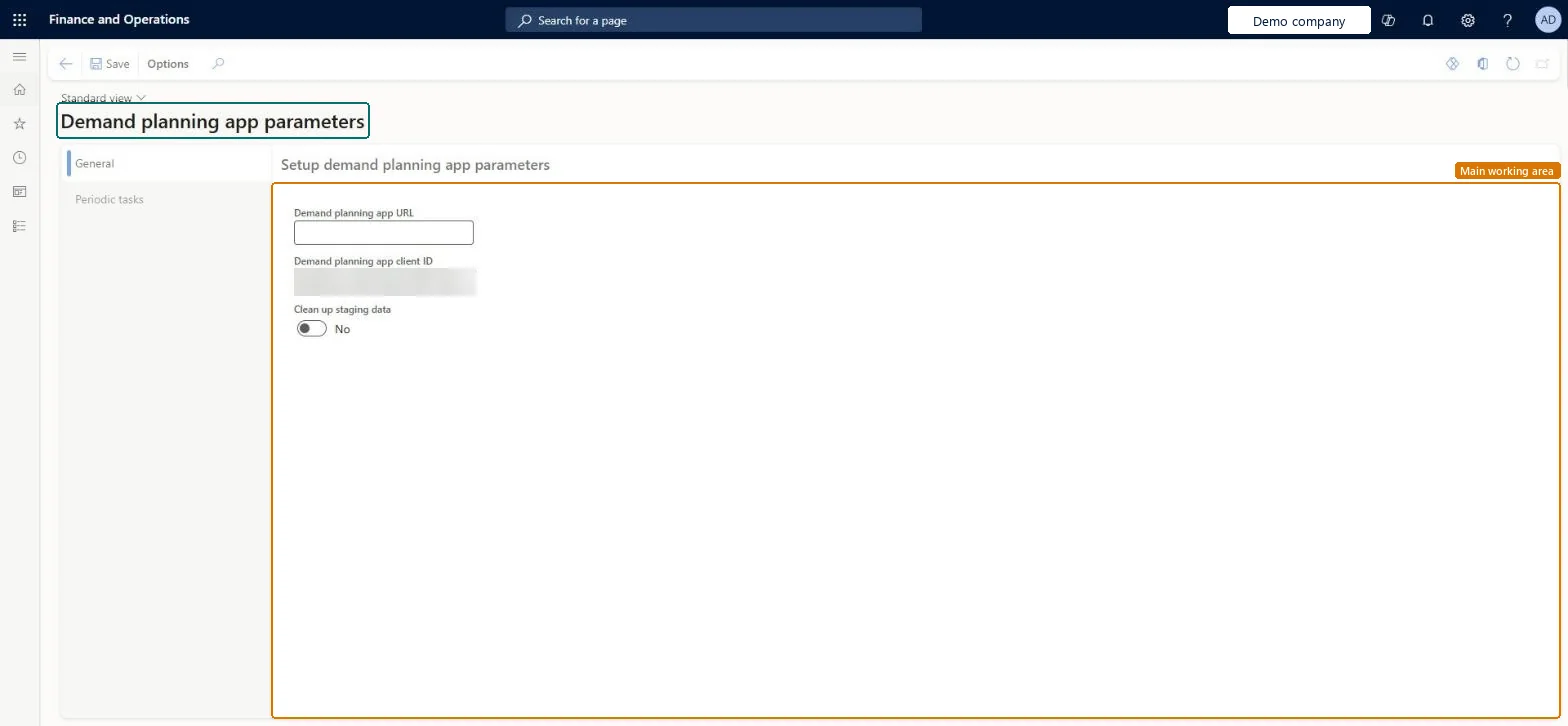
A setup page where you enter the URL of the Demand planning app so that Supply Chain Management can work with it.
What you do here
Use this page to enable and configure Demand planning in Supply Chain Management after the app is installed.
Example
For example, after Demand planning is installed on the same tenant, BEAT enters the app URL here, sets the Demand forecast sequence number sequence to Preallocation = Yes with 500 numbers, and refreshes the entity list so the built-in import and export profiles work.
The page in Dynamics 365. page title tab to open what to set or check
About the examples: Examples and screenshots in this guide use BEAT, a demo company in a Dynamics 365 test environment. Use your own company's codes and values instead of copying them.
Setup steps on this page
Set up Demand planning app parameters
Use this page to enable and configure Demand planning in Supply Chain Management after the app is installed.
Steps from Microsoft
In the Feature management workspace, turn on the Demand Planning feature.
Go to System administration > Setup > Demand planning app parameters.
On the General tab, enter the Demand planning app URL.
Go to Master planning parameters and open the number sequence for Demand forecast sequence number.
Set Preallocation to Yes and Quantity of numbers to 500, and save.
In the Data management workspace, open Framework parameters.
On the Entity settings tab, select Refresh entity list.
The address where the Demand planning app is installed.Microsoft Learn
AppURL
Common errors and fixes
Message
What to do
Demand planning imports or exports don't work correctly
Set Preallocation = Yes and Quantity of numbers = 500 on the Demand forecast sequence number sequence, and select Refresh entity list in Data management > Framework parameters > Entity settings. Microsoft Learn
Test checklist
Enter the Demand planning app URL and save.
Check the Demand forecast sequence number sequence has Preallocation = Yes and Quantity of numbers = 500.
Refresh the entity list in Data management > Framework parameters > Entity settings.
Open Demand planning from the Supply Chain Management home page and run an import profile.
The URL where Demand planning is installed, on the same tenant as Supply Chain ManagementDemand planning must be on the same tenant so the built-in import and export profiles work; the Demand planning app URL links Supply Chain Management to it.
Where should Demand planning be installed?Skipping the related steps: set Preallocation = Yes with 500 numbers on the Demand forecast sequence number sequence, and refresh the data entity list, or imports and exports may not work correctly.Test: Demand planning is linked
Feature management and licence
Feature to turn on
Demand Planning (Mandatory, on by default)
Licence or add-in
On this system the page opens for Production planner and Production manager. Each Demand planning user in production needs a Demand planning licence. The Demand Planning feature is mandatory and on by default.
One URL for the environment: it links Supply Chain Management to the Demand planning app installed on the same tenant. Microsoft Learn
Can it be undone
Reversible: Change the Demand planning app URL at any time; it only changes which Demand planning environment is linked. Microsoft Learn
If you change it later
Demand planning must be on the same tenant as Supply Chain Management so the built-in import and export profiles work; changing the URL changes which Demand planning environment is linked. Microsoft Learn
Technical architect
6Technical
Menu item
ScpDemandPlanningAppParametersChecked in Dynamics 365
Form
ScpDemandPlanningAppParametersChecked in Dynamics 365
Table
ScpDemandPlanningAppParametersShown as “Demand planning app parameters” in Record infoChecked in Dynamics 365
Who can open it
PrivilegesMaintain demand planning app parameters ScpDemandPlanningAppParametersMaintainDutiesEnable the demand forecasting process ReqDemPlanProcessEnableMaintain the master for demand forecasting parameters ReqDemPlanSetupMaintain2 security rolesProduction manager ProdProductionManagerProduction planner ReqProductionPlannerChecked in Dynamics 365
Roles to set it up and use it
To set it up or change itProduction planner ReqProductionPlannerProduction manager ProdProductionManagerGive people one of these roles. On this system, 2 roles can open this page.Checked in Dynamics 365
Actions on the page
Options: Personalize, Page options, Edit, ShareChecked in Dynamics 365
Load order: Demand planning app parameters has no data entity in Data management, so it can't be loaded from a file or a configuration template. Enter the Demand planning app URL by hand in each environment after Demand planning is installed for it.Checked in Dynamics 365