BeyondERP.Newsletter
Menu

Setup page · System administration

Allowed MCP clients

A setup page that lists the agent platforms (by client ID) that are allowed to connect to the Dynamics 365 ERP MCP server.

Used by
Information technology manager
Business process
Administer system features
Menu item
McpAllowedClient
Main table
MCPAllowedClientTable
Setup steps
1 on this page
Show what matters for
PAGE GUIDEWhat the page does and how to use it8 sections. Choose a role to highlight what matters to you.
Everyone

1What it is and why

What it isA setup page that lists the agent platforms (by client ID) that are allowed to connect to the Dynamics 365 ERP MCP server.
What you do hereUse this page to allow more agent platforms, such as a newly registered app, to use the MCP server.
ExampleFor example, to connect the Finance Agent, add both the Finance Agent and M365 Copilot client IDs and set them to allowed.
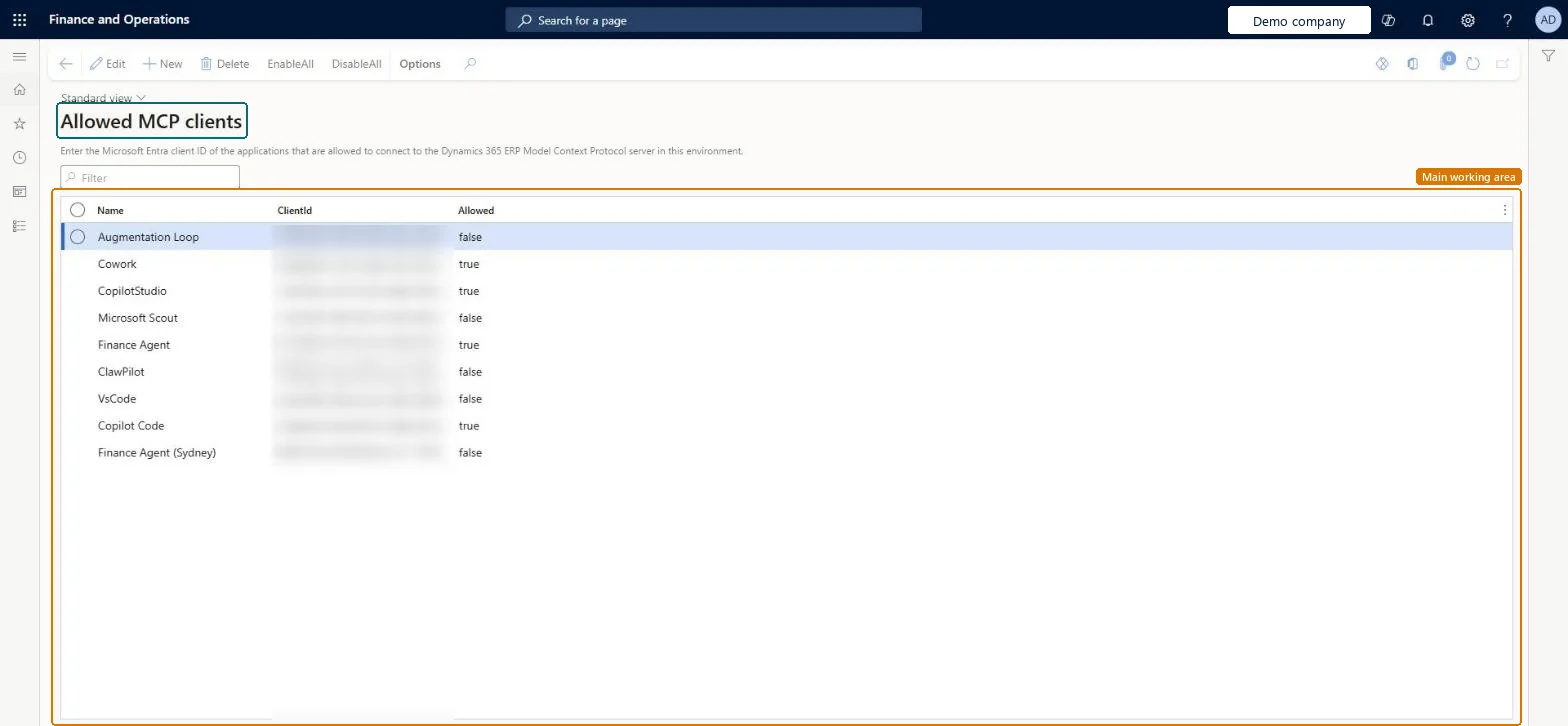
Allowed MCP clients page in Dynamics 365
The page in Dynamics 365. page title tab to open what to set or check
Functional consultant · Solution architect

2Where it fits

End user · Functional consultant

3How to do it

About the examples: Examples and screenshots in this guide use BEAT, a demo company in a Dynamics 365 test environment. Use your own company's codes and values instead of copying them.

Setup steps on this page

Set up Allowed MCP clients

Use this page to allow more agent platforms, such as a newly registered app, to use the MCP server.

Steps from Microsoft

  1. Go to System administration > Setup > Allowed MCP clients.
  2. Select New.
  3. In Name, enter a name for the MCP connection.
  4. In ClientId, enter the Application (client) ID of the registered app.
  5. Set Allowed to true.

Source: Microsoft Learn

Fields on the page

FieldWhat it meansTable column
NameA name for the MCP connection.Microsoft Learn ClientName
ClientIdThe Application (client) ID of the app registered in Microsoft Entra ID.Microsoft Learn ClientId
AllowedSet to true so that the client can connect.Microsoft Learn Allowed

Common errors and fixes

MessageWhat to do
An agent platform can't connect to the MCP serverAdd the Application (client) ID of its registered Microsoft Entra app here with Allowed set to true. Microsoft Learn

Test checklist

  1. Register the agent platform's application in Microsoft Entra ID.
  2. Add its ClientId with Allowed set to true.
  3. Connect from the agent client as a test user and read a record the user can access.
  4. Try an action the user's roles don't allow and check that it's refused.

Source: Microsoft Learn

Functional consultant

4Setup decisions

Setup stepRecommended value and whyDecision, common mistake and test
Set up Allowed MCP clientsKeep the default platforms and add only the client IDs of Entra apps registered for agent platforms your organization has approved, with Allowed set to trueThis list controls which agent clients can connect to the Dynamics 365 ERP MCP server; it doesn't change what users can do, because each request runs under the user's own roles.Which agent platforms may connect?Using this page to limit what agents can do. It only allows or blocks clients; to change access, update the users' security roles, duties and privileges.Test: An allowed client works within the user's roles

Feature management and licence

Licence or add-inOn this system the page opens for Information technology manager. The Dynamics 365 ERP MCP server must be turned on in Feature management first.

Microsoft Learn

Solution architect

5Design impact

Shared or per companyApplies to the environment's Dynamics 365 ERP MCP server: a client allowed here can connect, and every request still runs under the signed-in user's own security roles. Microsoft Learn
Can it be undoneReversible: Change Allowed for a client at any time. Microsoft Learn
If you change it laterAllowing a client doesn't widen access: users still can only do what their security roles allow. Microsoft Learn
Technical architect

6Technical

Menu itemMcpAllowedClient Checked in Dynamics 365
FormMcpAllowedClient Checked in Dynamics 365
TableMCPAllowedClientTableShown as “Allowed MCP clients” in Record infoChecked in Dynamics 365
Who can open itPrivileges McpAllowedClientDutiesMaintain system settings SysServerSettingsMaintain
1 security roleInformation technology manager SysServerITManager
Checked in Dynamics 365
Roles to set it up and use itTo set it up or change itInformation technology manager SysServerITManagerGive people one of these roles. On this system, 1 role can open this page.Checked in Dynamics 365
Actions on the pageOptions: Personalize, Page options, ShareChecked in Dynamics 365
Developer

7Developer

Open it by URLhttps://<your-environment>/?mi=McpAllowedClient
Data migrationLoad order: Allowed MCP clients has no data entity in Data management, so it can't be loaded from a file or a configuration template. Add the client IDs by hand in each environment.Checked in Dynamics 365
Everyone

8Sources