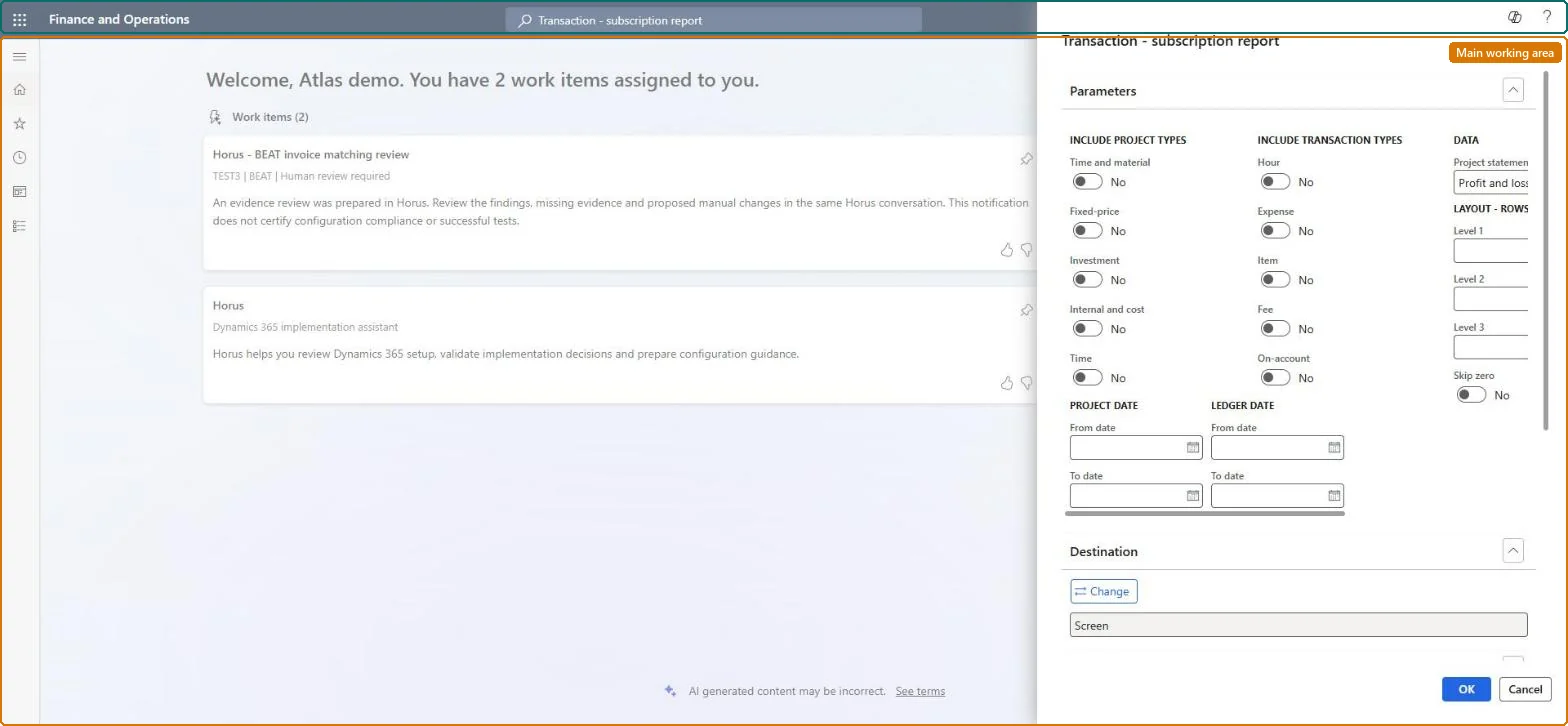
A report dialog that runs the Transaction - subscription report, one of the Service management reporting tools that Microsoft lists for monitoring subscription transactions.
Invoice subscription orders in Dynamics 365 Supply Chain Management
Show what matters for
PAGE GUIDEWhat the page does and how to use it6 sections. Choose a role to highlight what matters to you.
Everyone
1What it is and why
What it is
A report dialog that runs the Transaction - subscription report, one of the Service management reporting tools that Microsoft lists for monitoring subscription transactions.
What you do here
Use this page to print the fee transactions that have been created from service subscriptions, which are the transactions invoiced to the customer.
The page in Dynamics 365. page title tab to open what to set or check
About the examples: Examples and screenshots in this guide use BEAT, a demo company in a Dynamics 365 test environment. Use your own company's codes and values instead of copying them.
When to run it
When to run it
When you review the subscription fee transactions created and invoiced for a period, for example before or after invoicing subscriptions.
How often
On demand, typically once per subscription invoicing period.
What the output shows
The transactions created from service subscriptions, grouped by the layout rows you chose, for the project and ledger dates entered. Amounts that differ from the expected fee often point to a reduction days transaction or a changed index or base price.
Go to Service management > Inquiries and reports > Transaction - subscription report.
Under Parameters, choose the project types (Time and material, Fixed-price, Investment, Internal and cost, Time) and transaction types (Hour, Expense, Item, Fee, On-account) to report on. Subscriptions are based on time-and-material projects.
Enter the Project date and Ledger date From date and To date for the period you are reviewing, choose the Project statement data and the Layout rows Level 1 to Level 3, and set Skip zero to hide empty lines.
Expand Records to include and select Filter to limit the report to particular service subscriptions, then select OK.
Check the fee transactions per subscription against the invoicing periods you expect; a missing period usually means the subscription fee was not created yet.