PAGE GUIDEWhat the page does and how to use it8 sections. Choose a role to highlight what matters to you.
Everyone
1What it is and why
What it is
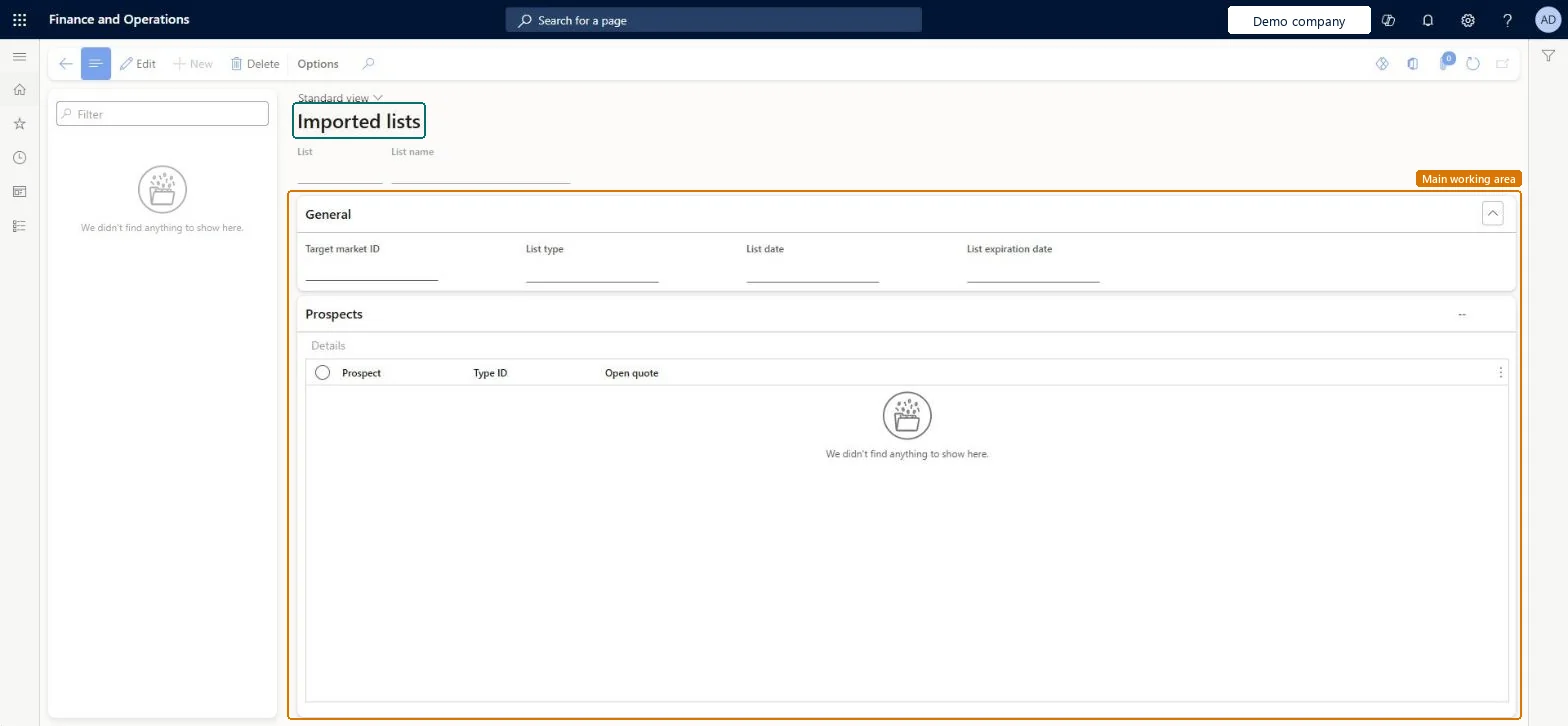
A page that shows imported prospect lists, each with its target market, list type, list date and expiration date, and the prospects it contains.
What you do here
Use this page to review a prospect list that was brought into the system and to see its prospects and whether each has an open quote.
Example
For example, BEAT imports the trade-fair list TF-2026-03 with 120 prospects for target market EXPO-NA and opens it to see which prospects already have an open quote.
The page in Dynamics 365. page title tab to open what to set or check
About the examples: Examples and screenshots in this guide use BEAT, a demo company in a Dynamics 365 test environment. Use your own company's codes and values instead of copying them.
Setup steps on this page
Review an imported prospect list before follow-up
Use this page to check a prospect list that was brought into the system.
How to use it
Go to Sales and marketing > Relationships > Prospects > Imported prospect list.
Select a list and read its Target market ID, List type, List date and List expiration date.
Under Prospects, read Prospect, Type ID and Open quote to see which prospects were already quoted.
Select Edit to change the list details.
Source: Checked in Dynamics 365
Fields on the page
Field
What it means
Example
List
The ID of the imported prospect list.Checked in Dynamics 365
TF-2026-03
List name
The name of the imported list.Checked in Dynamics 365
Target market ID
The target market the list belongs to. A target market is a list of customers and prospects that belong to a user-defined segment.Microsoft Learn
EXPO-NA
List type
The type of the imported list.Checked in Dynamics 365
List date
The date of the list.Checked in Dynamics 365
List expiration date
The date after which the list is no longer used.Checked in Dynamics 365
Open quote
Shows whether the prospect on the list has an open quotation.Checked in Dynamics 365
Common errors and fixes
Message
What to do
Open quote isn't marked for a prospect that you quoted.
Check that the quotation was created for the same prospect account that is on the list, not for a new prospect with the same name. Checked in Dynamics 365
Test checklist
Open an imported list with at least one prospect.
Create a quotation for one of its prospects in All quotations.
Return to the list and check Open quote is marked for that prospect only.
Check List expiration date first and work only lists that are still valid.An expired list still shows its prospects, so without the date check a team can call prospects from an outdated list.
To set it up or change itSales manager TradeSalesManagerGive people one of these roles. On this system, 1 role can open this page.Checked in Dynamics 365
Actions on the page
Options: Personalize, Page options, ShareChecked in Dynamics 365