Retail and CommerceInventory managementReplenishment
Dynamics 365
Used by
Retail operations manager, Retail service
Business process
Procure goods and services
Main table
PurchTable
Data entity
PurchPurchaseOrderHeaderV2Entity
Show what matters for
PAGE GUIDEWhat the page does and how to use it7 sections. Choose a role to highlight what matters to you.
Everyone
1What it is and why
What it is
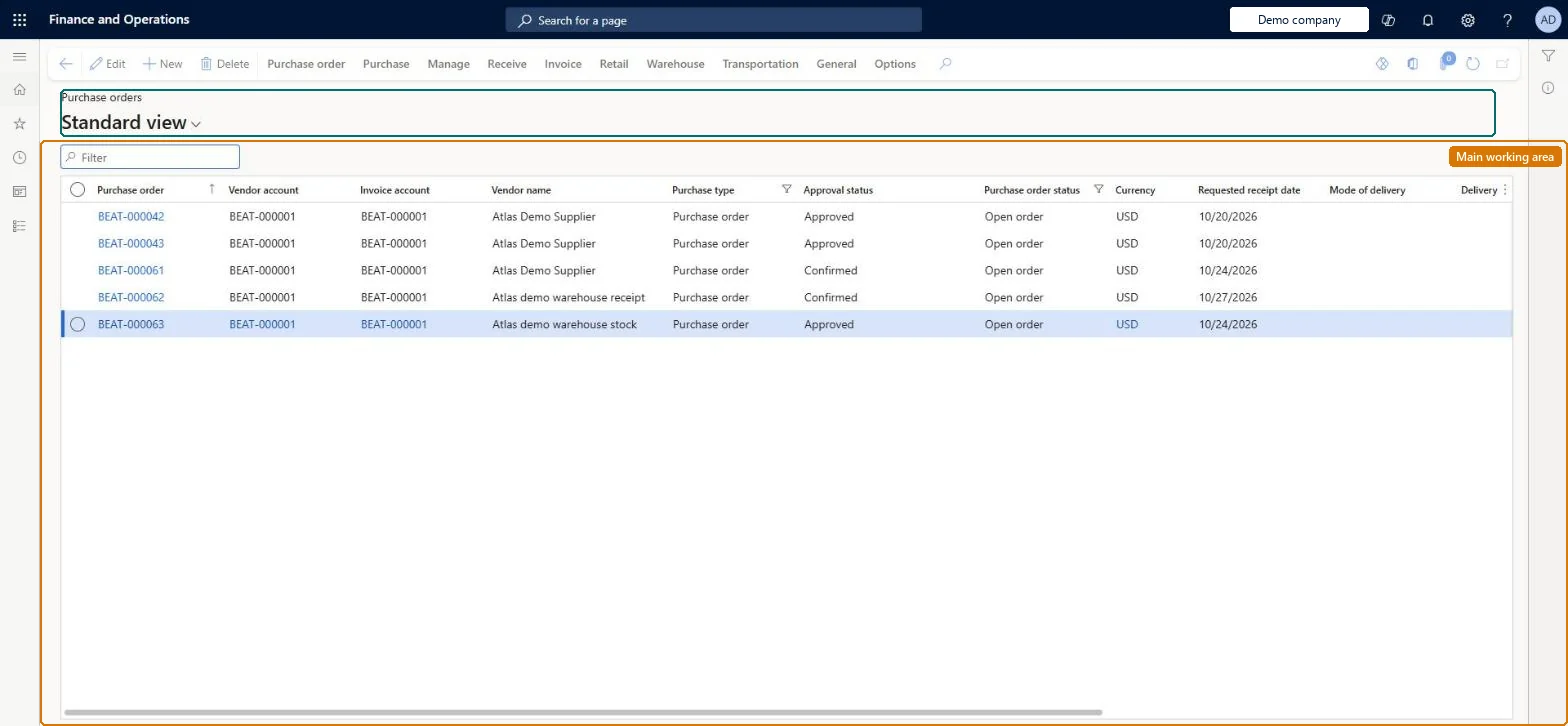
A list of purchase orders, reached from the Replenishment menu, from which an incoming purchase order can be opened and cross-docked to stores.
What you do here
Use this page to open the purchase order that brings products into the receiving warehouse and, from its Retail tab, start a cross dock that distributes the incoming quantities to stores as transfer orders.
Example
For example, when a purchase order arrives at a distribution center, cross-dock it so that the goods are sent straight on to stores instead of being put away and picked again.
The page in Dynamics 365. page title tab to open what to set or check
About the examples: Examples and screenshots in this guide use BEAT, a demo company in a Dynamics 365 test environment. Use your own company's codes and values instead of copying them.
Steps from Microsoft
Go to Retail and Commerce > Inventory management > Replenishment > Purchase orders.
Select the purchase order to open it.
On the Action Pane, on the Retail tab, select Cross docking.
Select Edit, then set Cross docking quantity or Additional cross docking quantity for the lines.
Set Distribution, Replenishment hierarchy and Respect assortments.
Select Calculate quantities and review the warehouse rows.
Once transfer orders have been created from a purchase order's cross dock, the distribution settings for that cross dock can no longer be changed. Microsoft Learn
Technical architect
5Technical
Form
PurchTableChecked in Dynamics 365
Table
PurchTableShown as “PURCHASE ORDERS” in Record infoKey field: PurchIdChecked in Dynamics 365
PrivilegesMaintain retail replenishment RetailReplenishmentMaintainDutiesMaintain retail replenishment RetailReplenishmentMaintain2 security rolesRetail operations manager RetailOperationsManagerRetail service RetailServiceChecked in Dynamics 365
Roles to set it up and use it
To set it up or change itMaintain retail replenishment RetailReplenishmentMaintainGive people a role that holds these duties. On this system, 2 roles give access to this page.Checked in Dynamics 365