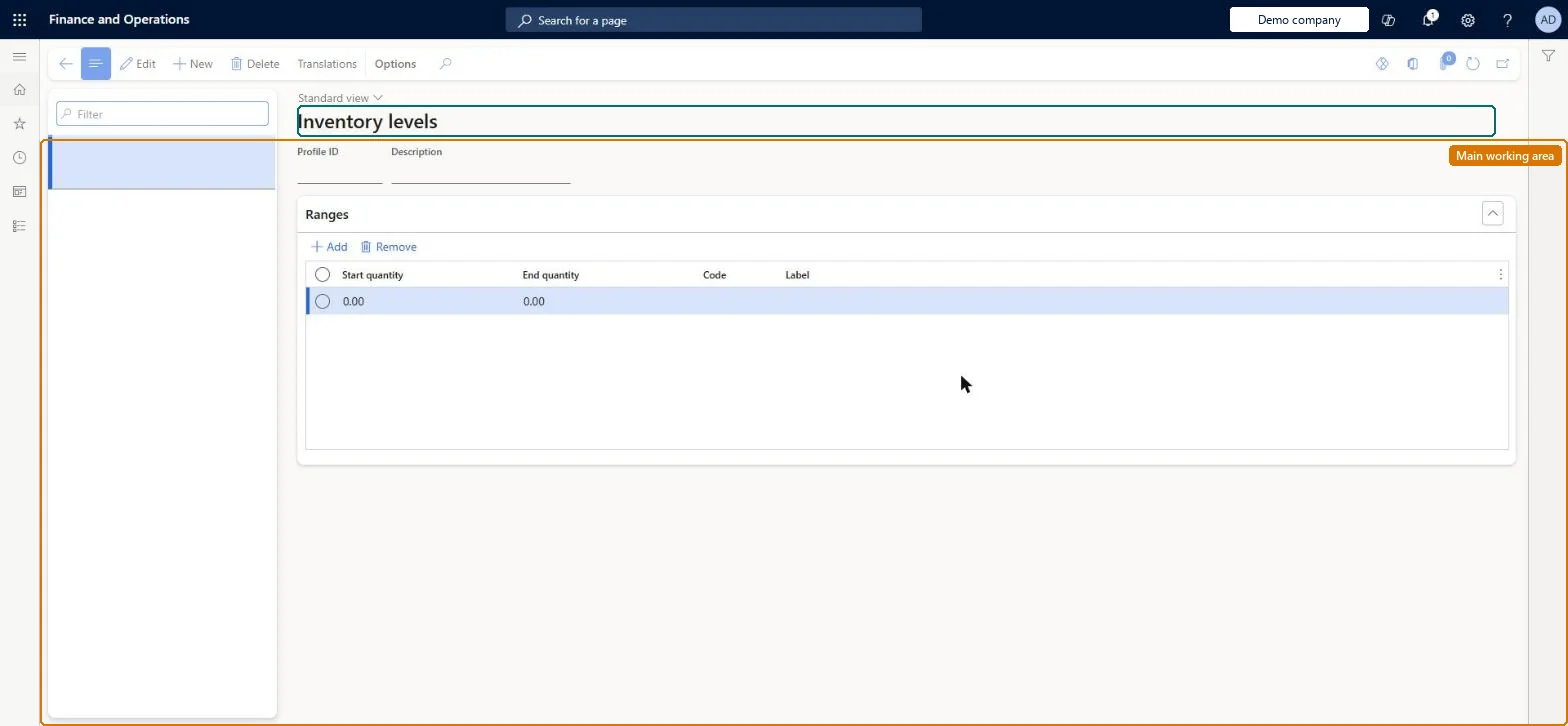
A setup page where you create inventory level profiles, each a set of quantity ranges with an internal code and a customer-facing label that classify whether a product counts as in stock, out of stock or another custom status.
PAGE GUIDEWhat the page does and how to use it8 sections. Choose a role to highlight what matters to you.
Everyone
1What it is and why
What it is
A setup page where you create inventory level profiles, each a set of quantity ranges with an internal code and a customer-facing label that classify whether a product counts as in stock, out of stock or another custom status.
What you do here
Use this page to define, per legal entity, the inventory level profiles whose ranges, codes and labels drive the inventory availability messaging shown on e-commerce sites and returned by the inventory APIs.
Example
For example, an integration can switch off the purchase button for a product when its inventory level code is OOS.
The page in Dynamics 365. page title tab to open what to set or check
About the examples: Examples and screenshots in this guide use BEAT, a demo company in a Dynamics 365 test environment. Use your own company's codes and values instead of copying them.
Steps from Microsoft
Go to Retail and Commerce > Inventory management > Inventory levels.
On the Action Pane, select New, and enter a Profile ID and Description.
On the Ranges FastTab, select Add, and enter Start quantity, End quantity, Code and Label for the level; repeat for each level.
On the Action Pane, select Save.
Optionally select Translations to enter localized label text.
Run the 1040 (Product) distribution schedule to send the profile to channels.
Reversible: Ranges, codes and labels can be edited, but ranges must stay without gaps or overlap, the OOS start quantity/code and AVAIL end quantity/code can't be edited, and channels get changes only after the 1040 (Product) job. Microsoft Learn
If you change it later
Changing a profile's ranges changes which code and label a product receives; ranges must stay contiguous without gaps or overlap, and the change reaches channels only after the 1040 (Product) job runs. Microsoft Learn
Technical architect
6Technical
Menu item
RetailInventoryLevelProfileChecked in Dynamics 365
Form
RetailInventoryLevelProfileChecked in Dynamics 365
Table
RetailInventoryLevelProfShown as “INVENTORY LEVEL PROFILE” in Record infoChecked in Dynamics 365
Data entities
RetailInventoryLevelProfileEntityInventory level profile Checked in Dynamics 365RetailInventoryLevelProfileRangeEntityInventory level range Checked in Dynamics 365
Who can open it
PrivilegesRetailInventoryLevelProfileMaintainRetailInventoryLevelProfileViewDutiesMaintain inventory levels RetailInventoryLevelProfileMaintainView inventory levels RetailInventoryLevelProfileView2 security rolesRetail operations manager RetailOperationsManagerRetail service RetailServiceChecked in Dynamics 365
Roles to set it up and use it
To set it up or change itRetail service RetailServiceTo use itRetail operations manager RetailOperationsManagerGive people one of these roles. On this system, 2 roles can open this page.Checked in Dynamics 365
Actions on the page
(Action Pane without tabs): TranslationsChecked in Dynamics 365