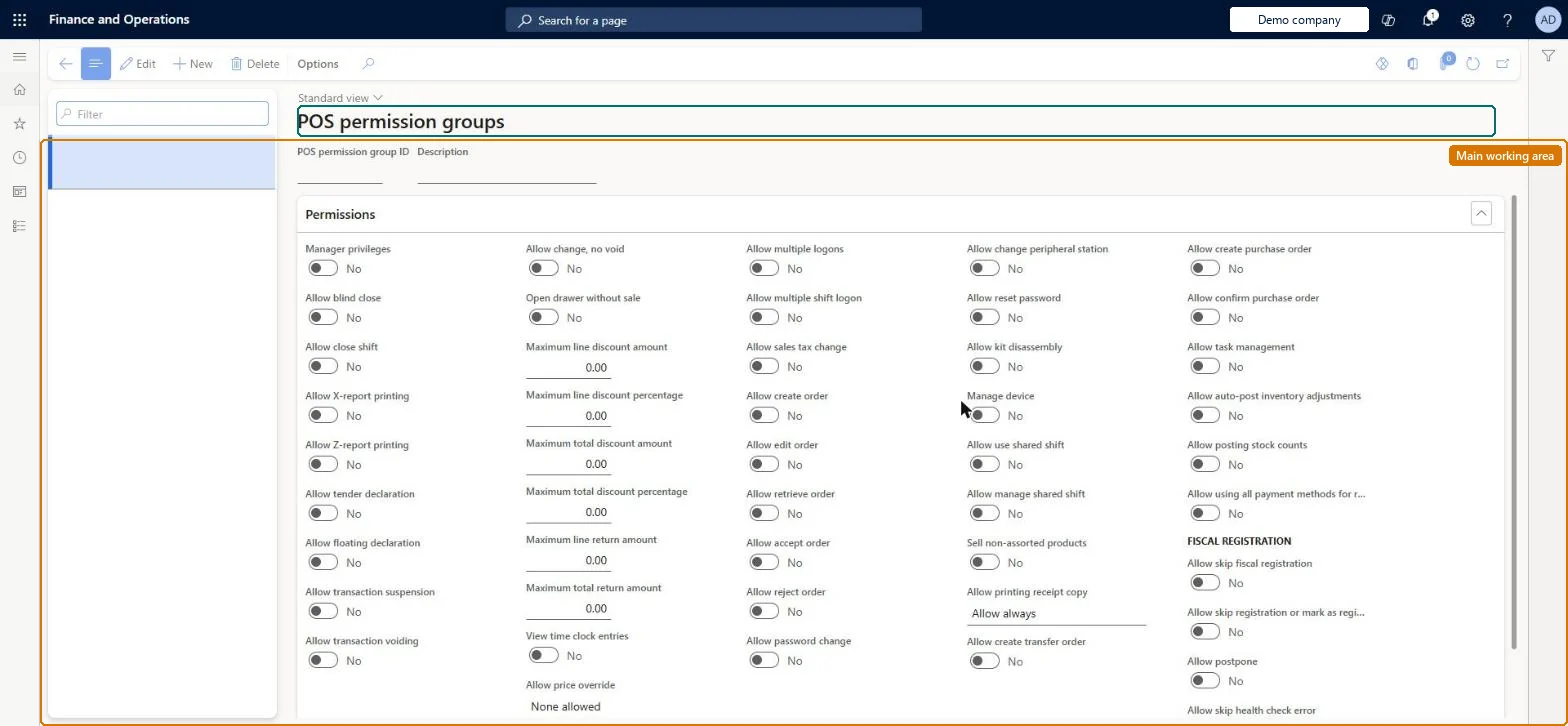
A setup page where you define POS permission groups, named sets of yes/no permissions and limits (for example create or edit orders, blind close, view time clock entries, discount and return limits) that control what a worker may do at the point of sale.
Human resource assistant, Retail operations manager, Retail service and 1 more role
Business process
Manage sales channels
Menu item
RetailPosPermissionGroup
Main table
RetailPosPermissionGroup
Data entity
RetailPosPermissionGroupEntity
Setup steps
1 on this page
Show what matters for
PAGE GUIDEWhat the page does and how to use it8 sections. Choose a role to highlight what matters to you.
Everyone
1What it is and why
What it is
A setup page where you define POS permission groups, named sets of yes/no permissions and limits (for example create or edit orders, blind close, view time clock entries, discount and return limits) that control what a worker may do at the point of sale.
What you do here
Use this page to create a permission group, switch each POS permission on or off and set threshold values, and then assign the group to a job (or override it on a position) so that workers inherit it; run the Staff distribution job afterwards.
Example
For example, a retailer creates a Store manager group with Manage devices and Allow blind close set to Yes and a Cashier group without them, then links each group to the matching job.
The page in Dynamics 365. page title tab to open what to set or check
About the examples: Examples and screenshots in this guide use BEAT, a demo company in a Dynamics 365 test environment. Use your own company's codes and values instead of copying them.
Setup steps on this page
Set up Permission groups
Use this page to create a permission group, switch each POS permission on or off and set threshold values, and then assign the group to a job (or override it on a position) so that workers inherit it; run the Staff distribution job afterwards.
Steps from Microsoft
Go to Retail and Commerce > Employees > Permission groups.
Select New.
Enter the POS permission group ID and Description.
Set the permissions you need to Yes, for example View time clock entries, Allow create order, Allow edit order, Allow retrieve order, Allow password change and Allow blind close.
Select Save.
Open the job (Human resources > Jobs > Jobs), expand Job classification and select the POS permission group.
Run the Staff distribution schedule to push the changes to the channels.
One permission group per POS role (for example cashier and manager), assigned on the Job, with cashier discount limits lower than manager limits; override on the position or worker only by exceptionWorkers in positions for a job inherit the job's group unless overridden at position level, and lower cashier limits make POS ask for manager approval when a cashier goes over them.
Leaving worker-level POS permission overrides in place. They take precedence over the group and can bypass the limits you set on it.Test: Cashier discount limit escalates to manager
Solution architect
5Design impact
Can it be undone
Reversible: Permissions can be switched on or off at any time; changes apply in stores after the 1060 (Staff) job runs. Microsoft Learn
If you change it later
A change to a group changes what every worker in jobs linked to it can do at the POS, but only after the Staff distribution job pushes it to the channels; position-level overrides are unaffected. Microsoft Learn
Technical architect
6Technical
Menu item
RetailPosPermissionGroupChecked in Dynamics 365
Form
RetailPosPermissionGroupChecked in Dynamics 365
Table
RetailPosPermissionGroupShown as “POS PERMISSION GROUP” in Record infoChecked in Dynamics 365
PrivilegesMaintain POS permission groups RetailPosPermissionGroupsMaintainDutiesMaintain retail POS permissions RetailPOSPermissionsMaintain4 security rolesHuman resource assistant HcmHumanResourceAssistantRetail operations manager RetailOperationsManagerRetail service RetailServiceRetail store manager RetailStoreManagerChecked in Dynamics 365
Roles to set it up and use it
To set it up or change itRetail service RetailServiceRetail operations manager RetailOperationsManagerRetail store manager RetailStoreManagerHuman resource assistant HcmHumanResourceAssistantGive people one of these roles. On this system, 4 roles can open this page.Checked in Dynamics 365