Budget manager, Chief financial officer, Accountant and 6 more roles
Business process
Define loyalty programs in Dynamics 365 Commerce
Menu item
LedgerPeriodCode
Main table
LedgerPeriodCode
Data entity
LedgerDateIntervalEntity
Show what matters for
PAGE GUIDEWhat the page does and how to use it7 sections. Choose a role to highlight what matters to you.
Everyone
1What it is and why
What it is
A setup page where you define date intervals, the time spans that loyalty programs use for their tiers and tier rules.
What you do here
Use this page to set how long a customer stays in a loyalty tier, and over which period points count towards qualifying for a tier. Date intervals apply only if your loyalty programs use tiers.
Example
For example, a one-year interval on a Gold tier keeps a qualifying customer in Gold for a year, and a previous-month interval on a tier rule counts only the points earned last month.
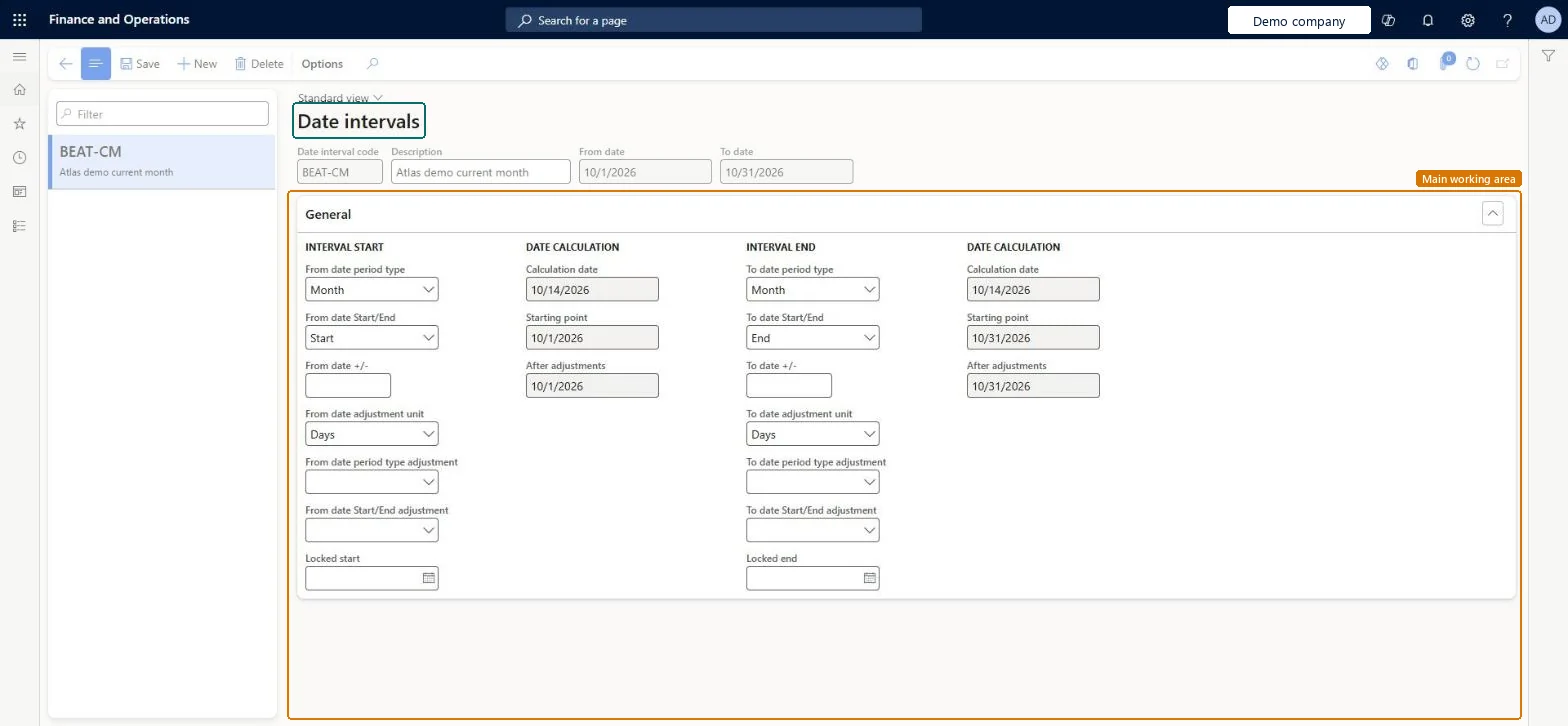
The page in Dynamics 365. page title tab to open what to set or check
About the examples: Examples and screenshots in this guide use BEAT, a demo company in a Dynamics 365 test environment. Use your own company's codes and values instead of copying them.
Steps from Microsoft
Go to Retail and Commerce > Customers > Loyalty > Date intervals.
Select New.
In the Date interval code field, enter a code, such as January.
In the Description field, enter a description.
Under Interval Start, set the From date period type, From date Start/End and From date adjustment unit.
Under Interval End, set the To date period type, To date Start/End, To date +/- and To date adjustment unit.
Reversible: In loyalty, a date interval sets how long a customer stays in a tier and which past window counts towards a tier rule; edits change later tier calculations. If you need them applied to cards already issued, run Update loyalty card tiers. Microsoft Learn
Technical architect
5Technical
Menu item
LedgerPeriodCodeChecked in Dynamics 365
Form
LedgerPeriodCodeChecked in Dynamics 365
Table
LedgerPeriodCodeShown as “Date intervals” in Record infoChecked in Dynamics 365
PrivilegesMaintain date intervals for ledgers LedgerPeriodCodeMaintainView date intervals for ledgers LedgerPeriodCodeViewDutiesEnable general ledger process LedgerGeneralLedgerProcessEnableInquire into general ledger reference data LedgerGeneralLedgerReferenceDataInquireEnable general ledger process RentalLedgerGeneralLedgerProcessEnable9 security rolesBudget manager BudgetBudgetManagerChief financial officer CompanyChiefFinancialOfficerAccountant LedgerAccountantAccounting manager LedgerAccountingManagerAccounting supervisor LedgerAccountingSupervisorFinancial controller LedgerFinancialControllerRental manager RentalManagerRental purchasing manager RentalPurchasingManagerRental sales manager RentalSalesManagerChecked in Dynamics 365
Roles to set it up and use it
To set it up or change itRental manager RentalManagerRental sales manager RentalSalesManagerAccounting manager LedgerAccountingManagerRental purchasing manager RentalPurchasingManagerAccounting supervisor LedgerAccountingSupervisorTo use itAccountant LedgerAccountantFinancial controller LedgerFinancialControllerChief financial officer CompanyChiefFinancialOfficerBudget manager BudgetBudgetManagerGive people one of these roles. On this system, 9 roles can open this page.Checked in Dynamics 365
LedgerDateIntervalEntity (Date intervals): loaded for each company, in Microsoft's default template 025 - General ledger.Load order: Microsoft's default template 025 - General ledger loads Date intervals at execution unit 1, level 25, sequence 10. Lower levels load first, and entities at the same level load in sequence order.Load first: the default templates at lower levels (System setup to Workflow)Microsoft Learn