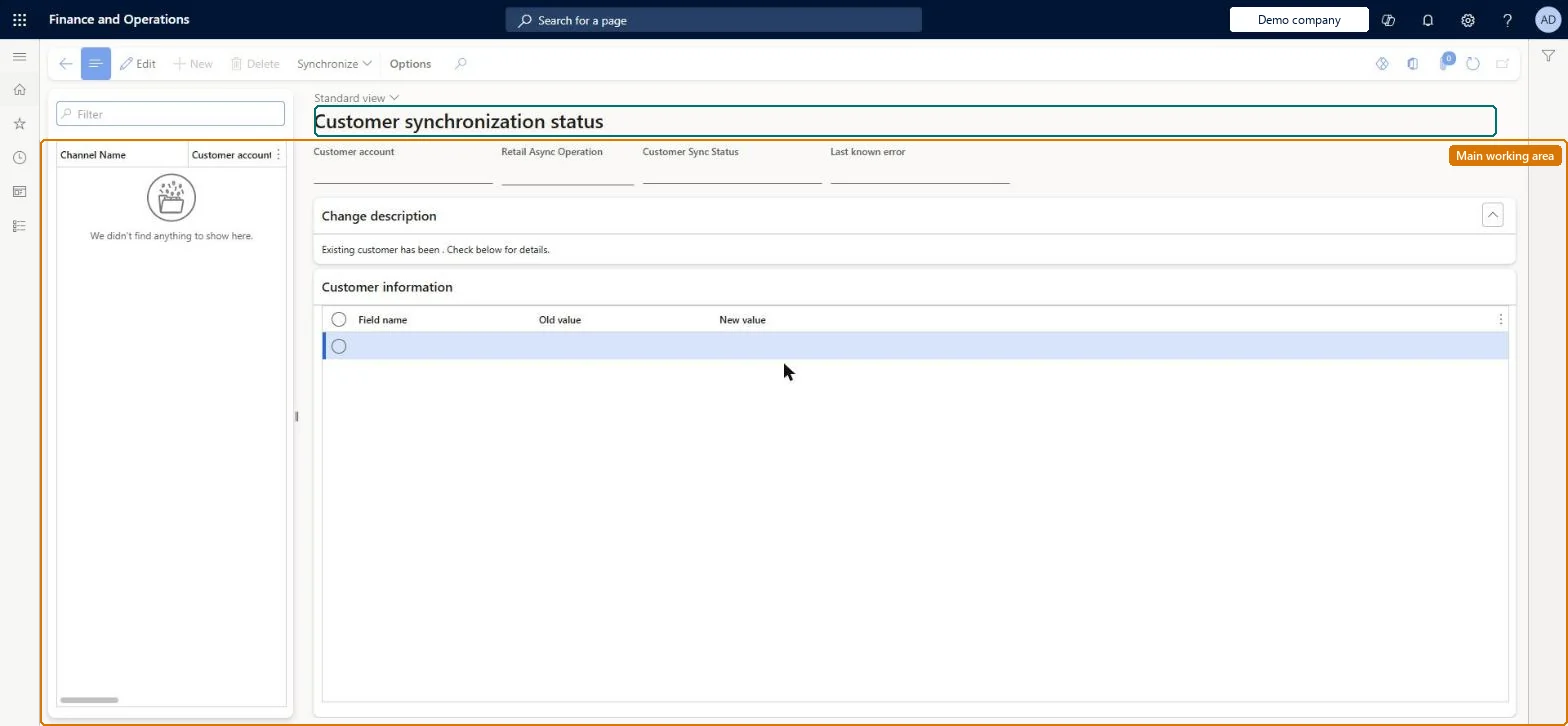
An inquiry page that lists every customer create or update operation made asynchronously in the POS or e-commerce channel, with its synchronization status to headquarters.
Create B2C eCommerce sales channel in Dynamics 365 Commerce
Menu item
RetailAsyncCustomerSynchronizationStatus
Main table
RetailAsyncCustomerView
Show what matters for
PAGE GUIDEWhat the page does and how to use it7 sections. Choose a role to highlight what matters to you.
Everyone
1What it is and why
What it is
An inquiry page that lists every customer create or update operation made asynchronously in the POS or e-commerce channel, with its synchronization status to headquarters.
What you do here
Use this page to find asynchronous customer operations that failed to synchronize, correct their fields, and resynchronize them.
Example
For example, a customer created at the POS with invalid data fails to sync; the support user edits that operation on this page, saves it and selects Synchronize.
The page in Dynamics 365. page title tab to open what to set or check
About the examples: Examples and screenshots in this guide use BEAT, a demo company in a Dynamics 365 test environment. Use your own company's codes and values instead of copying them.
Steps from Microsoft
Go to Retail and Commerce > Customers > Customer synchronization status.
Find the operation whose synchronization failed.
Edit the operation and update the fields that caused the failure.
Reversible: A failed asynchronous operation can be edited, saved and synchronized again from this page. Microsoft Learn
Technical architect
5Technical
Menu item
RetailAsyncCustomerSynchronizationStatusChecked in Dynamics 365
Form
RetailAsyncCustomerSynchronizationStatusChecked in Dynamics 365
Table
RetailAsyncCustomerViewShown as “RETAIL ASYNC CUSTOMER SYNCHRONIZATION VIEW” in Record infoChecked in Dynamics 365
Who can open it
PrivilegesRetailCustSynchronizationMaintainDutiesRetailCustSynchronizationMaintain1 security roleRetail operations manager RetailOperationsManagerChecked in Dynamics 365
Roles to set it up and use it
To set it up or change itRetail operations manager RetailOperationsManagerGive people one of these roles. On this system, 1 role can open this page.Checked in Dynamics 365
Actions on the page
(Action Pane without tabs): SynchronizeChecked in Dynamics 365