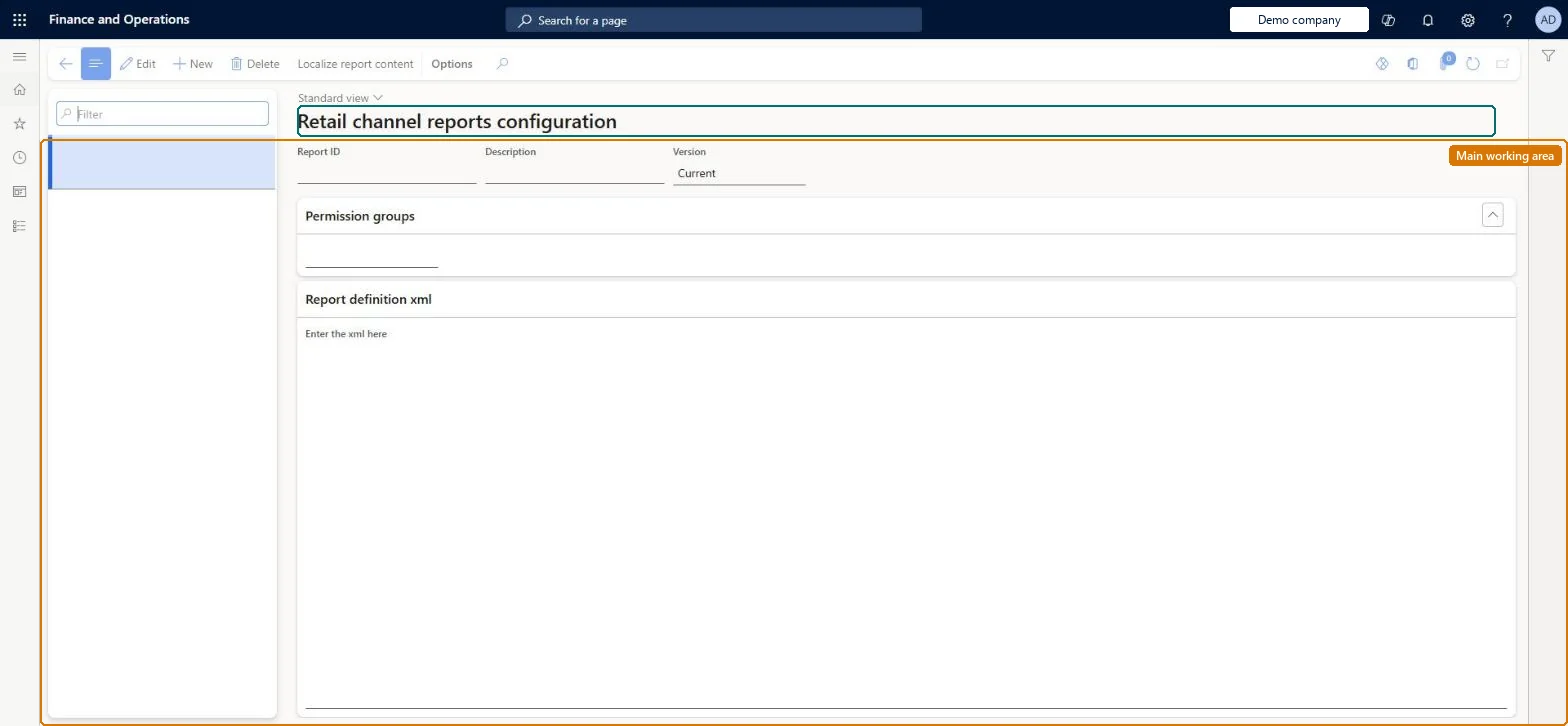
A setup page where the reports available at the channel (run from the POS) are defined by providing each report's XML definition and the POS permission groups allowed to run it.
PAGE GUIDEWhat the page does and how to use it8 sections. Choose a role to highlight what matters to you.
Everyone
1What it is and why
What it is
A setup page where the reports available at the channel (run from the POS) are defined by providing each report's XML definition and the POS permission groups allowed to run it.
What you do here
Use this page to add or change the reports that cashiers and managers can run from the POS View reports operation, then push them to the channel with the Global configuration (1110) job.
Example
For example, a 'Sales by employee' report is defined in XML and limited to the Cashier and Manager permission groups.
The page in Dynamics 365. page title tab to open what to set or check
About the examples: Examples and screenshots in this guide use BEAT, a demo company in a Dynamics 365 test environment. Use your own company's codes and values instead of copying them.
Setup steps on this page
Set up Channel reports configuration
Use this page to add or change the reports that cashiers and managers can run from the POS View reports operation, then push them to the channel with the Global configuration (1110) job.
Steps from Microsoft
Go to Retail and Commerce > Channel setup > POS setup > Channel reports configuration.
Click New.
Specify a report ID and description, and choose the permission groups that may run the report.
In Report definition xml, enter the report definition.
If needed, click Localize report content and add localized strings.
Run distribution schedule job 1110 to deploy the report to POS devices.
Assign each report to the POS permission group that should run itLearn says reports on this page are created from their XML definition and assigned to a specific POS permission group.
Solution architect
5Design impact
Can it be undone
Reversible: Report definitions and permission groups can be edited; POS only sees the change after the distribution schedule syncs it. Microsoft Learn
If you change it later
After creating or updating a report definition you must deploy it to the POS devices by running job 1110. Microsoft Learn
Technical architect
6Technical
Menu item
RetailChannelReportConfigChecked in Dynamics 365
Form
RetailChannelReportChecked in Dynamics 365
Table
RetailChannelReportShown as “RETAIL CHANNEL REPORTS CONFIGURATION” in Record infoChecked in Dynamics 365
Data entities
RetailChannelReportDefinitionEntityRetail channel reports configuration Checked in Dynamics 365RetailChannelReportEntityChannel reports Checked in Dynamics 365
Who can open it
PrivilegesMaintain Retail Channel Reports RetailChannelReportMaintainDutiesMaintain Retail Channel Reports RetailChannelReportMaintain2 security rolesRetail operations manager RetailOperationsManagerRetail service RetailServiceChecked in Dynamics 365
Roles to set it up and use it
To set it up or change itRetail service RetailServiceRetail operations manager RetailOperationsManagerGive people one of these roles. On this system, 2 roles can open this page.Checked in Dynamics 365
Actions on the page
(Action Pane without tabs): Localize report contentChecked in Dynamics 365