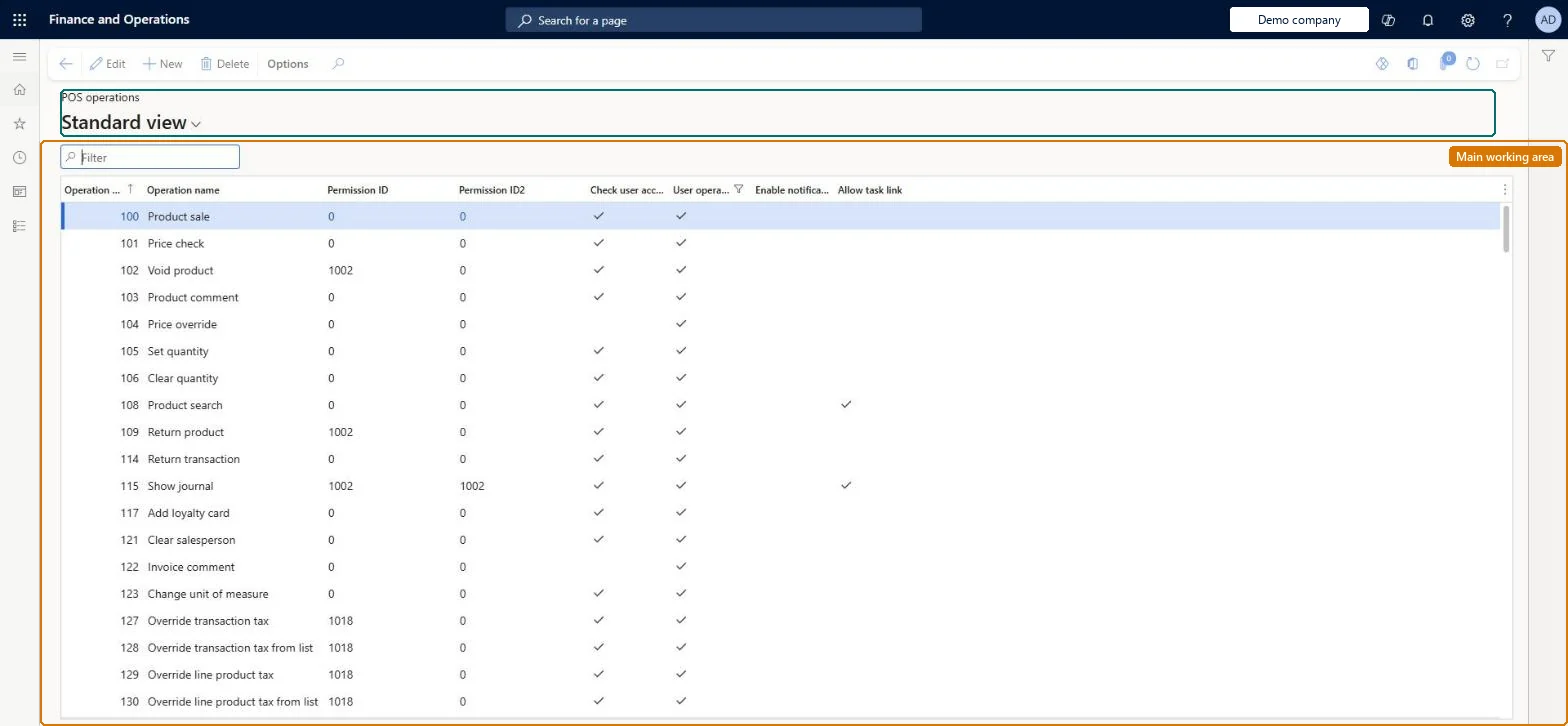
A setup page listing every POS operation by ID and name, where custom operations are registered and operations are marked as user operations that can be placed on button grids.
Retail operations manager, Retail service, Information technology manager
Business process
Manage sales channels
Menu item
RetailOperations
Main table
RetailOperations
Data entity
RetailOperationsEntity
Setup steps
1 on this page
Show what matters for
PAGE GUIDEWhat the page does and how to use it8 sections. Choose a role to highlight what matters to you.
Everyone
1What it is and why
What it is
A setup page listing every POS operation by ID and name, where custom operations are registered and operations are marked as user operations that can be placed on button grids.
What you do here
Use this page to register custom operations (ID 4001 and above) and to control which operations are available as user operations in the button grid designer.
Example
For example, operation 917 Database connection status can be put on a button so cashiers can switch the register between online and offline modes.
The page in Dynamics 365. page title tab to open what to set or check
About the examples: Examples and screenshots in this guide use BEAT, a demo company in a Dynamics 365 test environment. Use your own company's codes and values instead of copying them.
Setup steps on this page
Set up POS operations
Use this page to register custom operations (ID 4001 and above) and to control which operations are available as user operations in the button grid designer.
Steps from Microsoft
Go to Retail and Commerce > Channel setup > POS setup > POS > POS operations.
Create a new operation with a unique ID of 4001 or higher and a name.
Mark the operation as a user operation so it appears in the button grid designer.
Add a button for the operation at Retail and Commerce > Channel setup > POS setup > POS > Button grids.
Custom operations from ID 4001 upwards, each ID unique, and mark as User operation only the operations that should be placeable on button gridsIDs 0 to 4000 are reserved for internal POS operations, no two operations should share an ID, and the custom parameters field appears in the designer only for IDs 4001 and above.
Using an ID below 4001 or reusing an ID, which clashes with a standard operation or another extension.
Solution architect
5Design impact
Can it be undone
Reversible: Operation records and the User operation flag can be changed. The operation ID must match the ID in the POS extension code, so changing it means changing the extension too. Microsoft Learn
If you change it later
Two operations must never share an ID, and custom parameters appear in the designer only for IDs of 4001 or higher. Microsoft Learn
Technical architect
6Technical
Menu item
RetailOperationsChecked in Dynamics 365
Form
RetailOperationsChecked in Dynamics 365
Table
RetailOperationsShown as “POS OPERATIONS” in Record infoChecked in Dynamics 365
PrivilegesMaintain retail POS operations RetailPOSOperationsMaintainDutiesMaintain retail register reference data RetailTerminalReferenceDataMaintainMaintain terminals for retail trial. RetailTrialTerminalReferenceDataMaintain3 security rolesRetail operations manager RetailOperationsManagerRetail service RetailServiceInformation technology manager SysServerITManagerChecked in Dynamics 365
Roles to set it up and use it
To set it up or change itRetail service RetailServiceRetail operations manager RetailOperationsManagerInformation technology manager SysServerITManagerGive people one of these roles. On this system, 3 roles can open this page.Checked in Dynamics 365