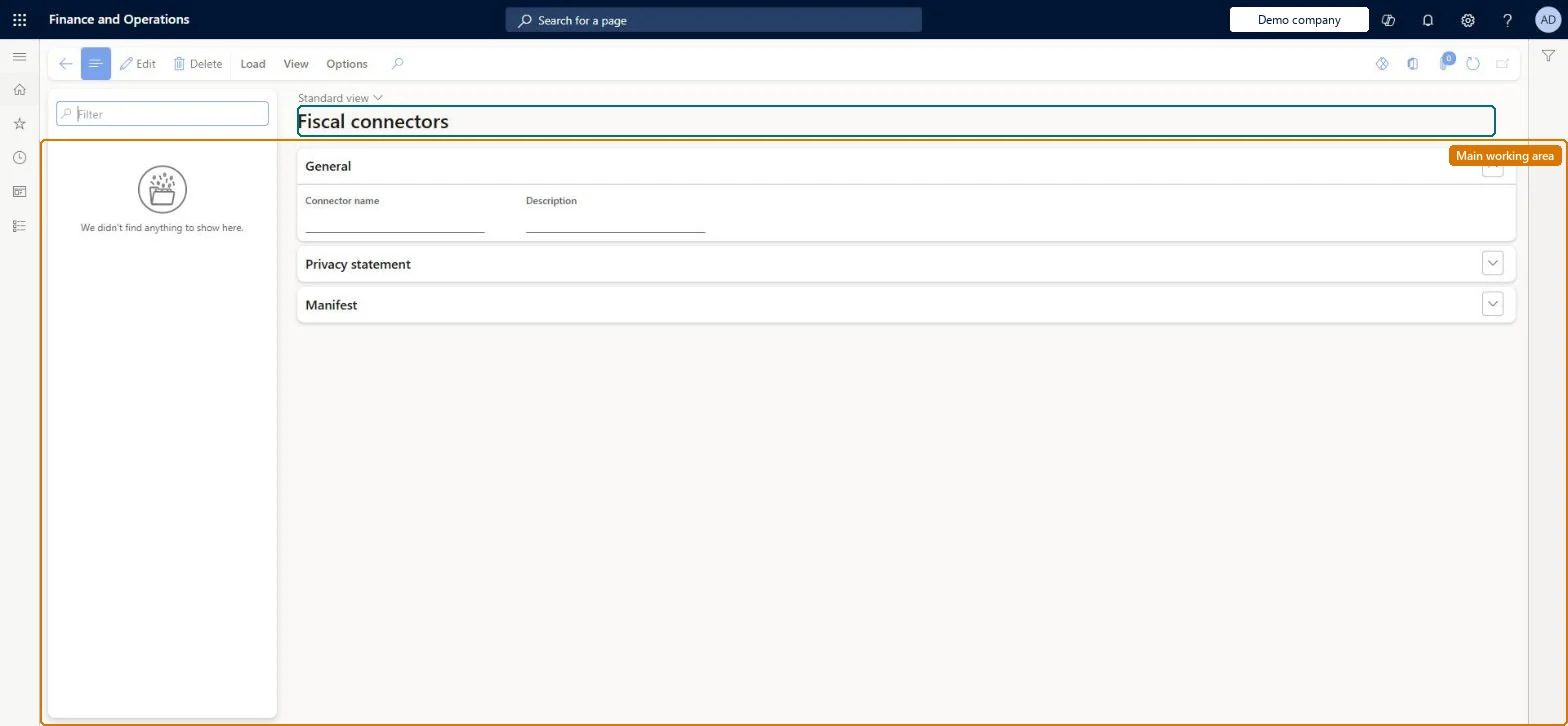
A setup page where you upload the XML configuration of each fiscal connector, the component that communicates with a fiscal device or service such as a fiscal printer.
Retail and CommerceChannel setupFiscal integration
RetailFiscalIntegrationConnectorList
Used by
Retail service
Business process
Manage sales channels
Menu item
RetailFiscalIntegrationConnectorList
Main table
RetailFiscalIntegrationC
Data entity
RetailFiscalIntegrationConnectorTableEntity
Setup steps
1 on this page
Show what matters for
PAGE GUIDEWhat the page does and how to use it8 sections. Choose a role to highlight what matters to you.
Everyone
1What it is and why
What it is
A setup page where you upload the XML configuration of each fiscal connector, the component that communicates with a fiscal device or service such as a fiscal printer.
What you do here
Use this page to load one connector configuration for every fiscal device or service you plan to use, and to view the functional and technical profiles that depend on each connector.
Example
For example, a fiscal connector sends the XML fiscal receipt generated by a document provider to a fiscal printer.
The page in Dynamics 365. page title tab to open what to set or check
About the examples: Examples and screenshots in this guide use BEAT, a demo company in a Dynamics 365 test environment. Use your own company's codes and values instead of copying them.
Setup steps on this page
Set up Fiscal connectors
Use this page to load one connector configuration for every fiscal device or service you plan to use, and to view the functional and technical profiles that depend on each connector.
Steps from Microsoft
Go to Retail and Commerce > Channel setup > Fiscal integration > Fiscal connectors.
Upload an XML configuration for each device or service that you plan to use.
Select View to check the functional and technical profiles related to the connector.
Create connector functional profiles and connector technical profiles for the connector.
Upload one XML connector configuration for each fiscal device or service you will use, taken from the fiscal integration samples for your countryEach fiscal device or service needs its own connector configuration; functional and technical profiles are then built on it.
Uploading a new configuration version and expecting the profiles to change. Manual edits in functional and technical profiles are kept; select Update on those pages to take the new defaults.
Solution architect
5Design impact
Can it be undone
Reversible: You can load a new version of the configuration. The system warns the connector is already in use, and profile values only change when you select Update on the profile pages. Microsoft Learn
If you change it later
Loading a new version of a connector configuration does not overwrite manual edits in the functional and technical profiles; you must select Update on those pages to take the new defaults. Microsoft Learn
Technical architect
6Technical
Menu item
RetailFiscalIntegrationConnectorListChecked in Dynamics 365
Form
RetailFiscalIntegrationConnectorListChecked in Dynamics 365
Table
RetailFiscalIntegrationCShown as “FISCAL INTEGRATION CONNECTOR” in Record infoChecked in Dynamics 365
Data entities
RetailFiscalIntegrationConnectorTableEntityFiscal integration connector Microsoft data model
Who can open it
PrivilegesRetailFiscalIntegrationConnectorListMaintainDutiesRetailFiscalIntegrationMaintain1 security roleRetail service RetailServiceChecked in Dynamics 365
Roles to set it up and use it
To set it up or change itRetail service RetailServiceGive people one of these roles. On this system, 1 role can open this page.Checked in Dynamics 365