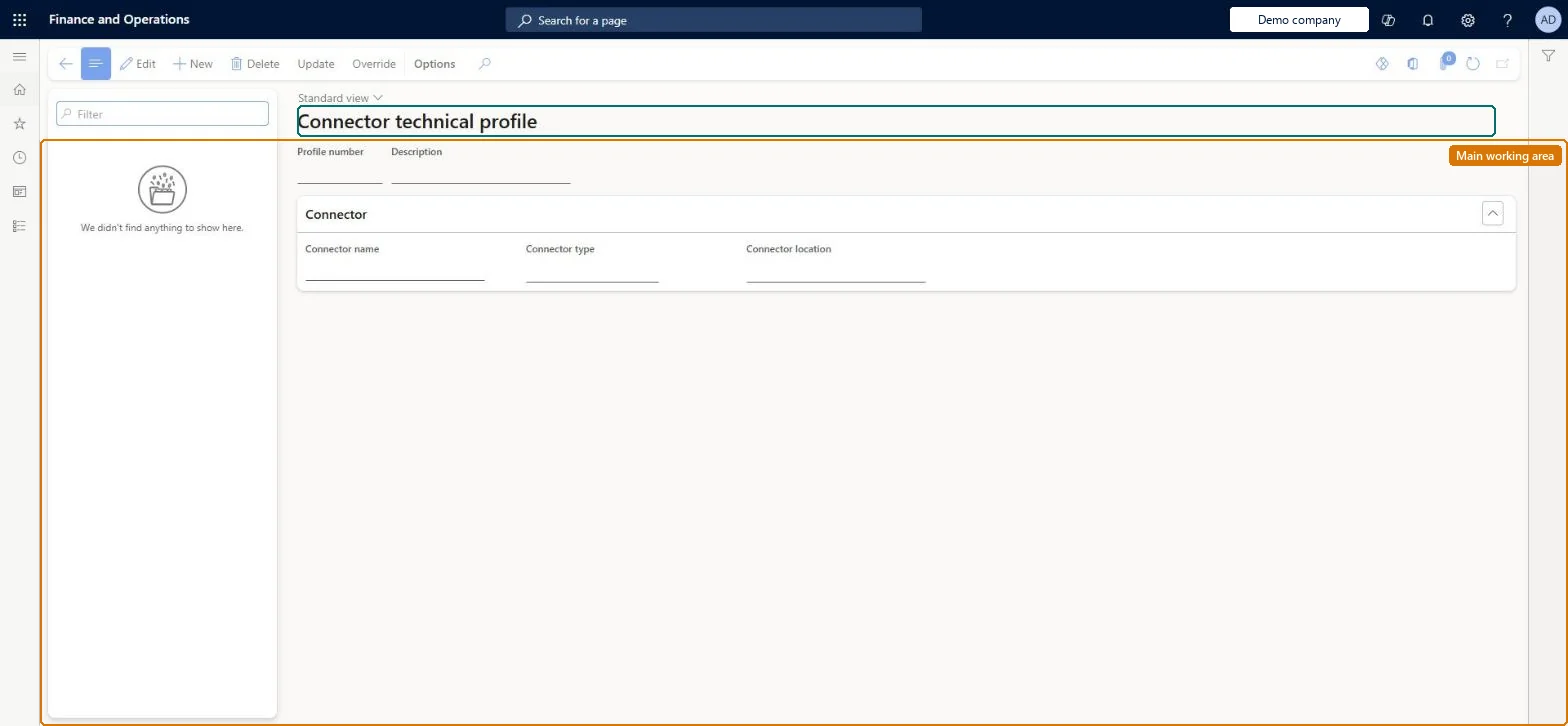
A setup page where you create one connector technical profile per fiscal connector, stating the connector type (Local, External or Internal), where it runs (Hardware station or Register) and its Device and Settings parameters.
Retail and CommerceChannel setupFiscal integration
RetailFiscalIntegrationTechnicalProfile
Used by
Retail service
Business process
Manage sales channels
Menu item
RetailFiscalIntegrationTechnicalProfile
Main table
RetailFiscalIntegrationTechnicalProfile
Data entity
RetailFiscalIntegrationTechnicalProfileEntity
Setup steps
1 on this page
Show what matters for
PAGE GUIDEWhat the page does and how to use it8 sections. Choose a role to highlight what matters to you.
Everyone
1What it is and why
What it is
A setup page where you create one connector technical profile per fiscal connector, stating the connector type (Local, External or Internal), where it runs (Hardware station or Register) and its Device and Settings parameters.
What you do here
Use this page to define how each fiscal connector (for example a fiscal printer driver or an external fiscal service) is reached technically, and to restore or override its default device parameters.
Example
For example, for a fiscal printer attached to a store's hardware station you select the connector type Local and the connector location Hardware station.
The page in Dynamics 365. page title tab to open what to set or check
About the examples: Examples and screenshots in this guide use BEAT, a demo company in a Dynamics 365 test environment. Use your own company's codes and values instead of copying them.
Setup steps on this page
Set up Connector technical profiles
Use this page to define how each fiscal connector (for example a fiscal printer driver or an external fiscal service) is reached technically, and to restore or override its default device parameters.
Steps from Microsoft
Go to Retail and Commerce > Channel setup > Fiscal integration > Connector technical profiles.
Create a connector technical profile for each fiscal connector.
Select a connector name.
Select a connector type: Local, External or Internal.
Select a connector location: Hardware station or Register.
Adjust parameters on the Device and Settings tabs if needed, or select Update to restore the defaults from the connector configuration.
After the fiscal registration process is validated, run the 1070 and 1090 distribution schedule jobs.
The fiscal connector (uploaded XML configuration) that this technical profile belongs to.Microsoft Learn
ConnectorName
Connector type
Local for devices on a hardware station or the local network, External for external services, Internal for connectors inside the Commerce runtime.Microsoft Learn
ConnectorType
Connector location
Whether the connector runs on the Hardware station or directly on the POS register.Microsoft Learn
ConnectorLocation
Device tab
Device parameters (for example connection details) that can be changed or restored with Update.Microsoft Learn
Settings tab
Further connector settings loaded from the connector configuration, which can be edited per profile.Microsoft Learn
Test checklist
Create a technical profile for the connector with the right type and location.
Assign it on the hardware profile Fiscal peripherals tab (Hardware station) or on the functionality profile Fiscal services tab (Register).
Validate the registration process and run jobs 1070 and 1090.
In POS, open Settings > Fiscal Integration > Details and check the connection parameters shown match the profile.
Connector type Local with location Hardware station for devices on a hardware station or local network; External for external services; Internal for CRT connectors; location Register only for connectors that run in POSThis is the mapping Learn gives for connector type and location. Register-located connectors are assigned on the functionality profile, Hardware station ones on the hardware profile.
Choosing location Register but assigning the profile on the hardware profile (or the reverse), so the fiscal document provider can't match a connector at run time.
Feature management and licence
Feature to turn on
Direct fiscal integration from POS registers (Optional)
Reversible: Device and Settings values can be changed and Update reloads the defaults from the connector. If you change which technical profiles are assigned to hardware profiles, validate the fiscal registration process again and run jobs 1070 and 1090. Microsoft Learn
If you change it later
Selecting Update reloads the default parameters from the connector configuration, while loading a new XML configuration does not overwrite manual changes. If you change which technical profiles are assigned to hardware profiles, validate the fiscal registration process again and run jobs 1070 and 1090. Microsoft Learn
Technical architect
6Technical
Menu item
RetailFiscalIntegrationTechnicalProfileChecked in Dynamics 365
Form
RetailFiscalIntegrationTechnicalProfileChecked in Dynamics 365
Table
RetailFiscalIntegrationTechnicalProfileShown as “FISCAL INTEGRATION TECHNICAL PROFILE” in Record infoChecked in Dynamics 365
Data entities
RetailFiscalIntegrationTechnicalProfileEntityFiscal integration technical profile Checked in Dynamics 365
Who can open it
PrivilegesRetailFiscalIntegrationTechnicalProfileMaintainDutiesRetailFiscalIntegrationMaintain1 security roleRetail service RetailServiceChecked in Dynamics 365
Roles to set it up and use it
To set it up or change itRetail service RetailServiceGive people one of these roles. On this system, 1 role can open this page.Checked in Dynamics 365
Actions on the page
(Action Pane without tabs): Update, OverrideChecked in Dynamics 365