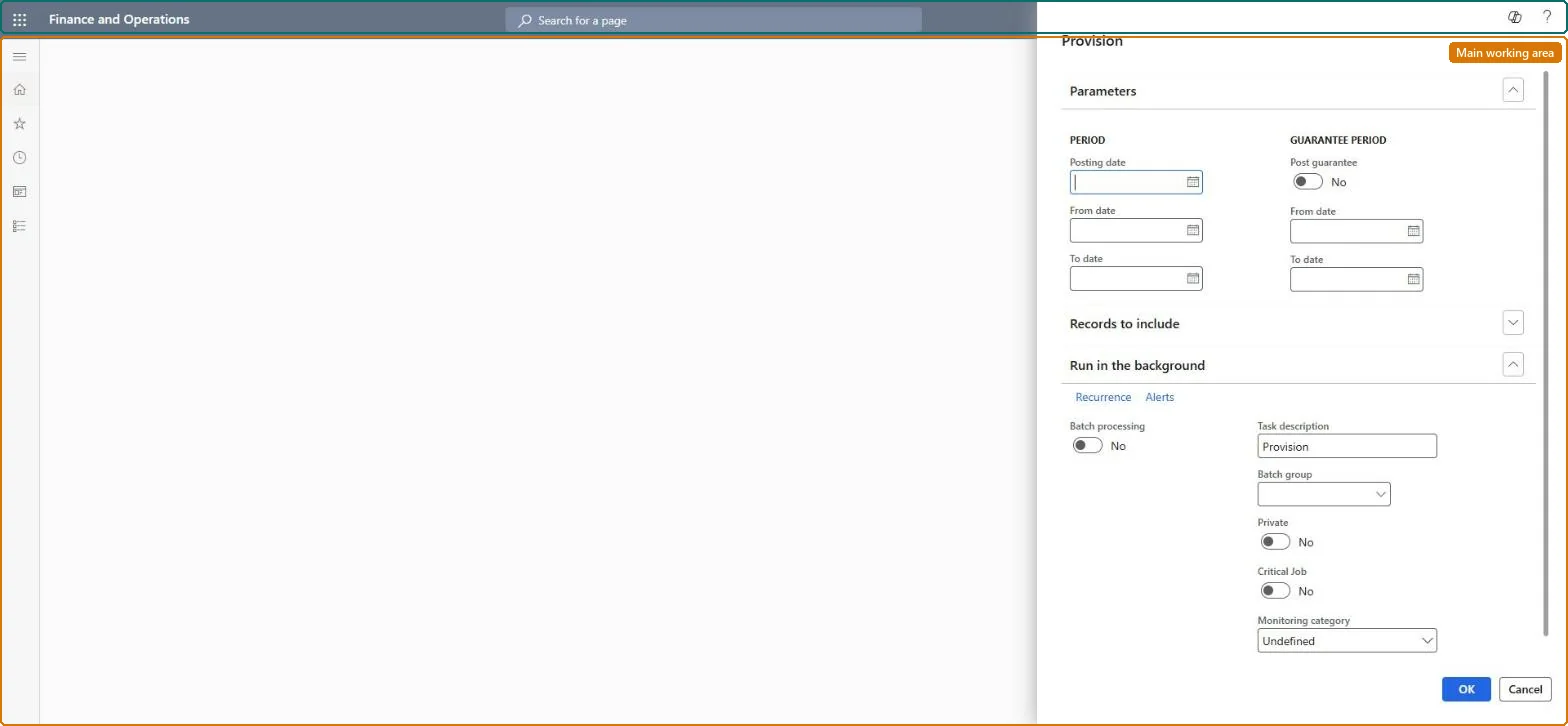
A periodic task dialog that runs, or schedules as a batch job, the posting of provision (accrual) transactions that have already been processed for several rebate management deals, marking them as posted and creating the provision journals.
Manage approved rebates in Dynamics 365 Supply Chain Management
Menu item
TAMRebatePostProvision
Show what matters for
PAGE GUIDEWhat the page does and how to use it7 sections. Choose a role to highlight what matters to you.
Everyone
1What it is and why
What it is
A periodic task dialog that runs, or schedules as a batch job, the posting of provision (accrual) transactions that have already been processed for several rebate management deals, marking them as posted and creating the provision journals.
What you do here
Use this task to post the accruals created by Process > Provision to the general ledger for a posting date and date range you choose, using the provision journal name and debit and credit accounts from each deal's posting profile; you can filter the deals and set a recurring schedule.
Example
For example, at the end of each month you can post all unposted provisions dated within the month with one batch run so that the accrued rebate liability is in the ledger before the period is closed.
The page in Dynamics 365. page title tab to open what to set or check
About the examples: Examples and screenshots in this guide use BEAT, a demo company in a Dynamics 365 test environment. Use your own company's codes and values instead of copying them.
When to run it
When to run it
After you have reviewed the processed provisions for the period, before the ledger period closes.
How often
At the provision frequency, right after Process > Provision and review.
Batch settings
Schedule it right after the processing job; with Automatically post journals on, the journals post without manual work.
What the output shows
Provision journals using each deal's posting profile, and provision transactions marked as posted. If a journal is created but not posted, Automatically post journals is off in the Rebate management parameters.
No: Posted provisions stay in the ledger. Reverse them with Cancel provision on the Rebate workbench or the Cancel provision task. Microsoft Learn
If you change it later
Posting creates provision journal entries in the ledger (automatically posted if the Automatically post journals parameter is on); a posted provision can later be reversed only through Cancel provision on the Rebate workbench, and the reversal is visible in the rebate management journals. Microsoft Learn
Technical architect
5Technical
Menu item
TAMRebatePostProvisionChecked in Dynamics 365
Form
SysOperationTemplateFormChecked in Dynamics 365
Roles to set it up and use it
To use itAccounts payable manager VendInvoiceAccountsPayableManagerAccounts receivable manager CustInvoiceAccountsReceivableManagerAccounts receivable clerk CustInvoiceAccountsReceivableClerkAccounts payable clerk VendInvoiceAccountsPayableClerkGive people one of these roles. On this system, 4 roles can run this page.Checked in Dynamics 365