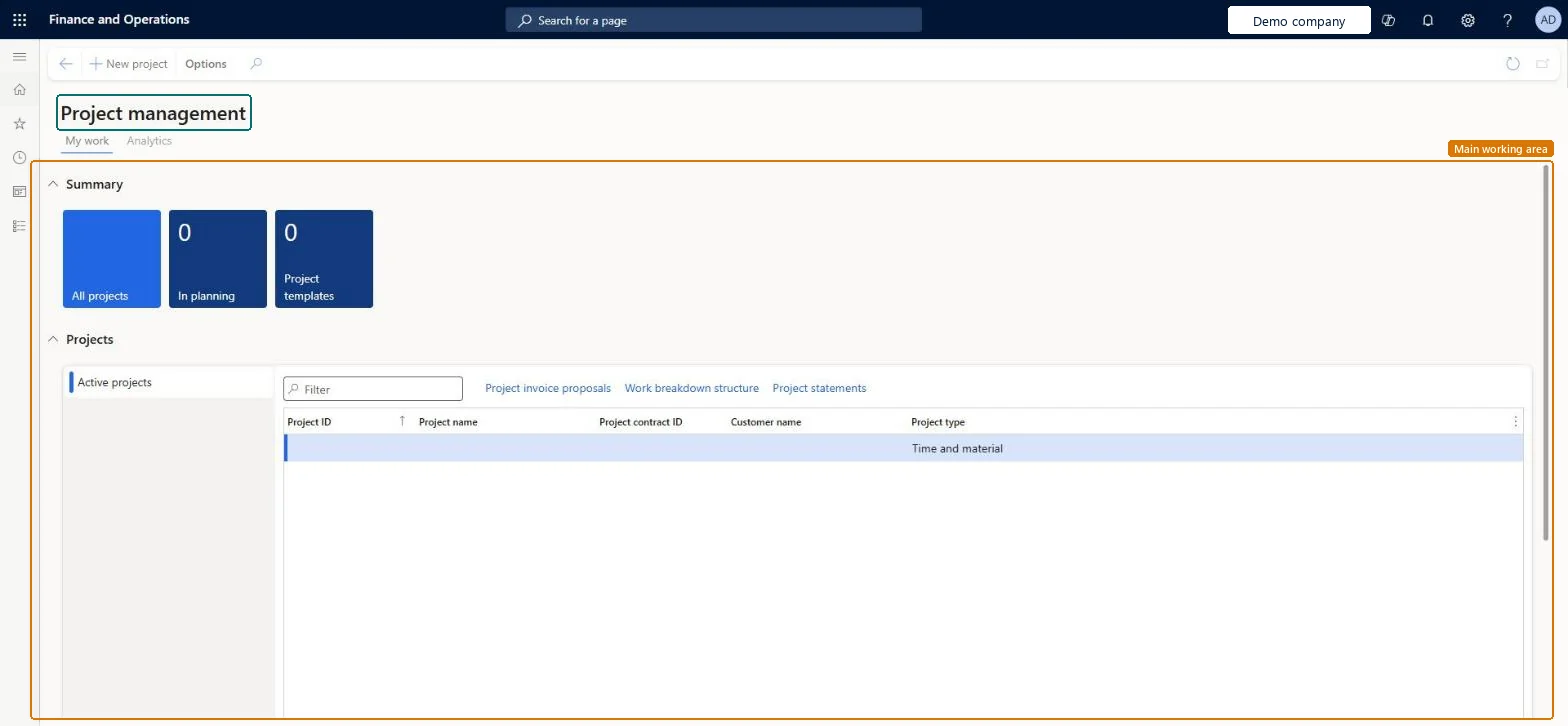
Workspace page · Project management and accounting
Project management
The project manager's workspace in Project management and accounting: it creates new projects in one dialog and links to the project lists and project setup.
Project accountant, Project assistant, Project manager and 1 more role
Business process
Plan projects
Menu item
ProjManagementWorkspace
Setup steps
1 on this page
Show what matters for
PAGE GUIDEWhat the page does and how to use it8 sections. Choose a role to highlight what matters to you.
Everyone
1What it is and why
What it is
The project manager's workspace in Project management and accounting: it creates new projects in one dialog and links to the project lists and project setup.
What you do here
Use it to start a project with the right project type, project group and contract, then move to the project itself to plan the work.
Example
For example, BEAT's project manager selects New project, chooses Time and material, names it PRJ-0042 Warehouse fit-out, picks the project group TM-STD and contract PC-0017, and selects Create project.
The page in Dynamics 365. page title tab to open what to set or check
About the examples: Examples and screenshots in this guide use BEAT, a demo company in a Dynamics 365 test environment. Use your own company's codes and values instead of copying them.
Setup steps on this page
Use the Project management workspace to create projects
Create each project with the right type, group and contract from one dialog.
Steps from Microsoft
Go to Project management and accounting > Workspaces > Project management.
Select New project.
In the Project type field, select the type, for example Time and material.
Enter a project name, select a project group and select the project contract ID.
Select Create project.
Open the new project from All projects and plan its work breakdown structure.
Sets how the project handles costs and revenue recognition. Only Time and material and Fixed-price projects can be invoiced, and the type can't be changed later.Microsoft Learn
Time and material
Project contract ID
Links the new project to the contract that holds its billing terms. Time and material and Fixed-price projects always attach to a contract.Microsoft Learn
PC-0017
Project group
The group that carries the ledger posting options for the project; select it when you create the project.Microsoft Learn
TM-STD
Common errors and fixes
Message
What to do
The Project contract ID lookup has no contract to select for a Time and material or Fixed-price project.
Create the contract first on Project contracts. These two project types always attach to a project contract. Microsoft Learn
Test checklist
Open the workspace and create a Time and material project with a project group and a contract.
Check the project opens with the type and group you chose.
Open All projects and filter on the new project ID.
Check the list shows exactly one project with that ID and the contract you selected.
Create projects from New project and select the project type, project group and project contract in the dialog before you select Create project.The project type decides whether the project can be invoiced and how costs and revenue post; it can't be changed after the project is created.
On the live system, Project manager, Project supervisor, Project accountant and Project assistant use this page.
Checked in Dynamics 365
Solution architect
5Design impact
Shared or per company
Per company: projects created here belong to the legal entity you are working in. Microsoft Learn
Can it be undone
Reversible: Reversible: the workspace itself changes no data. A project created from it follows the All projects rules: its type is fixed once created. Microsoft Learn
If you change it later
After the project is created you can still edit it and its contract, but you can't change its project type, so a wrong type means a new project. Microsoft Learn
Technical architect
6Technical
Menu item
ProjManagementWorkspaceChecked in Dynamics 365
Form
ProjProjectManagementWorkspaceChecked in Dynamics 365
To use itProject manager ProjProjectManagerProject supervisor ProjProjectSupervisorProject accountant ProjProjectAccountantProject assistant ProjProjectClerkGive people one of these roles. On this system, 4 roles can open this page.Checked in Dynamics 365
Actions on the page
Options: Personalize, Page options, ShareChecked in Dynamics 365
Load order: The Project management workspace has no data entity in Data management. It only shows projects and links. Load the projects themselves on All projects with ProjProjectV2Entity or ProjectEntity.Checked in Dynamics 365