PAGE GUIDEWhat the page does and how to use it8 sections. Choose a role to highlight what matters to you.
Everyone
1What it is and why
What it is
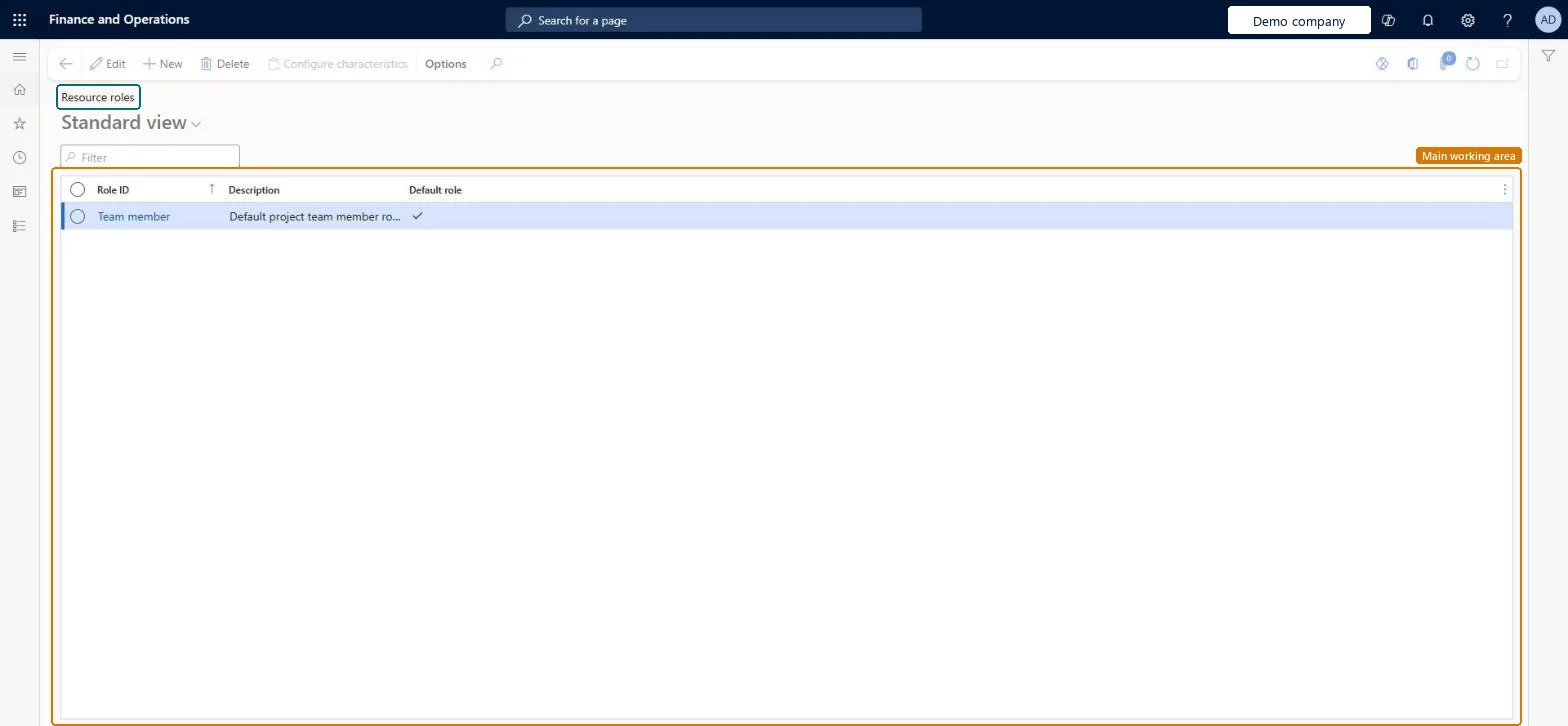
A setup page where you define resource roles, which act as temporary resources that you can reserve for an engagement or part of one.
What you do here
Use this page to set up roles with the competencies a project needs, so that roles can be planned, priced and matched to real resources.
Example
For example, BEAT creates the role CONSULTANT with the competencies SQL and Finance, prices it at 120.00 per hour, and plans 160.00 hours of CONSULTANT on PRJ-0042 before a named consultant is booked.
The page in Dynamics 365. page title tab to open what to set or check
About the examples: Examples and screenshots in this guide use BEAT, a demo company in a Dynamics 365 test environment. Use your own company's codes and values instead of copying them.
Step by step, with screenshots
Set up Resource roles1 screen
Use this page to set up roles with the competencies a project needs, so that roles can be planned, priced and matched to real resources.
Screen 1
Create a resource role
Go to Project management and accounting > Setup > Resources > Resource roles
Select New
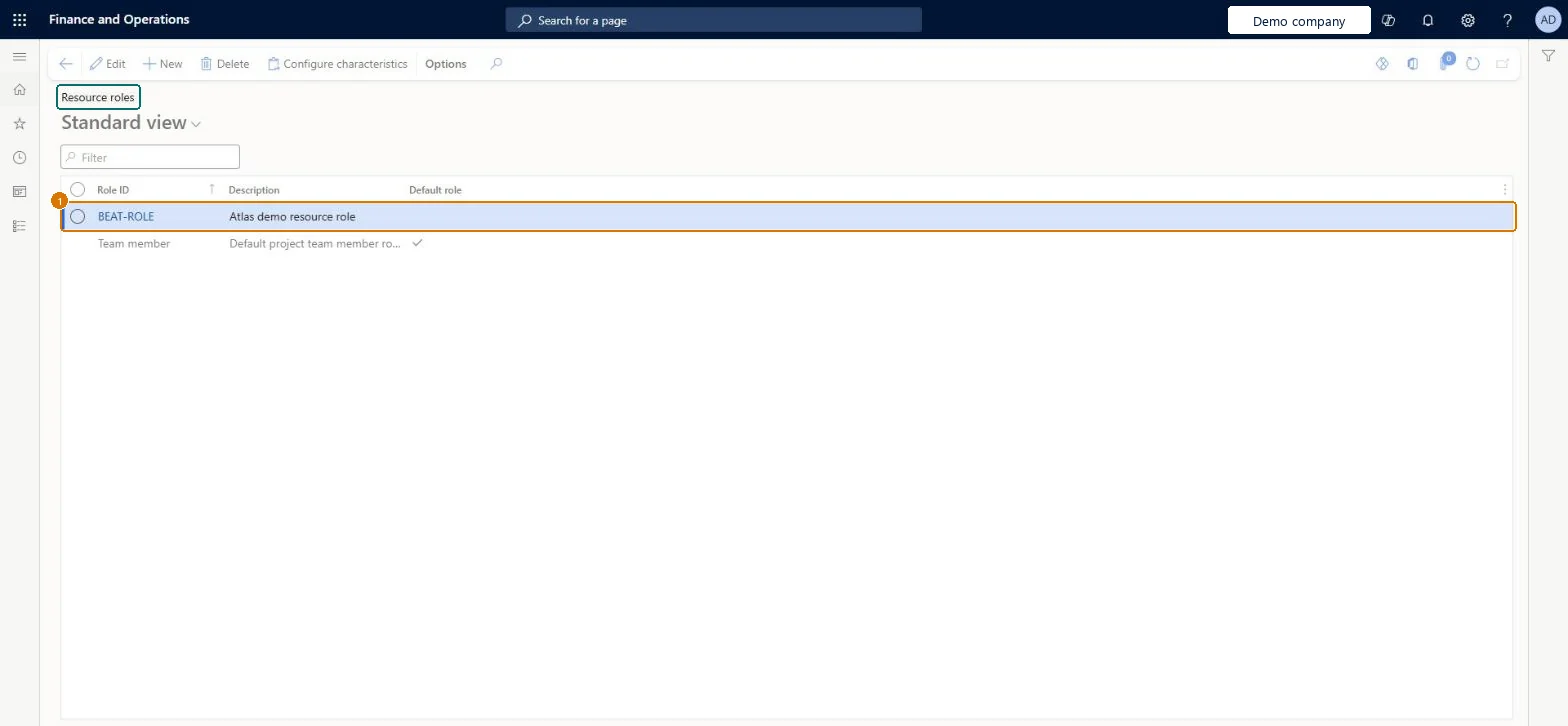
Enter the role ID and description
Leave Default role off unless this role should be the default
Select Create
Select Configure characteristics to add the competencies the role needs
1Role ID
BEAT-ROLE
Description
Resource role
Show the full screen page title tab to open what to set or check
Steps from Microsoft
Go to Project management and accounting > Setup > Resources > Resource roles.
Select New and enter the Role ID and Description; mark Default role on the role used when none is given.
Select Configure characteristics and add the competencies the role needs.
Add a role price on Sales price (hour), then plan the role on a project team.
One role per job profile, each with the competencies the work needsRoles with required competencies make it easy to match resources, and they drive the initial schedule, cost estimates and role-based prices.
Reversible: Roles are temporary resources for planning. Project managers replace them with staffed resources and can update reservations at any project stage. Microsoft Learn
If you change it later
Roles can be planned and priced on projects before real resources are known; when a project manager staffs the role, the role reservation is replaced by the resource. Microsoft Learn
Technical architect
6Technical
Menu item
ResResourceCategoryMenuItemChecked in Dynamics 365
Form
ResResourceCategoryFormChecked in Dynamics 365
Table
PSASchedRoleShown as “Roles” in Record infoKey field: RoleId, DescriptionChecked in Dynamics 365
To set it up or change itProject manager ProjProjectManagerResource manager ProjResourceManagerGive people one of these roles. On this system, 2 roles can open this page.Checked in Dynamics 365
Actions on the page
Options: Personalize, Page options, ShareChecked in Dynamics 365
ResResourceCategoryDataEntity (Project resource role): loaded for each company, in Microsoft's default template 650 - Project accounting.Load order: Microsoft's default template 650 - Project accounting loads Project resource role at execution unit 1, level 30, sequence 10. Lower levels load first, and entities at the same level load in sequence order.Load first: the default templates at lower levels (System setup to General ledger)Microsoft Learn
Checked in a working Dynamics 365 system, version 10.0.49: the menu item, form, table and security, the page, the demo records and the values in the screenshots.