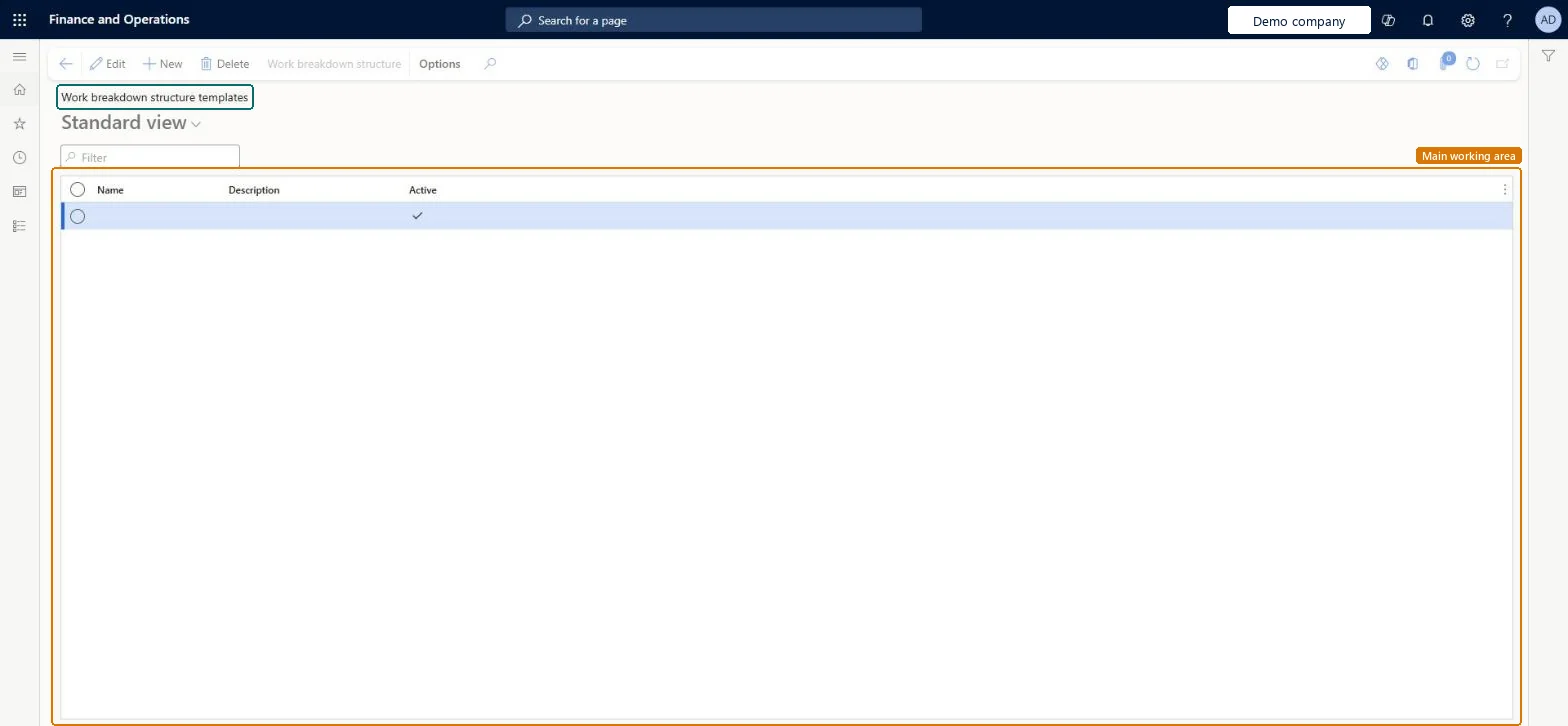
A setup page where project managers create and maintain work breakdown structure (WBS) templates that they can reuse when they build the WBS for a new project.
PAGE GUIDEWhat the page does and how to use it8 sections. Choose a role to highlight what matters to you.
Everyone
1What it is and why
What it is
A setup page where project managers create and maintain work breakdown structure (WBS) templates that they can reuse when they build the WBS for a new project.
What you do here
Use this page to keep standard sets of tasks, with their effort, duration, resources and roles, ready to copy into new projects.
Example
For example, BEAT keeps the template ERP-ROLLOUT with 14 tasks such as Design (80.00 hours, role CONSULTANT) and Go-live (24.00 hours, role PM), and copies it into the WBS of each new rollout project such as PRJ-0042.
The page in Dynamics 365. page title tab to open what to set or check
About the examples: Examples and screenshots in this guide use BEAT, a demo company in a Dynamics 365 test environment. Use your own company's codes and values instead of copying them.
Step by step, with screenshots
Set up Work breakdown structure templates1 screen
Use this page to keep standard sets of tasks, with their effort, duration, resources and roles, ready to copy into new projects.
Screen 1
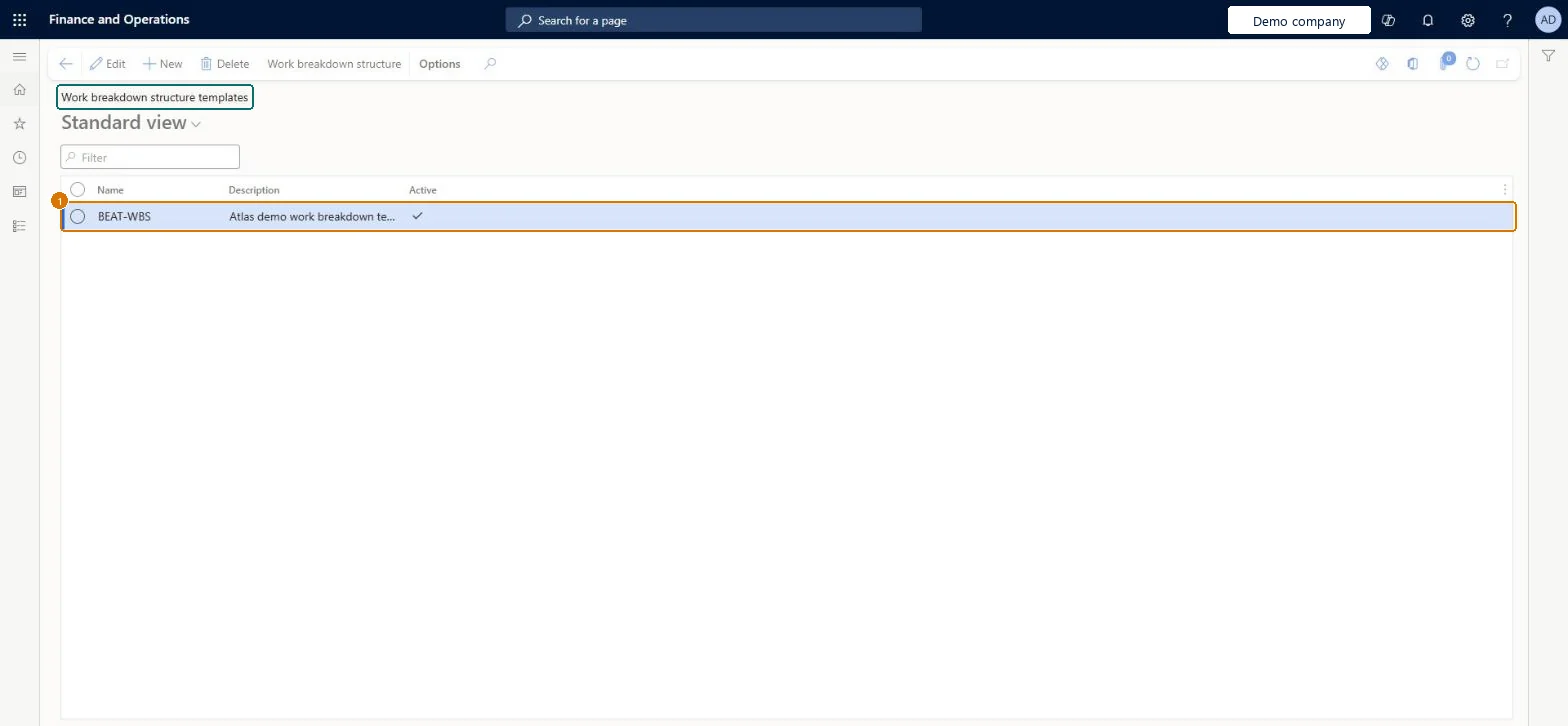
Create a work breakdown structure template
Go to Project management and accounting > Setup > Projects > Work breakdown structure templates
Select New
Enter the name and description
Select OK
Add the tasks, effort and roles for the template, then go back to the list
1Name
BEAT-WBS
Description
Work breakdown template
Active
Yes
Show the full screen page title tab to open what to set or check
Steps from Microsoft
Go to Project management and accounting > Setup > Projects > Work breakdown structure templates.
On the Action Pane, select New work breakdown structure template, enter a unique name and an optional description, and select OK.
Select Task to add each task, and fill Predecessors, Category, Effort (hours), Number of resources and Duration (days).
Select Details and set a Role on each task, so that Auto generate team can add one planned resource per role.
Arrange the tasks with Indent, Outdent, Move task up and Move task down.
Select Active on the Line details FastTab when the template is ready, then create a project WBS from it.
Give each template task a role and effort (hours)With roles and effort on the tasks, Auto generate team can add the planned resources automatically once the WBS copied from the template is published.
On the live system, Project manager maintains this page.
Checked in Dynamics 365
Solution architect
5Design impact
Shared or per company
Per company: templates belong to the legal entity they were created in. Microsoft Learn
Can it be undone
Reversible: Templates are only copied when a WBS is created, so edits apply to projects created afterwards; roles on a project's WBS can be replaced once real resources are known. Microsoft Learn
If you change it later
A template is copied when a project WBS is created from it. Changes to the template reach only projects created afterwards; existing WBSs keep their tasks. Microsoft Learn
Technical architect
6Technical
Menu item
ProjABSListPageChecked in Dynamics 365
Form
ProjWbsTemplateChecked in Dynamics 365
Table
HierarchyShown as “Hierarchies” in Record infoKey field: HierarchyId, NameChecked in Dynamics 365
Data entities
ProjWBSTemplateEntityProject work breakdown structure templates Checked in Dynamics 365ProjWBSTemplateTasksEntityProject work breakdown structure template tasks Checked in Dynamics 365
To set it up or change itProject manager ProjProjectManagerGive people one of these roles. On this system, 1 role can open this page.Checked in Dynamics 365
Actions on the page
Options: Personalize, Page options, ShareChecked in Dynamics 365
Developer
7Developer
Open it by URL
https://<your-environment>/?mi=ProjABSListPage
Integrate with
ProjWBSTemplateEntity data entity Checked in Dynamics 365
Data migration
ProjWBSTemplateEntity Template headers, loaded for each company.ProjWBSTemplateTasksEntity Template tasks, loaded after the headers.Load order: Load the template headers first and the template tasks second, after resource roles and project categories, because tasks refer to a role and a category.Load first: Resource roles, Project categoriesMicrosoft Learn
Checked in a working Dynamics 365 system, version 10.0.49: the menu item, form, table and security, the page, the demo records and the values in the screenshots.