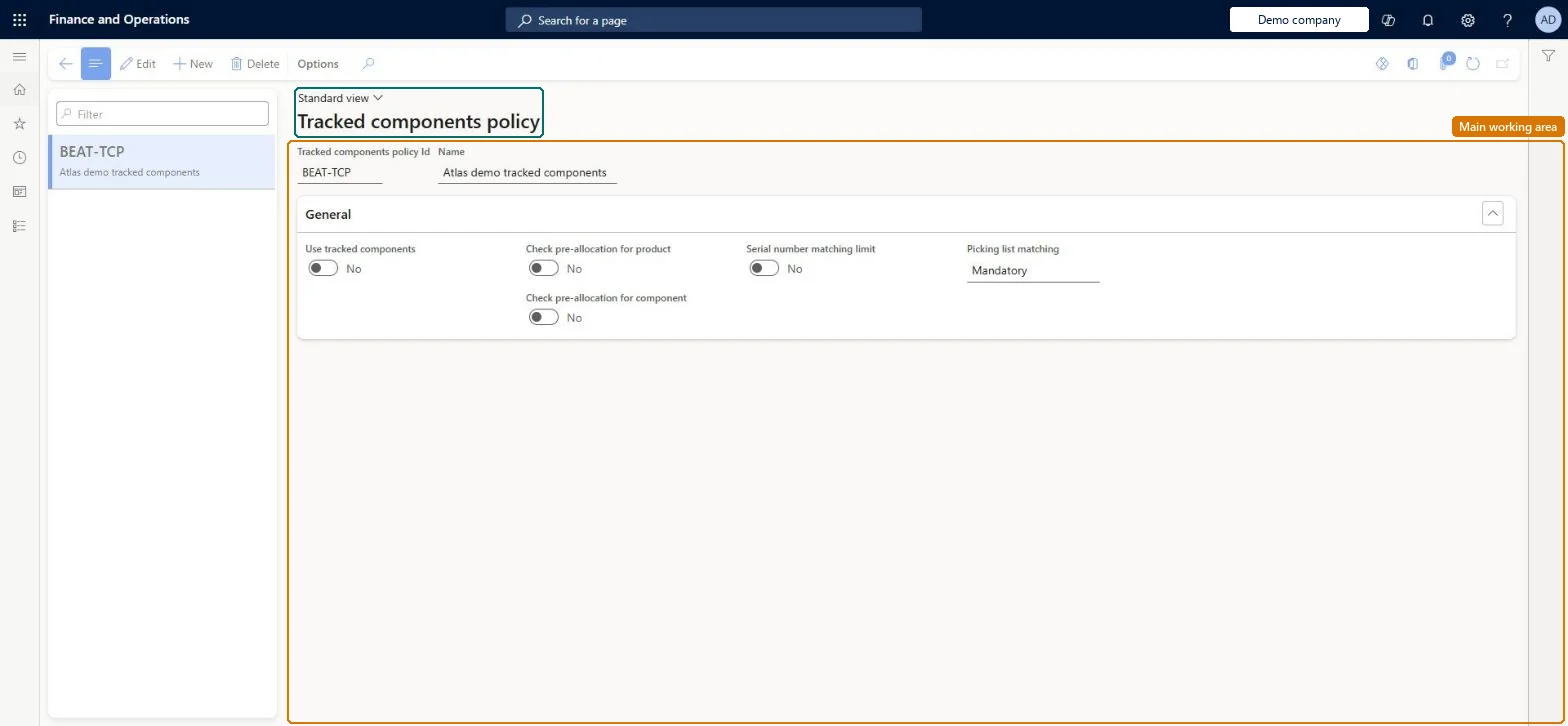
A setup page where you create policies that switch on batch and serial number registration of components for the products assigned to them, and decide which checks are made.
Inventory accountant, Inventory accountant clerk, Shop supervisor and 5 more roles
Business process
Develop production processes
Menu item
ProdAsBuiltBOMPolicy
Main table
ProdAsBuiltBOMPolicy
Setup steps
1 on this page
Show what matters for
PAGE GUIDEWhat the page does and how to use it8 sections. Choose a role to highlight what matters to you.
Everyone
1What it is and why
What it is
A setup page where you create policies that switch on batch and serial number registration of components for the products assigned to them, and decide which checks are made.
What you do here
Use this page to define whether tracked component information is registered for a product, and whether product and component batch or serial numbers are validated against pre-allocations and the planned BOM quantity.
Example
For example, turn on Serial number matching limit so that no more component serial numbers can be matched to a finished product than the production BOM line plans.
The page in Dynamics 365. page title tab to open what to set or check
About the examples: Examples and screenshots in this guide use BEAT, a demo company in a Dynamics 365 test environment. Use your own company's codes and values instead of copying them.
Setup steps on this page
Set up Tracked components policy
Use this page to define whether tracked component information is registered for a product, and whether product and component batch or serial numbers are validated against pre-allocations and the planned BOM quantity.
Steps from Microsoft
Go to Production control > Setup > Production > Tracked components policy.
Select New on the Action Pane (or select an existing policy to edit).
Enter a Name and a Description.
Set Use tracked components to Yes.
Set Check pre-allocation for product and Check for pre-allocation for components as required.
Set Serial number matching limit to Yes if over-allocation must be blocked.
Use tracked components = Yes on policies assigned only to batch- or serial-controlled products, after Enable tracked components is set to Yes in Inventory and warehouse management parametersLearn requires the product to be serial or batch controlled and linked to a tracked components policy, and registration must first be enabled on the Bills of materials tab of Inventory and warehouse management parameters.
Switching on Serial number matching limit without checking BOM quantities. The system then blocks any component serial match beyond the planned quantity on the production order BOM line.Test: Serial number matching limit blocks over-allocation
Reversible: You can edit or reassign policies; changes apply to later registrations. Associations already registered can be reviewed and corrected on Tracked components associations. Microsoft Learn
If you change it later
Turning on the matching limit makes the system refuse component serial matches beyond the planned BOM quantity, so registrations that previously went through will be blocked. Microsoft Learn
Technical architect
6Technical
Menu item
ProdAsBuiltBOMPolicyChecked in Dynamics 365
Form
ProdAsBuiltBOMPolicyChecked in Dynamics 365
Table
ProdAsBuiltBOMPolicyShown as “TRACKED COMPONENTS POLICY” in Record infoChecked in Dynamics 365
Who can open it
PrivilegesProdAsBuiltBOMMaintainProdAsBuiltBOMViewDutiesInquire into production cost calculations ProdProductionCostCalcStatusInquireMaintain production order preparation ProdProductionOrderPreparationMaintainInquire into production orders ProdProductionOrderProgressInquire8 security rolesInventory accountant InventCostAccountantInventory accountant clerk InventCostCostClerkShop supervisor JmgShopSupervisorAccounting manager LedgerAccountingManagerProduction manager ProdProductionManagerProduction supervisor ProdProductionSupervisorProject manager ProjProjectManagerProduction planner ReqProductionPlannerChecked in Dynamics 365
Roles to set it up and use it
To set it up or change itProduction supervisor ProdProductionSupervisorTo use itProduction manager ProdProductionManagerShop supervisor JmgShopSupervisorProduction planner ReqProductionPlannerProject manager ProjProjectManagerInventory accountant clerk InventCostCostClerkGive people one of these roles. On this system, 8 roles can open this page.Checked in Dynamics 365