A report that prints or displays the batch production record for a chosen BPR ID, as a simplified version of the information shown in the Batch production record query.
Production controlInquiries and reportsElectronic batch records
output:QMSBPRReport
Business process
Review batch production record inquiry and report in Dynamics 365 Supply Chain Management
Menu item
output:QMSBPRReport
Show what matters for
PAGE GUIDEWhat the page does and how to use it7 sections. Choose a role to highlight what matters to you.
Everyone
1What it is and why
What it is
A report that prints or displays the batch production record for a chosen BPR ID, as a simplified version of the information shown in the Batch production record query.
What you do here
Use this page to produce a printable or emailable batch production report for a batch or production order, choosing which details to include and whether batch expiration and work instructions appear.
Example
For example, a quality team prints the BPR for each released pharmaceutical batch and files it with the batch documentation.
The page in Dynamics 365. page title tab to open what to set or check
About the examples: Examples and screenshots in this guide use BEAT, a demo company in a Dynamics 365 test environment. Use your own company's codes and values instead of copying them.
When to run it
When to run it
When a printed or emailed batch production record is needed for a batch or production order, for example for a release decision or an audit.
How often
On demand, per batch or production order that needs a batch production record.
What the output shows
A simplified version of the batch production record query: the BOM or formula version used, proposed and actual ingredient quantities, substitutions, batch attributes and quality orders. Missing sections usually mean the related production journal has not been created yet.
Go to Production control > Inquiries and reports > Electronic batch records > Batch Production Report (BPR).
Select the BPR ID of the batch or production order. You can also start from the Batch production record query and select Batch production report (BPR) on the Action Pane.
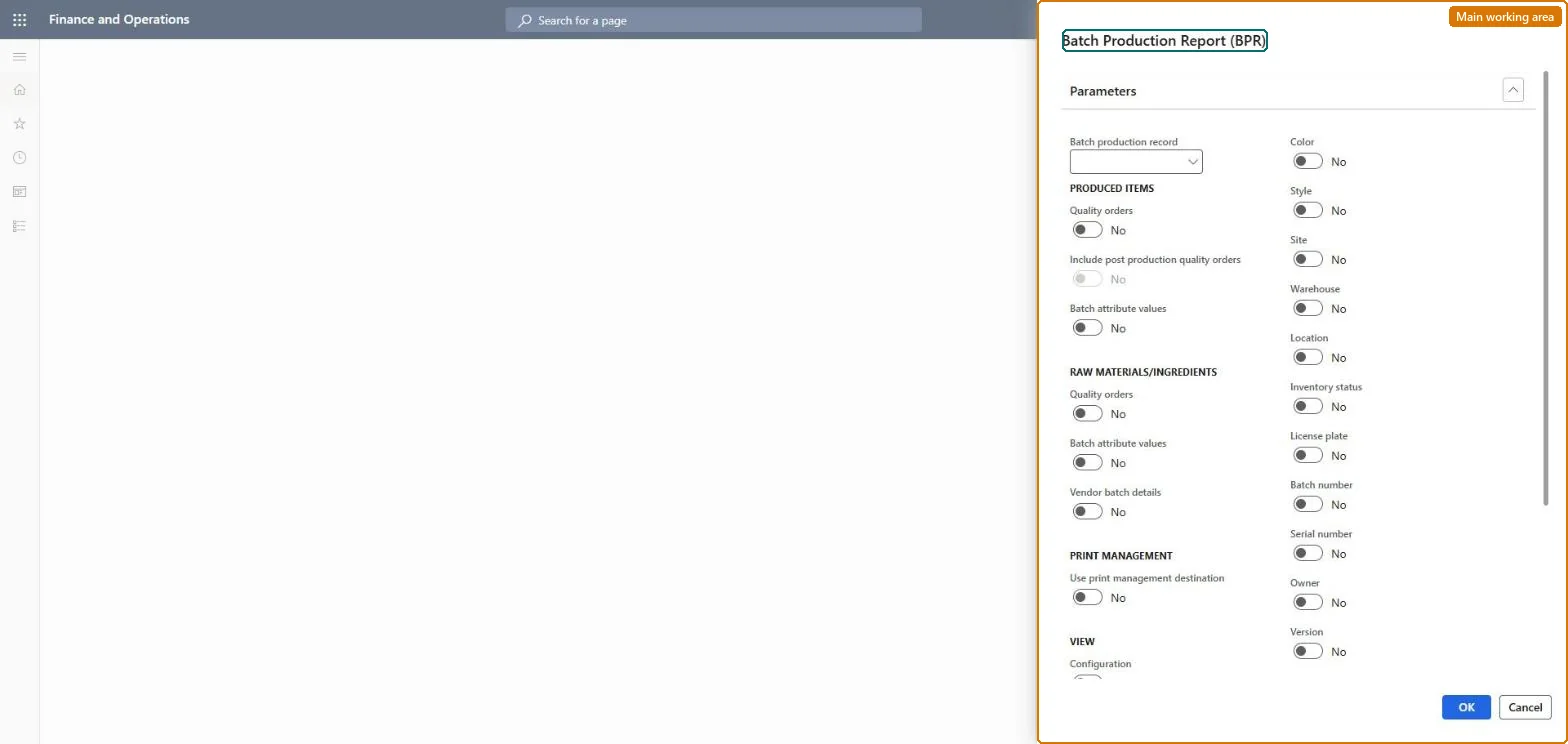
On the Parameters FastTab, select the details of the record to include on the report.
On the Destination FastTab, choose screen, printer, file or email, depending on who needs the record.
Review the report: whether batch expiration appears, whether an empty work instruction section is left out, and whether several BPRs can print at once depends on the Electronic batch record parameters.
Which details of the record to include on the printed report.Microsoft Learn
Destination
Where the report goes: screen, printer, file or email.Microsoft Learn
Solution architect
4Design impact
Can it be undone
Nothing to undo: The report only prints the batch production record; it changes nothing. Microsoft Learn
If you change it later
The content is controlled by the Electronic batch record parameters: whether batch expiration is printed, whether an empty work instruction section is suppressed, and whether several BPRs can be printed in one run. Microsoft Learn
Technical architect
5Technical
Menu item
output:QMSBPRReportChecked in Dynamics 365
Form
SysOperationTemplateFormChecked in Dynamics 365
Roles to set it up and use it
To use itProduction manager ProdProductionManagerShop supervisor JmgShopSupervisorProduction planner ReqProductionPlannerProcess engineer RouteProcessEngineerMaterials manager InventMaterialsManagerGive people one of these roles. On this system, 7 roles can run this page.Checked in Dynamics 365