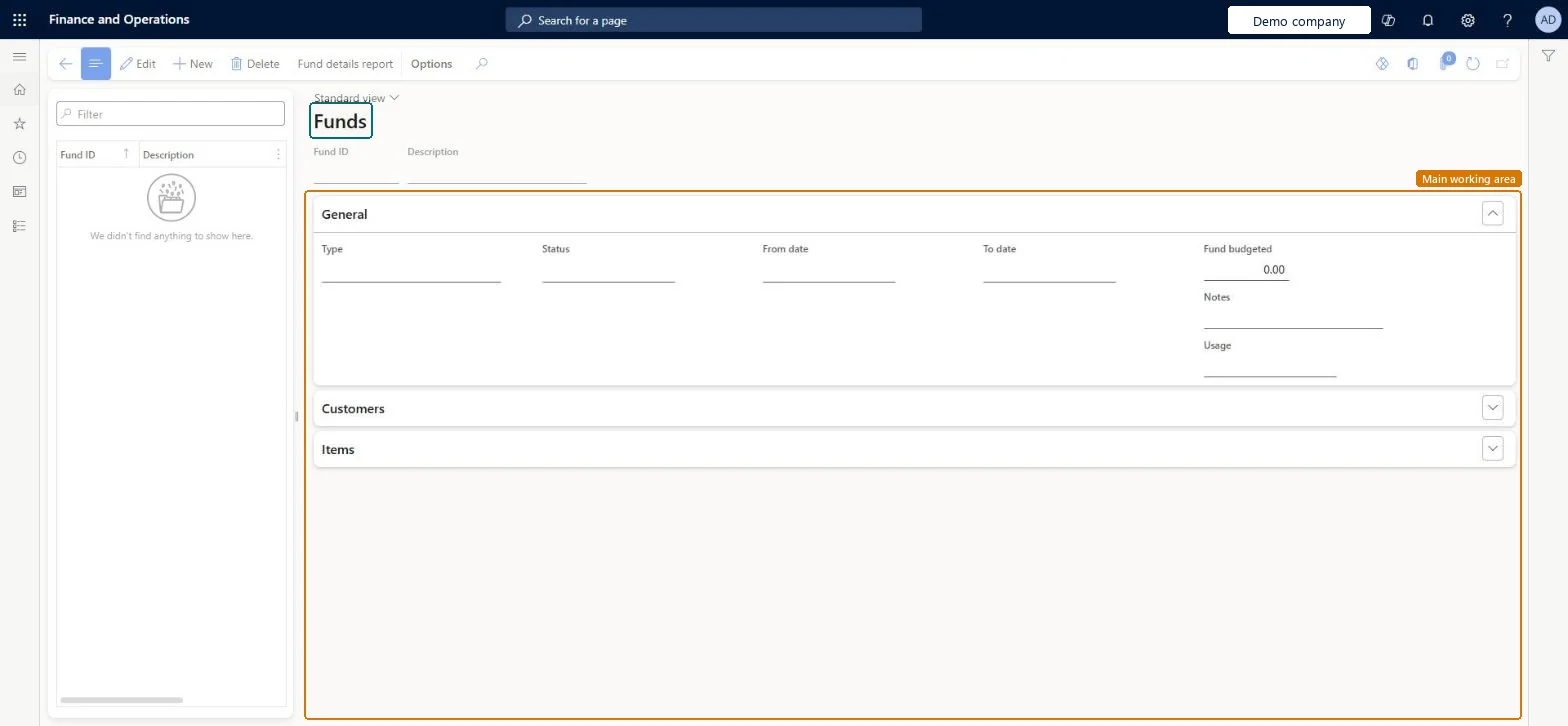
About the examples: Examples and screenshots in this guide use BEAT, a demo company in a Dynamics 365 test environment. Use your own company's codes and values instead of copying them.
Steps from Microsoft
Go to Pricing management > Fund control > Funds.
Select New and enter a description.
On the General FastTab, select the Type, enter the From date and To date, and enter the Fund budgeted amount.
In the Usage field, select the usage type.
On the Customers FastTab, select the customer category hierarchy, add the customers and enter each customer's budget.
On the Items FastTab, select Add products and add the products.
Reversible: A fund can be allocated to a trade allowance agreement only while its Status is Approved. Learn describes no lock on the fund itself; allocations already made are held on the trade allowance agreements. Microsoft Learn
If you change it later
A fund can be allocated to a trade allowance agreement only after its status is set to Approved. Microsoft Learn
Technical architect
5Technical
Menu item
TAMFundSetupMenuChecked in Dynamics 365
Form
TAMFundManagementChecked in Dynamics 365
Table
TAMFundTableShown as “TRADE ALLOWANCE FUNDS” in Record infoKey field: FundIDChecked in Dynamics 365
Data entities
GUPFundTableEntityTrade allowance funds Checked in Dynamics 365
Who can open it
PrivilegesMaintain pricing service funds GUPPricingServiceFundMaintainView pricing service funds related transactions GUPPricingServiceFundTransViewMaintain trade allowance funds TAMFundSetupMenuMaintainDutiesMaintain pricing service funds GUPPricingServiceFundMaintainInquiries into pricing service funds related transactions GUPPricingServiceFundTransInquiryMaintain retail campaign discounts RetailDiscountOfferMaintainMaintain retail campaign discounts RetailDiscountOfferViewMaintain trade allowances TAMMaintain9 security rolesMarketing manager CRMMarketingManagerAccounts receivable clerk CustInvoiceAccountsReceivableClerkMCRTestUserRoleRetail merchandising manager RetailMerchandisingManagerRetail operations manager RetailOperationsManagerRetail service RetailServiceRetail store manager RetailStoreManagerSales clerk TradeSalesClerkSales manager TradeSalesManagerChecked in Dynamics 365
Roles to set it up and use it
To set it up or change itSales manager TradeSalesManagerMarketing manager CRMMarketingManagerAccounts receivable clerk CustInvoiceAccountsReceivableClerkTo use itRetail service RetailServiceRetail merchandising manager RetailMerchandisingManagerSales clerk TradeSalesClerkRetail operations manager RetailOperationsManagerRetail store manager RetailStoreManagerGive people one of these roles. On this system, 8 roles can open this page.Checked in Dynamics 365
Actions on the page
(Action Pane without tabs): Fund details reportChecked in Dynamics 365
Developer
6Developer
Open it by URL
https://<your-environment>/?mi=TAMFundSetupMenu
Integrate with
GUPFundTableEntity data entity Checked in Dynamics 365