Pricing managementDuring-sales pricingPrice groups
GUPPriceGroupApplicability
Used by
Retail catalog manager, Retail operations manager, Retail service and 5 more roles
Business process
Set product prices
Menu item
GUPPriceGroupApplicability
Main table
PriceDiscGroup
Data entity
PriceDiscLineDiscountCustomerGroupEntity
Setup steps
1 on this page
Show what matters for
PAGE GUIDEWhat the page does and how to use it8 sections. Choose a role to highlight what matters to you.
Everyone
1What it is and why
What it is
A page where you create and manage price groups that you can associate with attributes.
What you do here
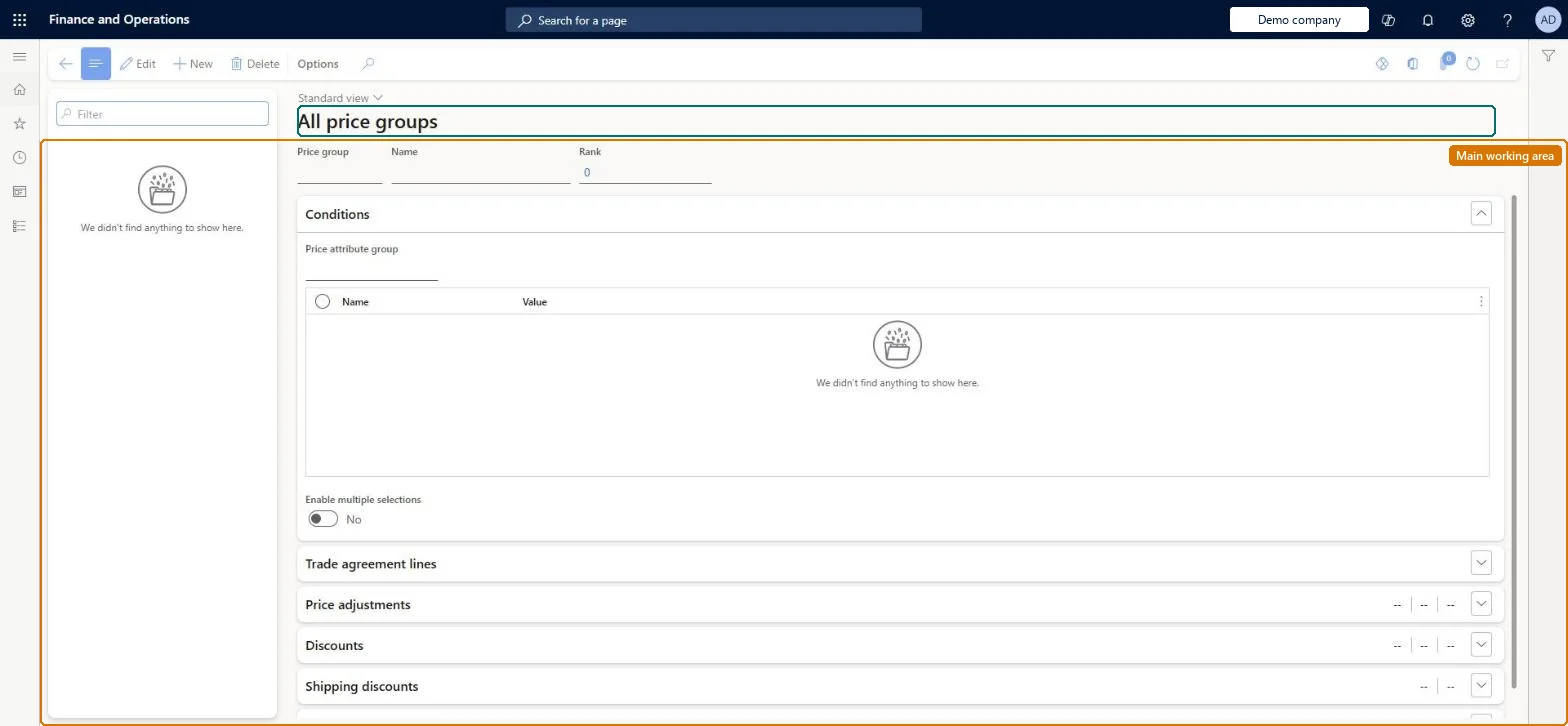
Use this page to group several pricing rules under a shared context for price segmentation and to set the rank that decides which group applies when more than one does. Price groups are optional.
Example
For example, a company can set up price groups for US, European and Asian customers and assign different discounts to each region.
The page in Dynamics 365. page title tab to open what to set or check
About the examples: Examples and screenshots in this guide use BEAT, a demo company in a Dynamics 365 test environment. Use your own company's codes and values instead of copying them.
Setup steps on this page
Set up All price groups
Use this page to group several pricing rules under a shared context for price segmentation and to set the rank that decides which group applies when more than one does. Price groups are optional.
Steps from Microsoft
Go to Pricing management > During-sales pricing > Price groups > All price groups.
Select New on the Action Pane.
Enter the Price group, Name and Rank.
On the Conditions FastTab, select the Price attribute group and enter a Value for each attribute.
On the Price adjustments and Discounts FastTabs, add the price adjustments and discounts that apply to the group.
Only create price groups where you need price segmentation, and give each a distinct RankPrice groups are optional in Unified pricing management. When more than one price group applies, the system uses the one with the highest Rank, so equal ranks make the result hard to predict.
Setting up shipping or tender discounts through the Shipping discounts and Tender discounts FastTabs here. In the current version those FastTabs have no effect.
Reversible: Rank and conditions can be changed and affect which price group applies on the next calculation. The Price group ID is fixed once saved; to rename, create a new group. Microsoft Learn
If you change it later
Changing a price group's rank changes which price group the system uses when several apply. Microsoft Learn
Technical architect
6Technical
Menu item
GUPPriceGroupApplicabilityChecked in Dynamics 365
Form
GUPPriceGroupApplicabilityChecked in Dynamics 365
Table
PriceDiscGroupShown as “PRICE GROUPS” in Record infoKey field: GroupIdChecked in Dynamics 365
Data entities
PriceDiscLineDiscountCustomerGroupEntityLine discount customer groups Microsoft data model PriceDiscLineDiscountProductGroupEntityLine discount item groups Microsoft data model PriceDiscLineDiscountVendorGroupEntityLine discount vendor groups Microsoft data model PriceDiscMultilineDiscountCustomerGroupEntityMultiline discount customer groups Microsoft data model PriceDiscPriceCustomerGroupEntityPrice customer groups Microsoft data model PriceDiscPriceVendorGroupEntityPrice vendor groups Microsoft data model PriceDiscTotalDiscountCustomerGroupEntityTotal discount customer groups Microsoft data model PriceDiscTotalDiscountVendorGroupEntityTotal discount vendor groups Microsoft data model PriceDiscMultilineDiscountProductGroupEntityMultiline discount item groups Microsoft data model PriceDiscMultilineDiscountVendorGroupEntityMultiline discount vendor groups Microsoft data model MCRPostageDiscountCustomerGroupEntityPostage discount customer groups Microsoft data model
Who can open it
PrivilegesMaintain price groups and pricing priorities GUPPriceGroupApplicabilityMaintainView price groups and pricing priorities GUPPriceGroupApplicabilityViewDutiesMaintain price groups and pricing priorities GUPPriceGroupApplicabilityMaintainView price groups and pricing priorities GUPPriceGroupApplicabilityViewMaintain retail channels RetailChannelsMaintainView retail channels RetailChannelsViewRetail trial channels maintain privilege RetailTrialChannelsMaintain9 security rolesMCRTestUserRoleRetail catalog manager RetailCatalogManagerRetail operations manager RetailOperationsManagerRetail service RetailServiceRetail store IT RetailStoreITRetail store manager RetailStoreManagerInformation technology manager SysServerITManagerSales clerk TradeSalesClerkSales manager TradeSalesManagerChecked in Dynamics 365
Roles to set it up and use it
To set it up or change itRetail service RetailServiceSales manager TradeSalesManagerRetail store IT RetailStoreITRetail operations manager RetailOperationsManagerRetail store manager RetailStoreManagerTo use itSales clerk TradeSalesClerkRetail catalog manager RetailCatalogManagerInformation technology manager SysServerITManagerGive people one of these roles. On this system, 8 roles can open this page.Checked in Dynamics 365
PriceDiscLineDiscountCustomerGroupEntity (Line discount customer groups): loaded for each company, in Microsoft's default template 140 - Accounts receivable.PriceDiscLineDiscountProductGroupEntity (Line discount item groups): loaded for each company, in Microsoft's default template 300 - Inventory.PriceDiscLineDiscountVendorGroupEntity (Line discount vendor groups): loaded for each company, in Microsoft's default template 120 - Accounts payable.Load order: Microsoft's default template 140 - Accounts receivable loads Line discount customer groups at execution unit 1, level 30, sequence 10. Lower levels load first, and entities at the same level load in sequence order.Load first: the default templates at lower levels (System setup to General ledger)Microsoft Learn