About the examples: Examples and screenshots in this guide use BEAT, a demo company in a Dynamics 365 test environment. Use your own company's codes and values instead of copying them.
Setup steps on this page
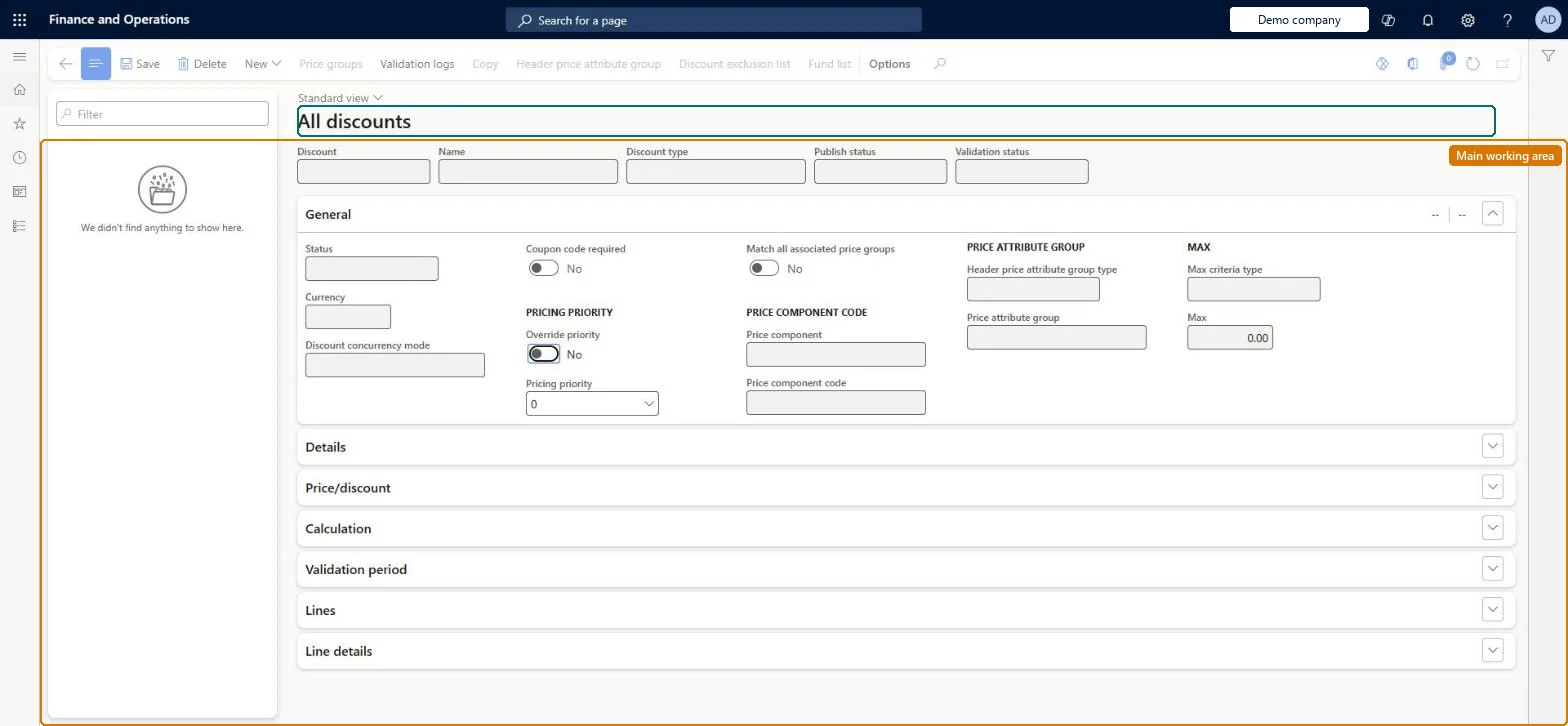
Set up All discounts
Use this page to configure each discount, the customers and items it applies to, and how it is calculated.
Steps from Microsoft
Go to Pricing management > During-sales pricing > Discounts > All discounts.
Select New on the Action Pane (on All discounts, choose the discount type from the menu).
Enter an identifier in the Discount field and a Name.
On the General FastTab, select the Currency, the Price component code and the Discount concurrency mode.
On the Action Pane, select Header price attribute group to choose the customers that the rule applies to.
On the Lines FastTab, select New, choose the items, and set the calculation for each line.
On the Validation period FastTab, set the Effective date and Expiration date.
Set Discount concurrency mode on purpose for each rule; use Always apply only for discounts that should apply to every qualifying orderThe rule's concurrency mode overrides the price component code default. Always-apply discounts are applied last, after all other discounts, so they act as universal discounts.
Mixing Exclusive rules in by accident. An exclusive discount can't combine with other discounts, and where several exclusive discounts apply only the largest one is used.
Number sequences
Reference
Shared or per company
Note
Discount
Per company
New records on this page take their Discount from the RetailOfferIdEx3 reference; BEAT uses number sequence Comm_79. Checked in Dynamics 365
Solution architect
5Design impact
Can it be undone
Reversible: Disable the rule to edit or stop it. Only enabled rules are used in calculations. Microsoft Learn
If you change it later
A rule is read-only while it is enabled, so you must disable it before you change it. Microsoft Learn
Technical architect
6Technical
Menu item
GUPDiscountsAllChecked in Dynamics 365
Form
RetailPeriodicDiscountChecked in Dynamics 365
Table
RetailPeriodicDiscountShown as “PERIODIC DISCOUNT” in Record infoKey field: OfferIdChecked in Dynamics 365
PrivilegesMaintain pricing service sales discount records GUPDiscountRecordMaintainView pricing service discount agreements and records GUPDiscountRecordViewDutiesInquiries into pricing service discount agreements and records GUPDiscountInquiryMaintain pricing service sales discount records GUPDiscountMaintainMaintain pricing service sales discount records GUPDiscountRecordMaintainMaintain coupons MCRCouponMaintainMaintain retail coupons RetailCouponsMaintainMaintain retail campaign discounts RetailDiscountOfferMaintainMaintain retail campaign discounts RetailDiscountOfferView7 security rolesMCRTestUserRoleRetail merchandising manager RetailMerchandisingManagerRetail operations manager RetailOperationsManagerRetail service RetailServiceRetail store manager RetailStoreManagerSales clerk TradeSalesClerkSales manager TradeSalesManagerChecked in Dynamics 365
Roles to set it up and use it
To set it up or change itRetail service RetailServiceSales manager TradeSalesManagerRetail merchandising manager RetailMerchandisingManagerTo use itSales clerk TradeSalesClerkRetail operations manager RetailOperationsManagerRetail store manager RetailStoreManagerGive people one of these roles. On this system, 6 roles can open this page.Checked in Dynamics 365
Actions on the page
(Action Pane without tabs): New, Price groups, Validation logs, Copy, Header price attribute group, Discount exclusion list, Fund listChecked in Dynamics 365