Compensation and benefits manager, Payroll administrator, Payroll manager
Business process
Manage compensation and benefits
Menu item
PayrollPremiumEarningGenPolicyListPage
Main table
SysPolicy
Data entity
PurchPurchasingPolicyEntity
Setup steps
1 on this page
Show what matters for
PAGE GUIDEWhat the page does and how to use it8 sections. Choose a role to highlight what matters to you.
Everyone
1What it is and why
What it is
A setup page where you maintain premium earning policies and their policy rules, which state the conditions that must be met for a premium to be paid.
What you do here
Use this page to assign legal entities to a premium earning policy and to create dated policy rules, built with the expression builder, for each premium.
Example
For example, a policy rule for a second-shift differential lists the second-shift earning codes that must be on the earnings statement.
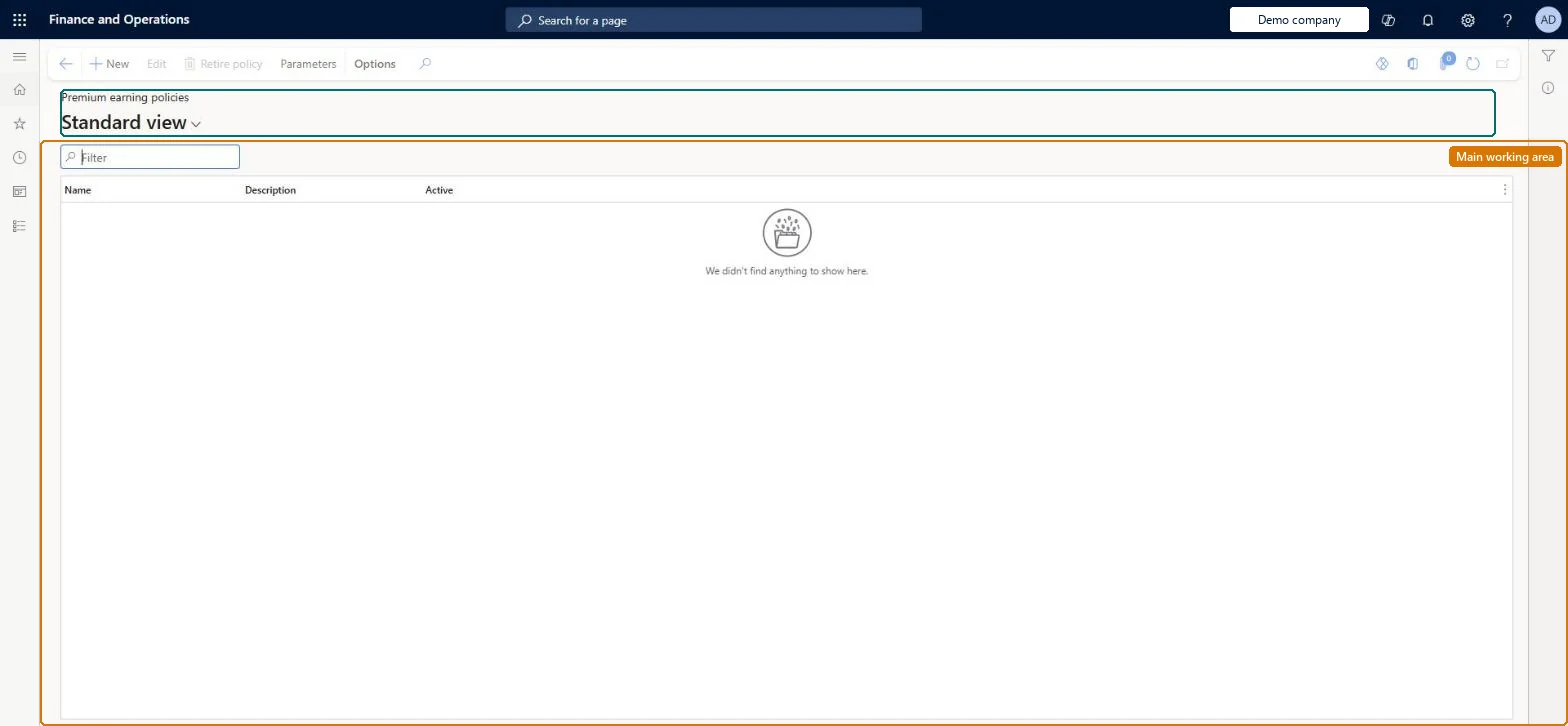
The page in Dynamics 365. page title tab to open what to set or check
About the examples: Examples and screenshots in this guide use BEAT, a demo company in a Dynamics 365 test environment. Use your own company's codes and values instead of copying them.
Setup steps on this page
Set up Premium earning policies
Use this page to assign legal entities to a premium earning policy and to create dated policy rules, built with the expression builder, for each premium.
Steps from Microsoft
Go to Payroll > Setup > Earnings > Premium earning policies.
Select the policy to create rules for.
On the Policy rules FastTab, create a policy rule for the policy rule type.
Enter effective and expiration dates for the rule.
In the expression builder, add a line for each earning code or condition.
One premium earning policy shared by all legal entities; one dated policy rule per policy rule typeLearn says most organizations have a single shared policy and typically one rule per rule type; after creation the policy rarely needs maintenance.
One-way: Warning: a policy can't be deleted; once retired, it and all its rules are retired for good and the policy can't be reactivated. Rules can be reactivated only by changing their effective dates. Microsoft Learn
If you change it later
Policies and policy rules cannot be deleted, only retired; retiring a policy retires all its rules and a retired policy cannot be reactivated. Microsoft Learn
Technical architect
6Technical
Menu item
PayrollPremiumEarningGenPolicyListPageChecked in Dynamics 365
Form
SysPolicyListPageChecked in Dynamics 365
Table
SysPolicyShown as “POLICY” in Record infoKey field: NameChecked in Dynamics 365
PrivilegesMaintain premium earnings setup PayrollPremiumEarningSetupMaintainView premium earnings setup PayrollPremiumEarningSetupViewDutiesInquire into payroll master data PayrollMasterDataInquireSet up payroll master data PayrollMasterDataMaintain3 security rolesCompensation and benefits manager HcmCompensationAndBenefitsManagerPayroll administrator HcmPayrollAdministratorPayroll manager HcmPayrollManagerChecked in Dynamics 365
Roles to set it up and use it
To set it up or change itPayroll administrator HcmPayrollAdministratorCompensation and benefits manager HcmCompensationAndBenefitsManagerTo use itPayroll manager HcmPayrollManagerGive people one of these roles. On this system, 3 roles can open this page.Checked in Dynamics 365
Actions on the page
(Action Pane without tabs): Edit, Retire policy, ParametersChecked in Dynamics 365