BeyondERP.Newsletter
Menu

Page · Payroll

Released earnings statements

A list page that shows earnings statements whose lines have been released for payment processing.

Used by
Payroll administrator, Payroll manager
Business process
Pay employees
Menu item
PayrollEarningsStatementListReleased
Main table
PayrollEarningStatement
Data entity
PayrollEarningStatementHeaderEntity
Show what matters for
PAGE GUIDEWhat the page does and how to use it8 sections. Choose a role to highlight what matters to you.
Everyone

1What it is and why

What it isA list page that shows earnings statements whose lines have been released for payment processing.
What you do hereUse this page to check which earnings are ready to be picked up when pay statements are generated.
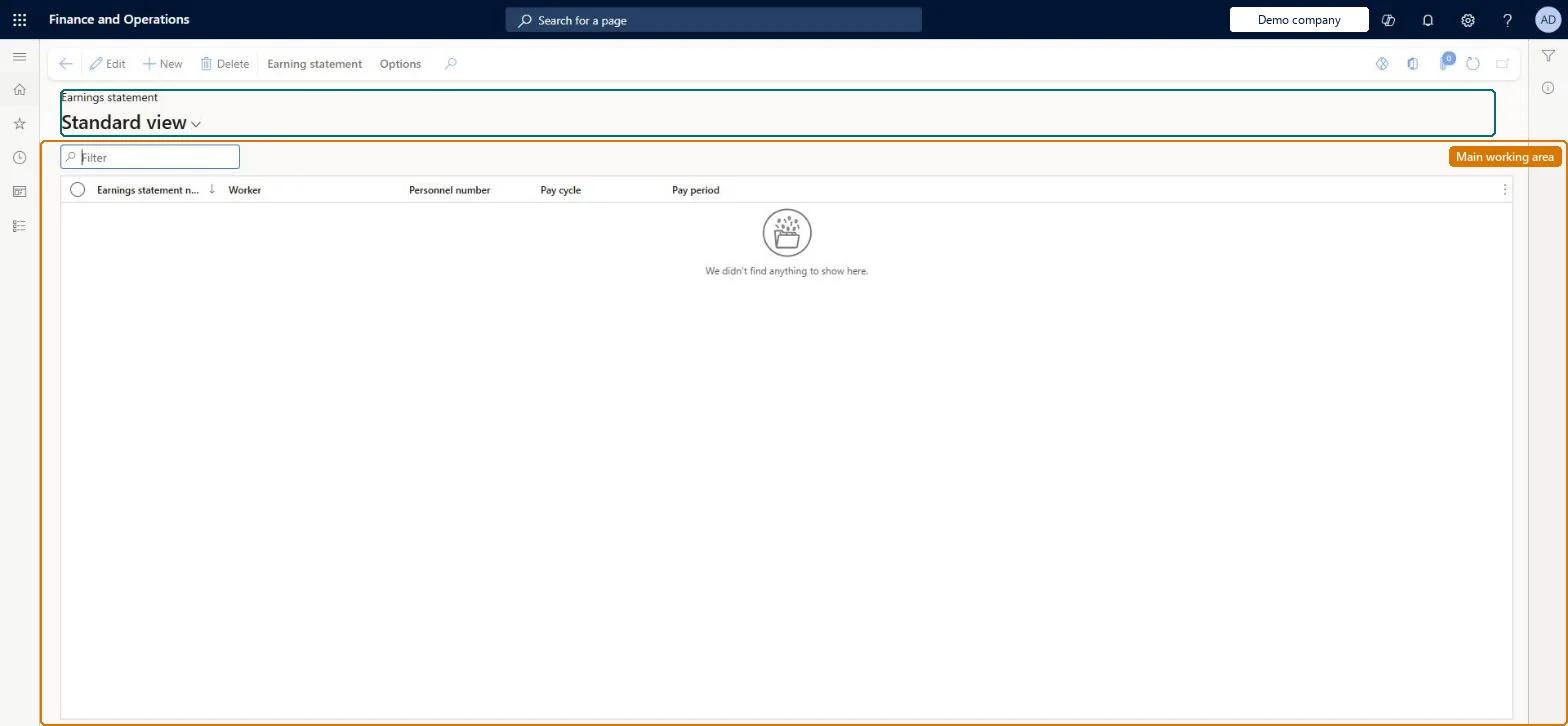
Released earnings statements page in Dynamics 365
The page in Dynamics 365. page title tab to open what to set or check
Functional consultant · Solution architect

2Where it fits

End user · Functional consultant

3How to do it

About the examples: Examples and screenshots in this guide use BEAT, a demo company in a Dynamics 365 test environment. Use your own company's codes and values instead of copying them.

How to use it

  1. Go to Payroll > Earnings statements > Released earnings statements.
  2. Use the Filter box to find an earnings statement by number, worker, pay cycle or pay period.
  3. Select a row and select Edit to open it, or select New to create one.
  4. Use the Earning statement tab on the Action Pane for actions on a selected statement.
  5. Select Delete to remove a selected statement.

Source: Checked in Dynamics 365

Fields on the page

FieldWhat it meansTable column
WorkerThe worker who will receive the earnings.Microsoft Learn Worker
Pay cycleThe pay cycle that was used when the earnings statement was generated.Microsoft Learn PayPeriod
Pay periodThe date range of the pay cycle that the statement covers.Microsoft Learn PayPeriod
Earnings statement numberThe unique ID of the earnings statement.Microsoft Learn DocumentNumber
Earnings dateThe date the earning was earned; it must fall in the statement's pay period.Microsoft Learn
Earning codeThe earning code that identifies the type of earning on the line.Microsoft Learn
Tax regionThe tax region used for tax calculation when pay statements are created.Microsoft Learn
Payment statusShows whether a line is None, Released, Processed or On hold.Microsoft Learn

Test checklist

  1. Run Release earnings statement for a pay cycle and pay period.
  2. Check the statements show here with lines in Released status.
  3. Release a sick-time line that would take a benefit accrual plan below its minimum balance and check it is not released.
  4. Generate pay statements and check only released lines are picked up.

Source: Microsoft Learn

Functional consultant

4Setup decisions

Number sequences

ReferenceShared or per companyNote
Earnings statement numberPer companyNew records on this page take their Earnings statement number from the PayrollEarningStatementId reference; BEAT uses number sequence Payr_3. Checked in Dynamics 365
Solution architect

5Design impact

Can it be undoneHard to reverse: Released lines can no longer be changed, but they can be deleted, or put on hold to correct them and released again. Once a line is on a pay statement it cannot be put on hold. Microsoft Learn
If you change it laterReleased lines can still be deleted, but they can no longer be changed. Microsoft Learn
Technical architect

6Technical

Menu itemPayrollEarningsStatementListReleased Checked in Dynamics 365
FormPayrollEarningStatement Checked in Dynamics 365
TablePayrollEarningStatementShown as “EARNINGS STATEMENTS” in Record infoKey field: DocumentNumberChecked in Dynamics 365
Data entitiesPayrollEarningStatementHeaderEntityEarnings statement header Microsoft data model
Who can open itPrivilegesMaintain payroll earnings PayrollEarningsMaintainView payroll earnings PayrollEarningsViewDutiesInquire into earning entry PayrollEarningStatementGenerationInquireMaintain earning entry PayrollEarningStatementGenerationMaintInquire into payroll payments PayrollPayStatementGenerationInquire
2 security rolesPayroll administrator HcmPayrollAdministratorPayroll manager HcmPayrollManager
Checked in Dynamics 365
Roles to set it up and use itTo set it up or change itPayroll administrator HcmPayrollAdministratorTo use itPayroll manager HcmPayrollManagerGive people one of these roles. On this system, 2 roles can open this page.Checked in Dynamics 365
Actions on the pageEarning statement: Generate, Process, Salary, Accounting(Action Pane without tabs): DeleteChecked in Dynamics 365
Developer

7Developer

Open it by URLhttps://<your-environment>/?mi=PayrollEarningsStatementListReleased
Integrate withPayrollEarningStatementHeaderEntity data entity Microsoft data model
Data migrationPayrollEarningStatementHeaderEntity (Earnings statement header): shared by all companies.Microsoft Learn
Table definitionPayrollEarningStatement columns and relations Microsoft data model
Everyone

8Sources

KEEP EXPLORING

More in Payroll.

Open the other pages and setup steps in this module, or go back to the Atlas Hub to search every page.