BeyondERP.Newsletter
Menu

Setup page · Organization administration

Confirm location owners

A list page of addresses that belong to a single party but where that party isn't set as the location owner.

Business process
Define address and location policies
Menu item
LogisticsUnownedSinglePartyLocations
Main table
DirPartyLocation
Data entity
PayrollWorkerAddressCurrentEntity
Show what matters for
PAGE GUIDEWhat the page does and how to use it8 sections. Choose a role to highlight what matters to you.
Everyone

1What it is and why

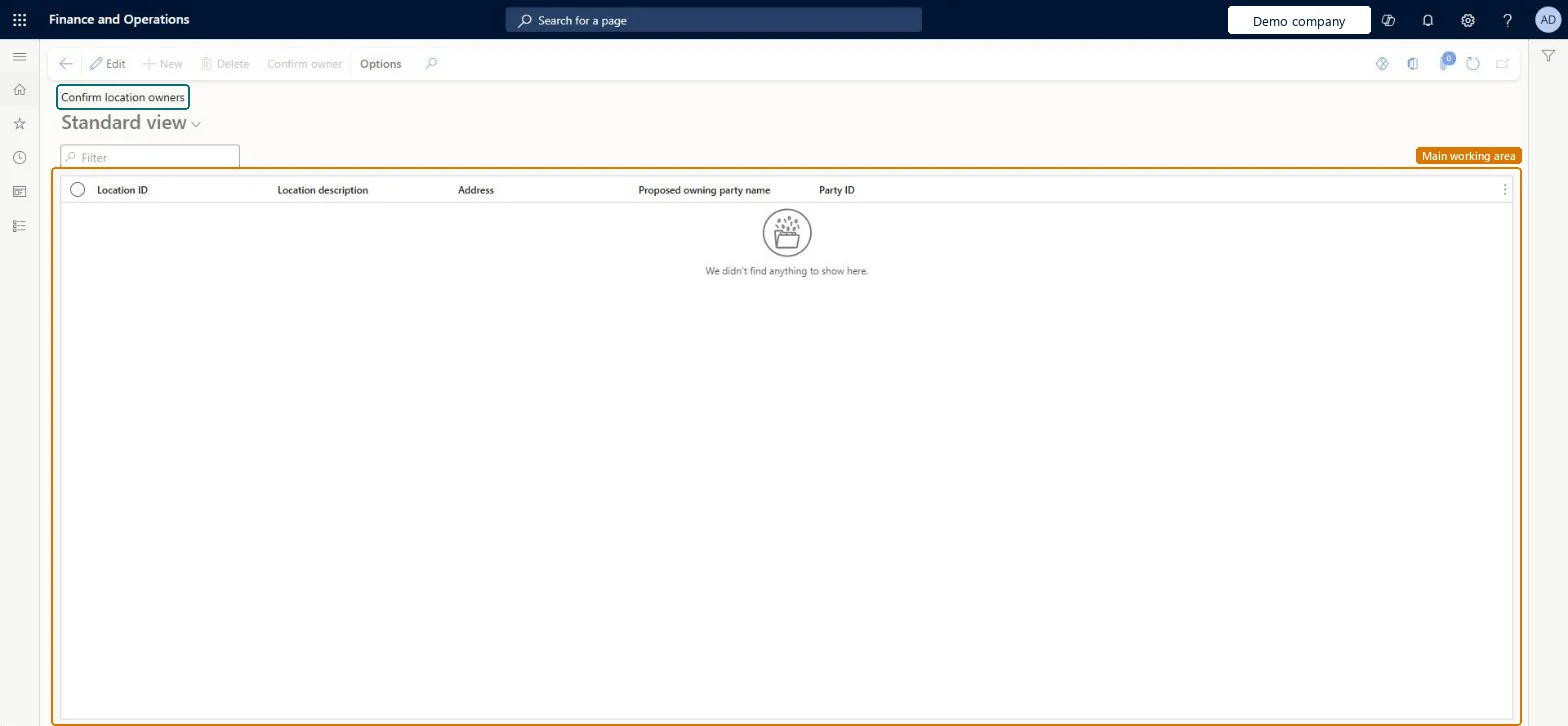
What it isA list page of addresses that belong to a single party but where that party isn't set as the location owner.
What you do hereUse this page to confirm the owner of one or more addresses, so that the party can be used to edit them.
ExampleFor example, after importing addresses without the right location owner, you can confirm the owner here so the addresses can be edited again.
Confirm location owners page in Dynamics 365
The page in Dynamics 365. page title tab to open what to set or check
Functional consultant · Solution architect

2Where it fits

Business processAdminister system features › Define address and location policies
Menu pathOrganization administration › Global address book › Confirm location owners
Related pagesGlobal address book Microsoft Learn
End user · Functional consultant

3How to do it

About the examples: Examples and screenshots in this guide use BEAT, a demo company in a Dynamics 365 test environment. Use your own company's codes and values instead of copying them.

Steps from Microsoft

  1. Go to Organization administration > Global address book > Confirm location owners.
  2. Select the location to confirm the owner for.
  3. On the Action Pane, select Confirm owner.

Source: Microsoft Learn

Fields on the page

FieldWhat it meansTable column
Proposed owning party nameThe party that becomes the location owner when you confirm.Microsoft Learn Name

Test checklist

  1. Import a test address through a data entity with IsLocationOwner set to No.
  2. Open Confirm location owners and check the address is listed with a Proposed owning party name.
  3. Select it and select Confirm owner.
  4. Open the party and check the address can now be edited.

Source: Microsoft Learn

Functional consultant

4Setup decisions

Feature management and licence

Feature to turn onSpecify location owner (Must be on)

Microsoft Learn

Solution architect

5Design impact

Shared or per companyShared: the same records are used by every legal entity. Microsoft data model
Can it be undoneReversible: Confirm owner sets the owner to the Proposed owning party. A wrong owner can be changed later with Change location owner on the party's address. Microsoft Learn
If you change it laterIf the party isn't the location owner, the address can't be edited through that party. Microsoft Learn
Technical architect

6Technical

Menu itemLogisticsUnownedSinglePartyLocations Checked in Dynamics 365
FormLogisticsUnownedSinglePartyLocations Checked in Dynamics 365
TableDirPartyLocationShown as “Party location relationships” in Record infoChecked in Dynamics 365
Data entitiesPayrollWorkerAddressCurrentEntityPayroll worker address (current) Checked in Dynamics 365HcmPersonAddressEntityPerson addresses Checked in Dynamics 365
Actions on the pageOptionsChecked in Dynamics 365
Developer

7Developer

Open it by URLhttps://<your-environment>/?mi=LogisticsUnownedSinglePartyLocations
Integrate withPayrollWorkerAddressCurrentEntity data entity Checked in Dynamics 365
Table definitionDirPartyLocation columns and relations Microsoft data model
Everyone

8Sources