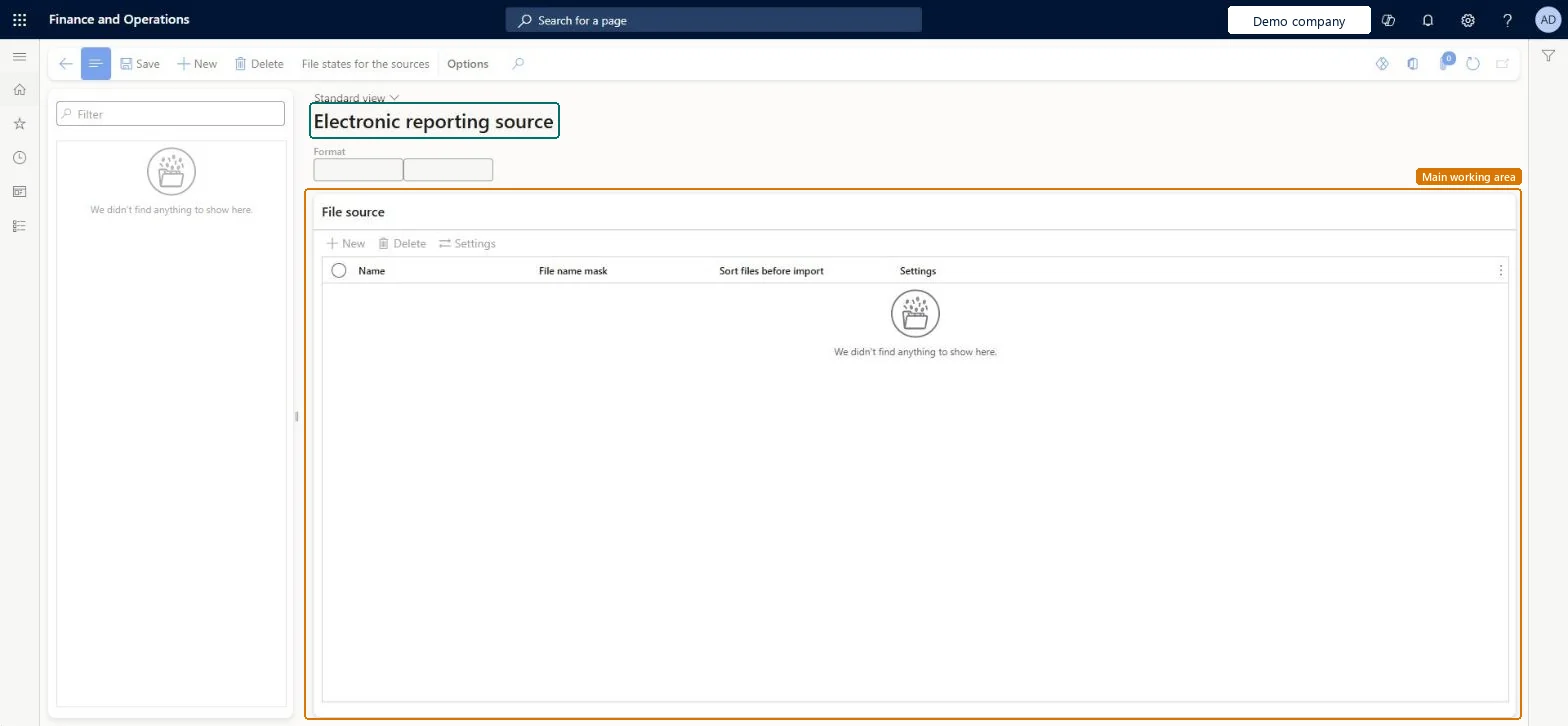
About the examples: Examples and screenshots in this guide use BEAT, a demo company in a Dynamics 365 test environment. Use your own company's codes and values instead of copying them.
Setup steps on this page
Set up Electronic reporting source
Use this page to let Electronic reporting import inbound files without anyone picking each file by hand.
Steps from Microsoft
Go to Organization administration > Electronic reporting > Electronic reporting source.
Select New.
In the Format field, select the import format.
On the File source FastTab, select New and enter a Name for the source.
In the File name mask field, enter a mask, such as *.xlsx, if only some files should be imported.
In the Sort files before import field, select the order in which files are imported.
Select Settings and choose the folders to read files from.
Per import format: a File name mask for the expected file type, plus separate SharePoint document types for the source, archive, warning and error folders.The mask limits imports to the right files, and separate folders show at a glance which files were imported, imported with warnings or failed.
Not setting an error folder: a failed file stays in the source folder.
Solution architect
5Design impact
Can it be undone
One-way: Warning: Deleting a source setting deletes all connected file states after confirmation, and successfully imported files are deleted from the source SharePoint folder. Sources are set per company. Microsoft Learn
If you change it later
Deleting a source setting for a format also deletes, after you confirm, all the file states linked to it. Microsoft Learn
Technical architect
6Technical
Menu item
ERImportFormatSourceChecked in Dynamics 365
Form
ERImportFormatSourceTableChecked in Dynamics 365
Table
ERImportFormatSourceTableShown as “Electronic reporting source” in Record infoChecked in Dynamics 365
Who can open it
PrivilegesMaintain electronic reporting import format source ERImportFormatSourceMaintainDutiesConfigure electronic reporting import format source ERImportFormatSourceConfigure2 security rolesElectronic reporting developer ERDeveloperElectronic reporting functional consultant ERFunctionalConsultantChecked in Dynamics 365
Roles to set it up and use it
To set it up or change itElectronic reporting functional consultant ERFunctionalConsultantElectronic reporting developer ERDeveloperGive people one of these roles. On this system, 2 roles can open this page.Checked in Dynamics 365
Actions on the page
Options: Personalize, Page options, Edit, ShareChecked in Dynamics 365