About the examples: Examples and screenshots in this guide use BEAT, a demo company in a Dynamics 365 test environment. Use your own company's codes and values instead of copying them.
When to run it
When to run it
After master planning has created planned batch orders for process-manufactured items, and before you firm them.
How often
After each master planning run whose planned batch orders you want in sequence.
What the output shows
Sequenced planned orders grouped into campaigns, with start dates that follow the sequencing priority. Orders that keep their original dates were usually not accepted on the Sequenced planned orders page.
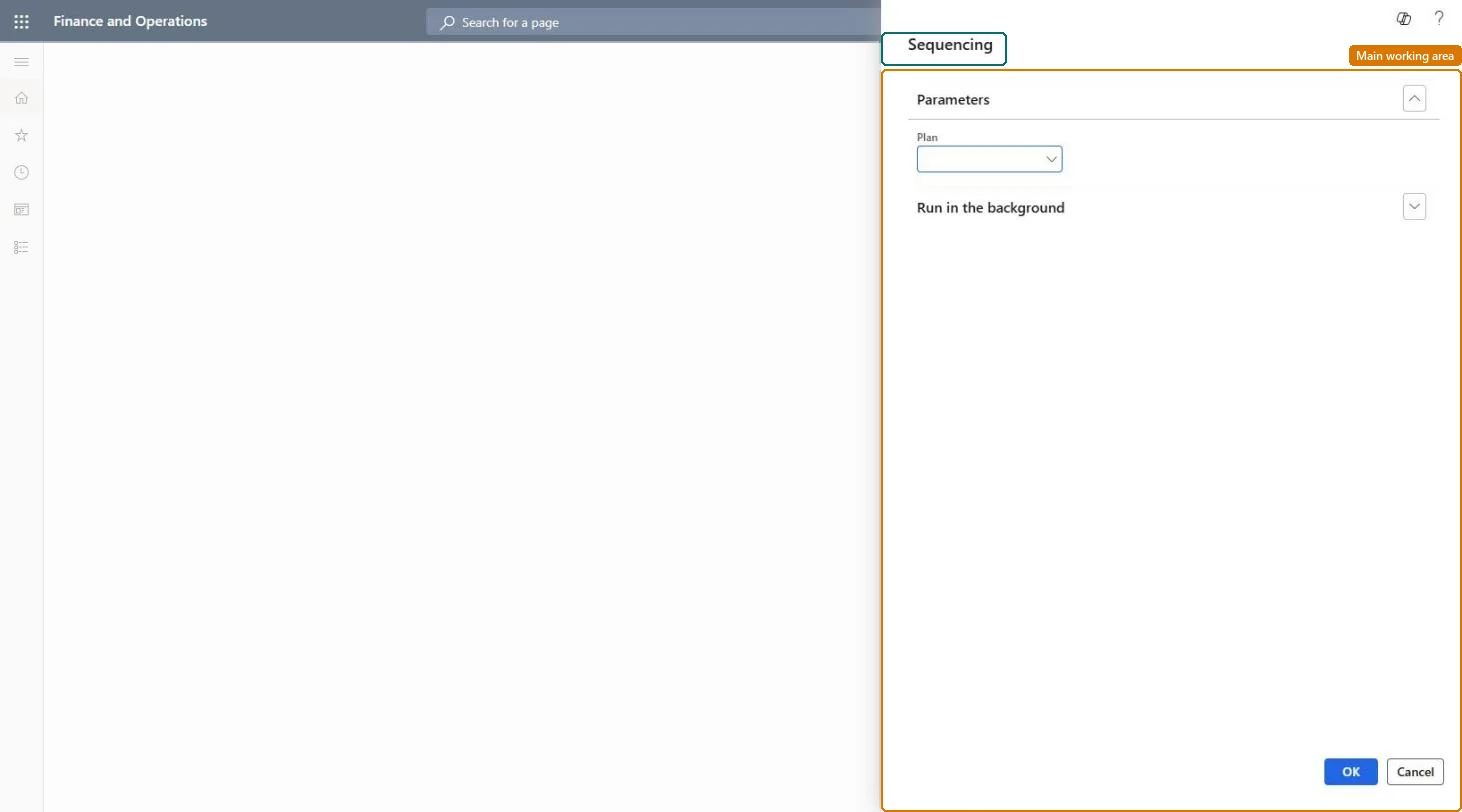
Go to Master planning > Master planning > Run > Sequencing generation.
In the Plan field, select the master plan whose planned batch orders should be sequenced. The plan must already contain the planned orders from a master planning run.
Run the dialog, then open Master planning > Master planning > Sequenced planned orders.
Look at the Start date/time of the planned orders: they are ordered by the item's sequencing priority, such as color and package size, within each campaign period.
Select the rows to keep and select Accept to update the planned orders with the sequence, then open Planned orders and look at the new order and delivery dates.
The master plan whose planned orders are sequenced.Microsoft Learn
Solution architect
4Design impact
Can it be undone
Yes, before firming: The sequence only changes planned orders. Run master planning again to replace them if you don't want the sequence. Microsoft Learn
If you change it later
Accepting the sequence postpones or advances the dates of the planned batch orders in the plan. Microsoft Learn
Technical architect
5Technical
Menu item
PMFSequencingAnalysisEngineChecked in Dynamics 365
Form
DialogChecked in Dynamics 365
Roles to set it up and use it
To use itProduction planner ReqProductionPlannerGive people one of these roles. On this system, 1 role can run this page.Checked in Dynamics 365