PAGE GUIDEWhat the page does and how to use it7 sections. Choose a role to highlight what matters to you.
Everyone
1What it is and why
What it is
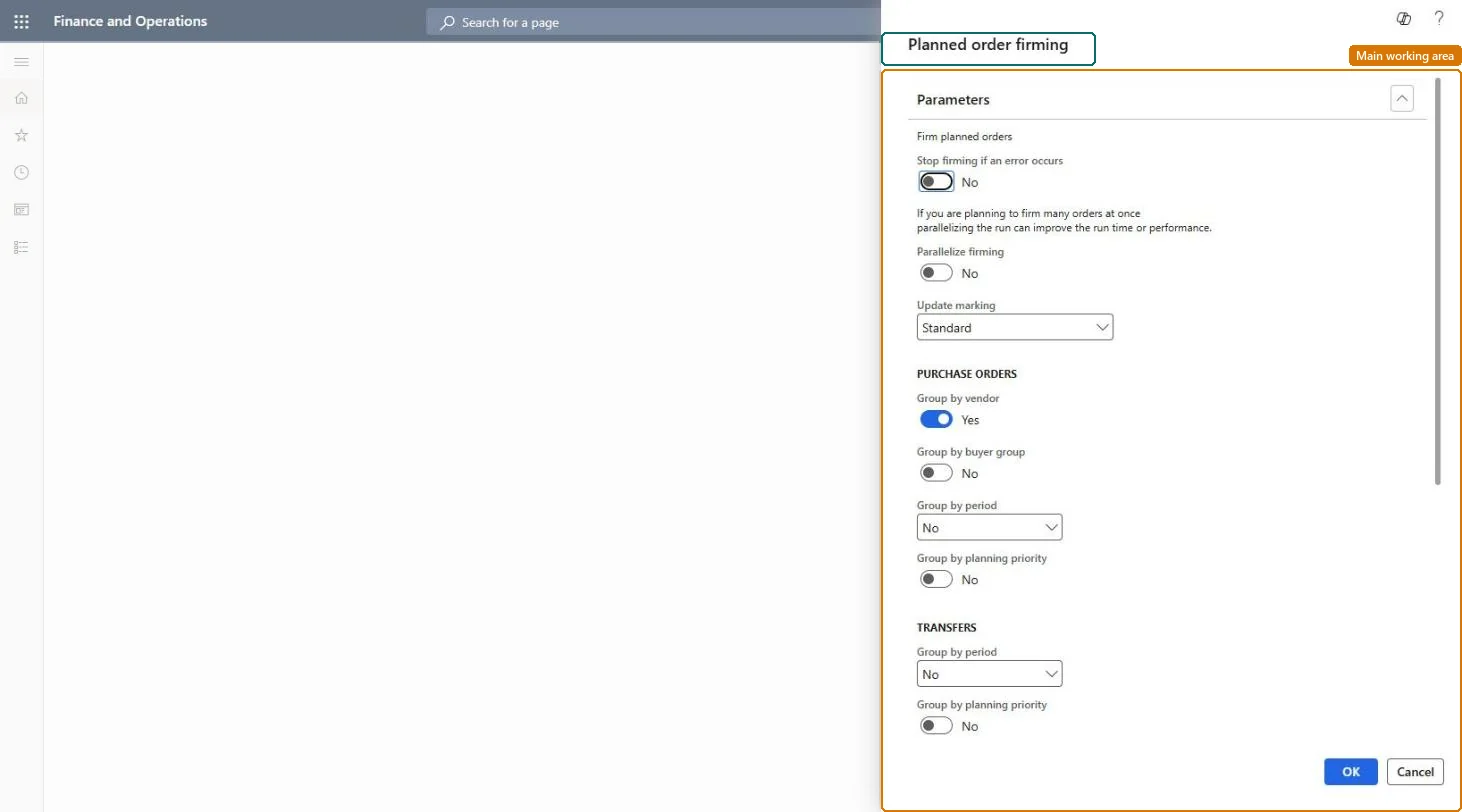
A dialog that firms the planned orders that match a query you define, either once or as a recurring batch job.
What you do here
Use this dialog to automate firming for different groups of planned orders at different times, and to preview which orders will be firmed before you run it.
Example
For example, a query-based firming job with a longer forward time fence than auto-firming firms the orders for specific vendors before auto-firming does, so those vendors can be scheduled differently.
The page in Dynamics 365. page title tab to open what to set or check
About the examples: Examples and screenshots in this guide use BEAT, a demo company in a Dynamics 365 test environment. Use your own company's codes and values instead of copying them.
When to run it
When to run it
After a planning run, when a defined group of planned orders (for example one vendor's orders) should become real orders at a set time.
How often
On a recurring batch schedule per group of orders, set to the times you want each group firmed.
Batch settings
Create one recurring job per group of planned orders, each with its own filter and time fences, so different vendors or order types are firmed at different times.
What the output shows
Purchase, transfer and production orders created from the matching planned orders, grouped as you chose. Far more orders than expected usually means the filter is too broad; a missing order often falls outside the firming time fences.
Go to Master planning > Master planning > Run > Planned order firming.
On the Parameters FastTab, choose Update marking and the grouping options. Group by vendor makes one purchase order per vendor; Group by period in the Transfers section groups planned transfers by from and to warehouse.
In the Plan section, select the Plan to use and enter Firming time fence days forward and Firming time fence days backward to set how far ahead and back the job looks.
Under Records to include, select Filter and define the planned orders to firm, for example one vendor or one item group.
Select Preview and read the list of planned orders that will be firmed; narrow the filter until the list is what you expect.
Afterwards, open Firming history under Master planning > Inquiries and reports > Master planning to see which orders were firmed.
No: Firmed orders are real purchase, transfer and production orders and must be cancelled or deleted one by one. Always run Preview before OK. Microsoft Learn
If you change it later
The job firms every planned order that matches the filter, so a broad filter can create large numbers of unwanted purchase, transfer, and production orders; always check the preview first. Microsoft Learn
Technical architect
5Technical
Menu item
ReqTransPoFirmByQueryChecked in Dynamics 365
Form
DialogChecked in Dynamics 365
Roles to set it up and use it
To use itProduction planner ReqProductionPlannerBuying agent TradeBuyingAgentGive people one of these roles. On this system, 2 roles can run this page.Checked in Dynamics 365