Materials manager, Production manager, Production supervisor and 2 more roles
Business process
Execute sales and operations
Menu item
ReqPlannedOrderForm
Main table
ReqPO
Data entity
ReqDynamicPlanProductionOrderScheduleEntity
Show what matters for
PAGE GUIDEWhat the page does and how to use it7 sections. Choose a role to highlight what matters to you.
Everyone
1What it is and why
What it is
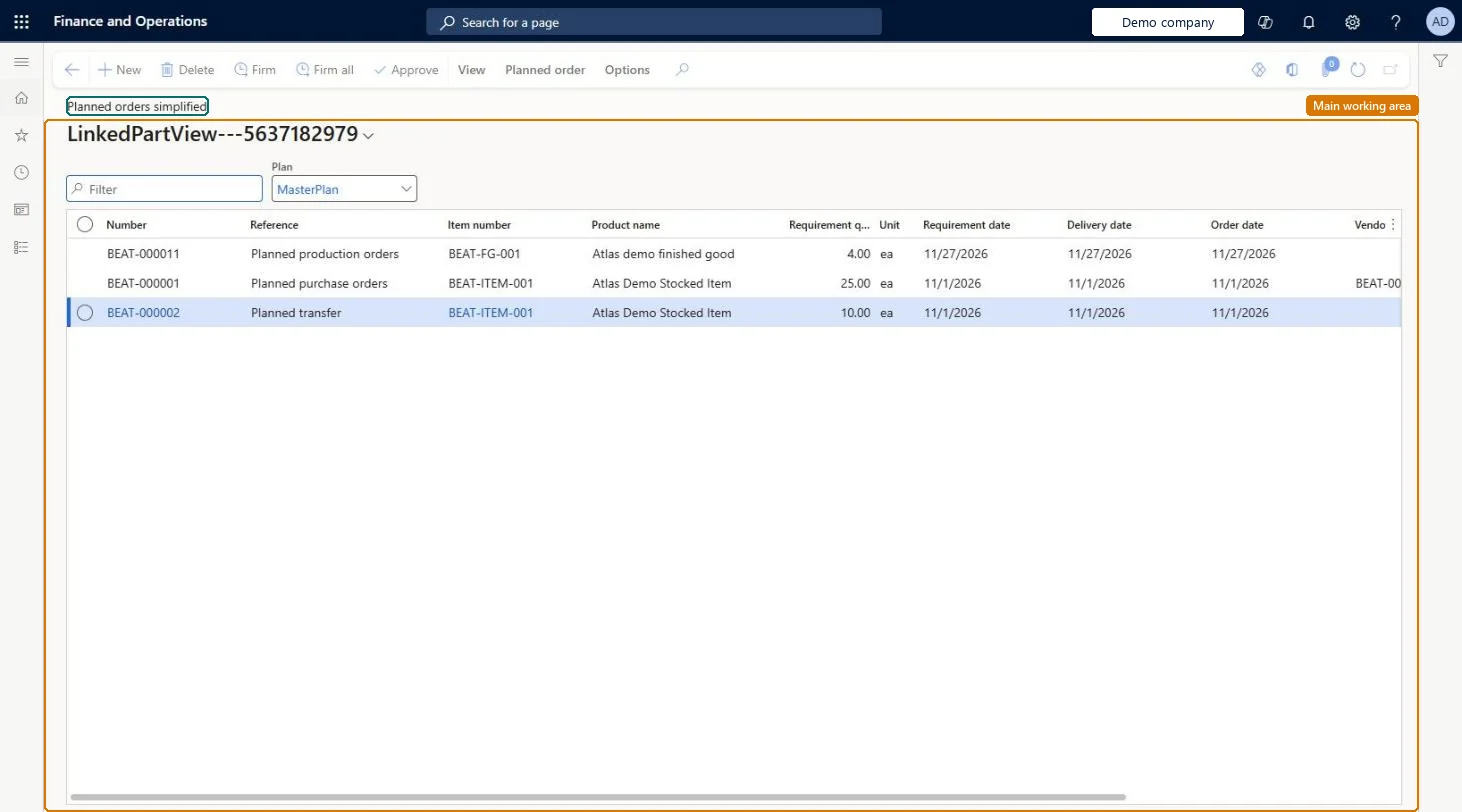
A simplified version of the Planned orders page that shows all planned orders for a selected plan and is designed mainly for firming.
What you do here
Use this page to review, approve, and firm planned orders quickly, and to create, delete, or change the status of one or more planned orders.
Example
For example, after a master planning run, a planner opens this page instead of the standard Planned orders page to view the results and firm the orders, because it is faster to work with.
The page in Dynamics 365. page title tab to open what to set or check
About the examples: Examples and screenshots in this guide use BEAT, a demo company in a Dynamics 365 test environment. Use your own company's codes and values instead of copying them.
How to use it
Go to Master planning > Master planning > Planned orders simplified.
In Plan, select the plan, such as MasterPlan.
Use the Filter box to find a planned order.
Review the Number, Reference, Item number, Requirement quantity, Requirement date, Delivery date and Order date columns.
Select a planned order and select Approve, Firm or Firm all, or open the Planned order tab for more actions.
To set it up or change itProduction planner ReqProductionPlannerTo use itProduction manager ProdProductionManagerMaterials manager InventMaterialsManagerPurchasing manager TradePurchasingManagerProduction supervisor ProdProductionSupervisorGive people one of these roles. On this system, 5 roles can open this page.Checked in Dynamics 365
Actions on the page
View: Display, ViewPlanned order: Process(Action Pane without tabs): Firm, Firm all, ApproveChecked in Dynamics 365