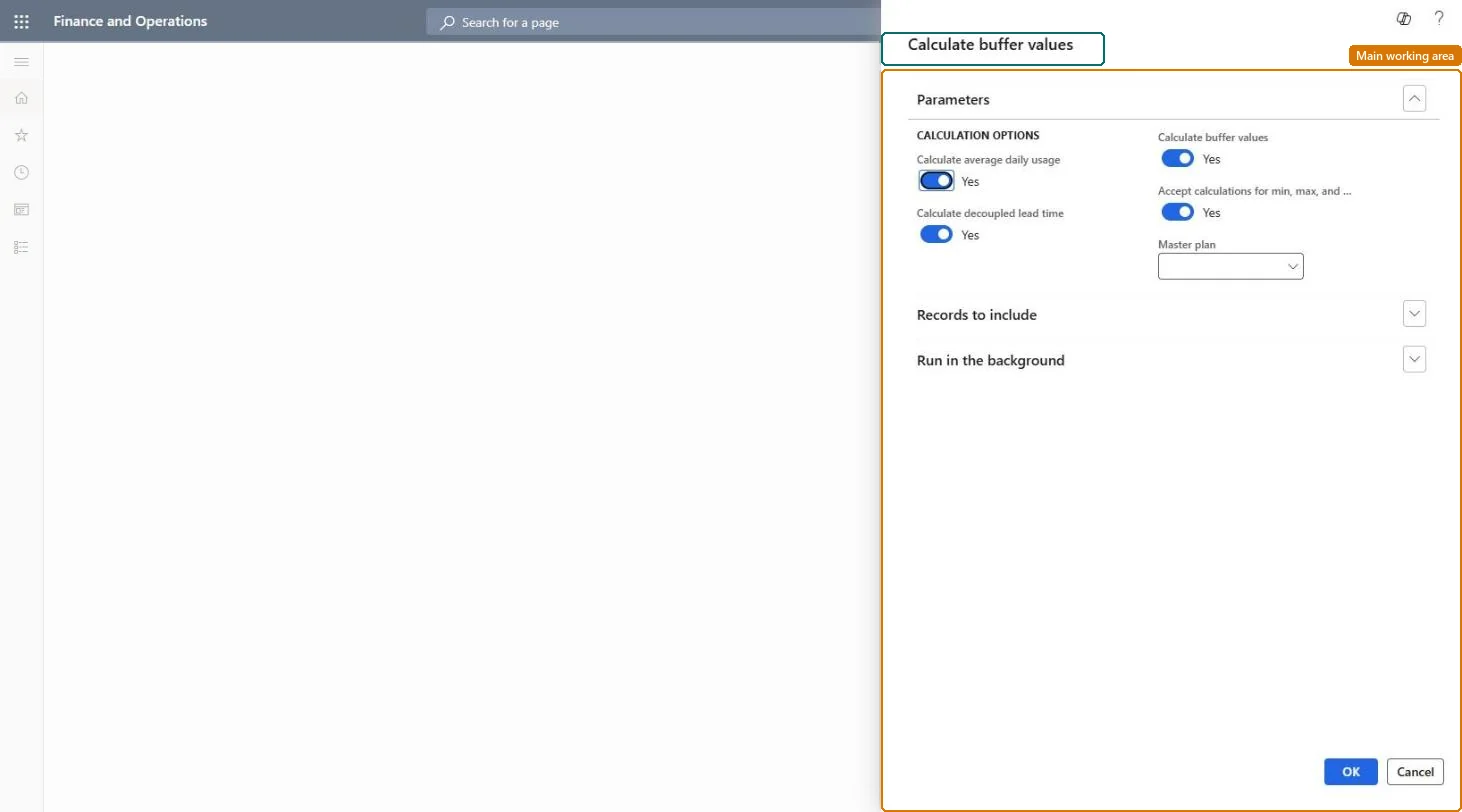
A dialog box that recalculates average daily usage (ADU), decoupled lead times, and buffer values for decoupling point items, usually as a recurring batch job.
PAGE GUIDEWhat the page does and how to use it7 sections. Choose a role to highlight what matters to you.
Everyone
1What it is and why
What it is
A dialog box that recalculates average daily usage (ADU), decoupled lead times, and buffer values for decoupling point items, usually as a recurring batch job.
What you do here
Use this page to keep the minimum, reorder point, and maximum buffer values of your decoupling points up to date without recalculating each item by hand.
Example
For example, in a full DDMRP setup the job runs every day and accepts the new buffer values automatically, and planning then runs to refill the buffers.
The page in Dynamics 365. page title tab to open what to set or check
About the examples: Examples and screenshots in this guide use BEAT, a demo company in a Dynamics 365 test environment. Use your own company's codes and values instead of copying them.
When to run it
When to run it
After your DDMRP setup works as expected, so that buffers follow actual consumption and updated forecasts.
How often
In a full DDMRP setup, Microsoft describes calculating new buffer values every day in a batch job; weekly works when the coverage group uses weekly periods.
Batch settings
Run it as a recurring batch job before the planning run, with Accept calculation set to Yes so planning uses the new buffers.
What the output shows
Updated average daily usage, decoupled lead times and calculated min, reorder point and max for each decoupling point item. Buffers that don't move usually mean Accept calculation was No, or the item uses fixed values because Buffer values over time is No.
Go to Master planning > Master planning > DDMRP > Calculate buffer values.
Set Calculate average daily usage, Calculate decoupled lead time and Calculate buffer values to Yes so ADU, decoupled lead times and min, reorder point and max are all refreshed.
Set Accept calculation for min, max and reorder point to Yes to apply the new values at once. With No, the values stay as calculated values until someone accepts them on each item's Item coverage page.
In Master plan, select the plan whose plan filter contains your decoupling point items; use Filter under Records to include to narrow the items further.
Open Item coverage for a decoupling point item, Buffer values tab, and compare Calculated min, Calculated reorder point and Calculated max with the Min, Reorder point and Max in use.
Partly: Calculated values that were not accepted can be discarded on the Item coverage page. Accepted values replace the old buffers; enter them again by hand if needed. Microsoft Learn
If you change it later
If Accept calculation for min, max and reorder point is No, the recalculated values have no effect until someone applies them on each item's Item coverage page. Microsoft Learn
Technical architect
5Technical
Menu item
ReqDecouplingPointCalculateBufferValuesChecked in Dynamics 365
Form
DialogChecked in Dynamics 365
Roles to set it up and use it
To use itProduction manager ProdProductionManagerMaterials manager InventMaterialsManagerProcess engineer RouteProcessEngineerProduct designer BOMProductDesignerGive people one of these roles. On this system, 4 roles can run this page.Checked in Dynamics 365