Materials manager, Production planner, Purchasing manager
Business process
Plan procurement
Menu item
ForecastVendGroup
Main table
VendGroup
Data entity
VendVendorGroupEntity
Show what matters for
PAGE GUIDEWhat the page does and how to use it7 sections. Choose a role to highlight what matters to you.
Everyone
1What it is and why
What it is
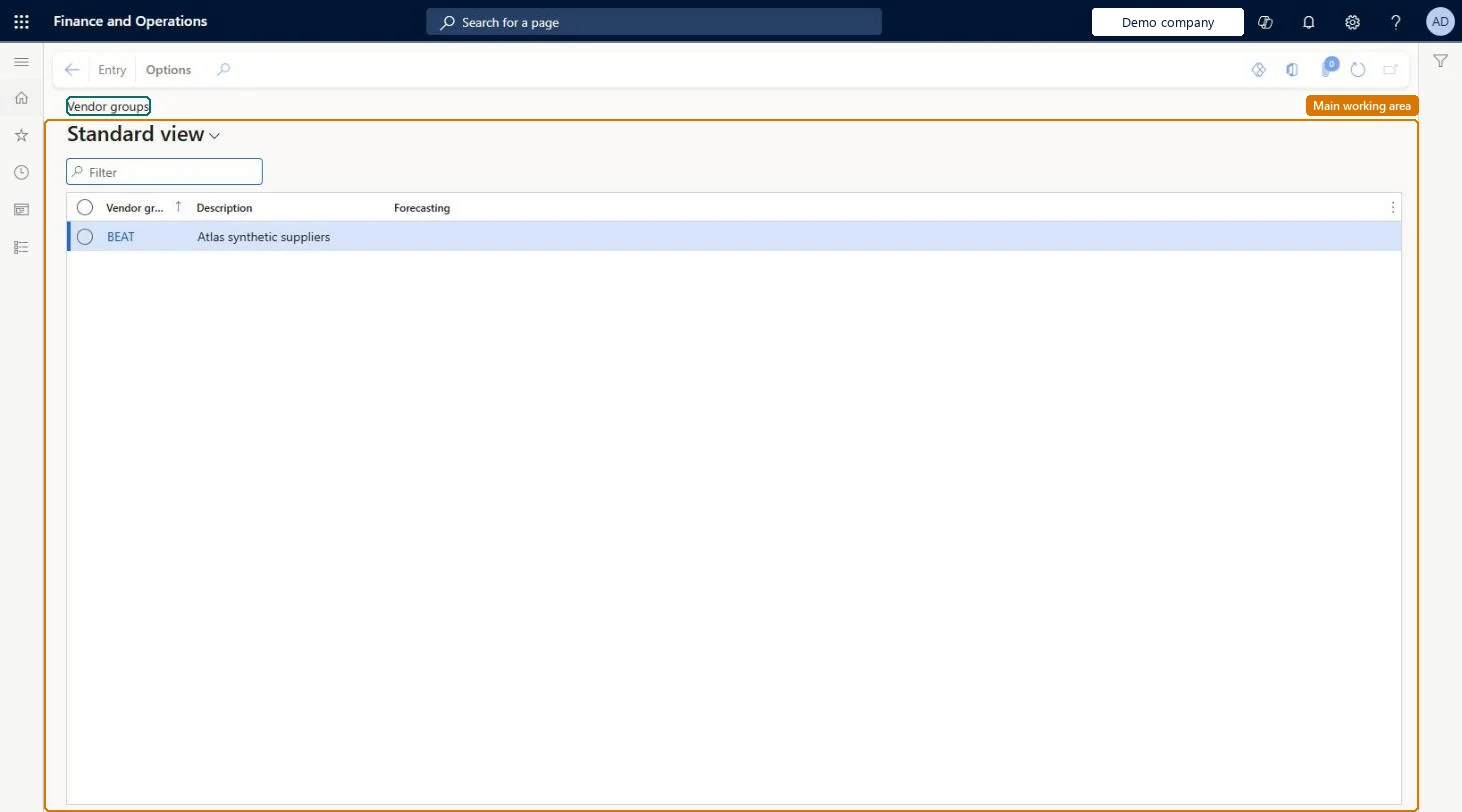
A list of vendor groups from which you open the Supply forecast page to enter supply forecast lines for a selected vendor group.
What you do here
Use this page to plan the items that you expect to buy from a group of vendors, so that procurement knows what it is expected to order.
Example
For example, after entering a supply forecast for a vendor group, a planner selects Inventory forecast to see the balance of forecast supply and demand for an item.
The page in Dynamics 365. page title tab to open what to set or check
About the examples: Examples and screenshots in this guide use BEAT, a demo company in a Dynamics 365 test environment. Use your own company's codes and values instead of copying them.
Steps from Microsoft
Go to Master planning > Forecasting > Manual forecast entry > Vendor groups.
Select the vendor group to create a forecast for.
On the Action Pane, select Entry.
On the Action Pane, select New.
In the Model field, select the forecast model, and then enter the item or item group and the quantity or amount.
On the Overview tab, select Allocate forecast to spread the forecast over the period.
PrivilegesView supply forecasts entries for vendor groups ForecastVendGroupViewDutiesMaintain supply forecasts ForecastSupplyForecastMaintainInquire into supply forecasts ForecastSupplyForecastProgressInquire3 security rolesMaterials manager InventMaterialsManagerProduction planner ReqProductionPlannerPurchasing manager TradePurchasingManagerChecked in Dynamics 365
Roles to set it up and use it
To use itProduction planner ReqProductionPlannerMaterials manager InventMaterialsManagerPurchasing manager TradePurchasingManagerGive people one of these roles. On this system, 3 roles can open this page.Checked in Dynamics 365
Actions on the page
(Action Pane without tabs): EntryChecked in Dynamics 365
VendVendorGroupEntity (Vendor groups): loaded for each company, in Microsoft's default template 120 - Accounts payable.Load order: Microsoft's default template 120 - Accounts payable loads Vendor groups at execution unit 1, level 40, sequence 20. Lower levels load first, and entities at the same level load in sequence order.Load first: Sales tax groups, Terms of payment, the default templates at lower levels (System setup to dependency bands 30 to 90)Microsoft Learn