About the examples: Examples and screenshots in this guide use BEAT, a demo company in a Dynamics 365 test environment. Use your own company's codes and values instead of copying them.
When to run it
When to run it
When the vessel or flight for a group of voyages has departed.
How often
On demand after departures, or on a schedule. Voyages can also be set in transit automatically from settings in the tracking control center.
What the output shows
Voyage status set to the in-transit status from Landed cost parameters on every selected voyage. No other processing happens, so stock, costs and dates are unchanged.
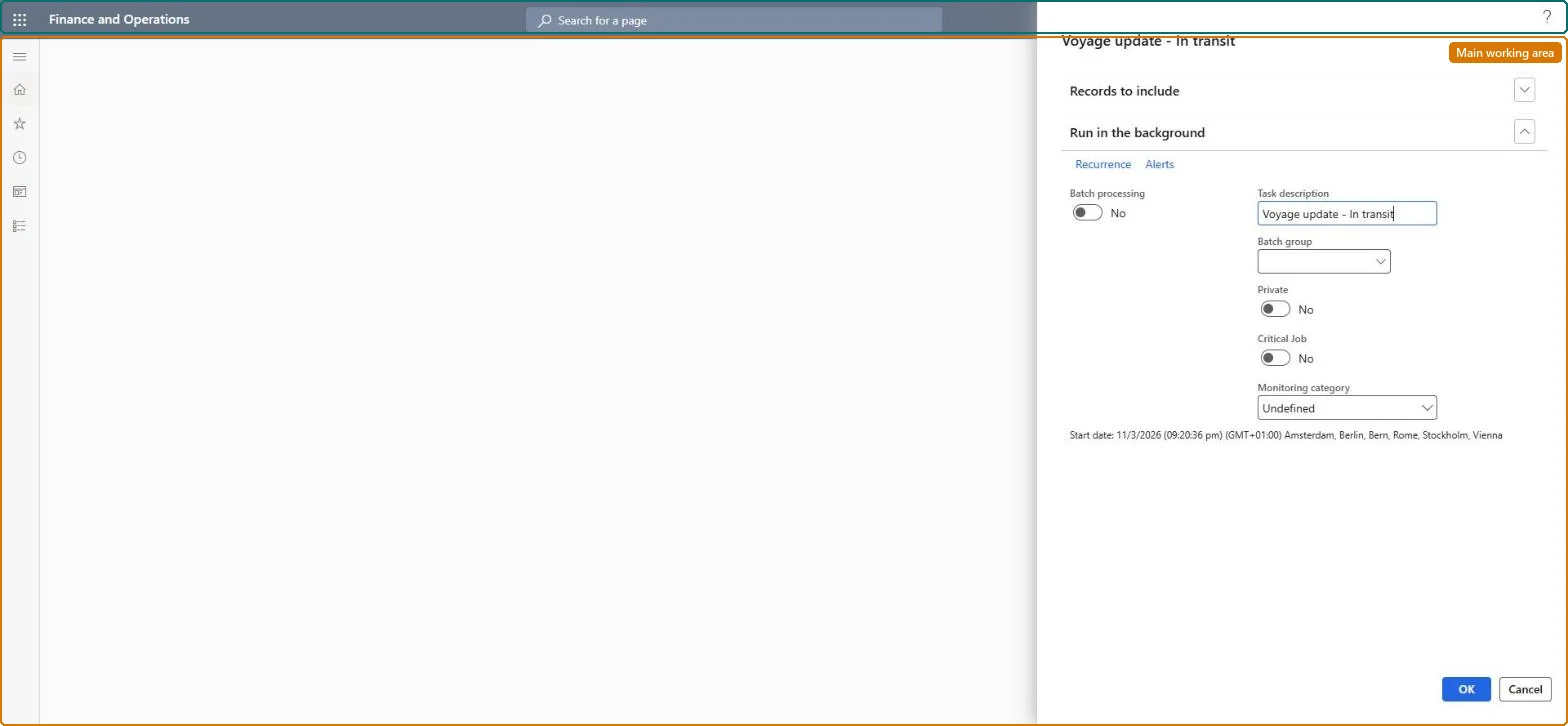
Go to Landed cost > Periodic tasks > Voyage update > In transit.
Use the Filter settings to select the voyages whose vessel or flight has departed.
Make sure the selected voyages are at a parent status of the in-transit status set in Landed cost parameters, because statuses only move down the hierarchy.
Set the batch options if the task should run on a schedule, then select OK.
Open the voyages and check that Voyage status shows the in-transit status.
The query that selects which voyages the task updates.Microsoft Learn
Solution architect
4Design impact
Can it be undone
No: The task only changes Voyage status, and statuses move one way down the hierarchy, so the voyages can't be set back to the earlier status from here. Microsoft Learn
If you change it later
The task only changes the Voyage status value; no other processing happens, and because statuses can only move down the hierarchy the voyages must be at a parent status of the in-transit status. Microsoft Learn
Technical architect
5Technical
Menu item
ITMUpdate_InTransitChecked in Dynamics 365
Form
SysOperationTemplateFormChecked in Dynamics 365
Roles to set it up and use it
To use itLanded cost agent ITMAgentGive people one of these roles. On this system, 1 role can run this page.Checked in Dynamics 365