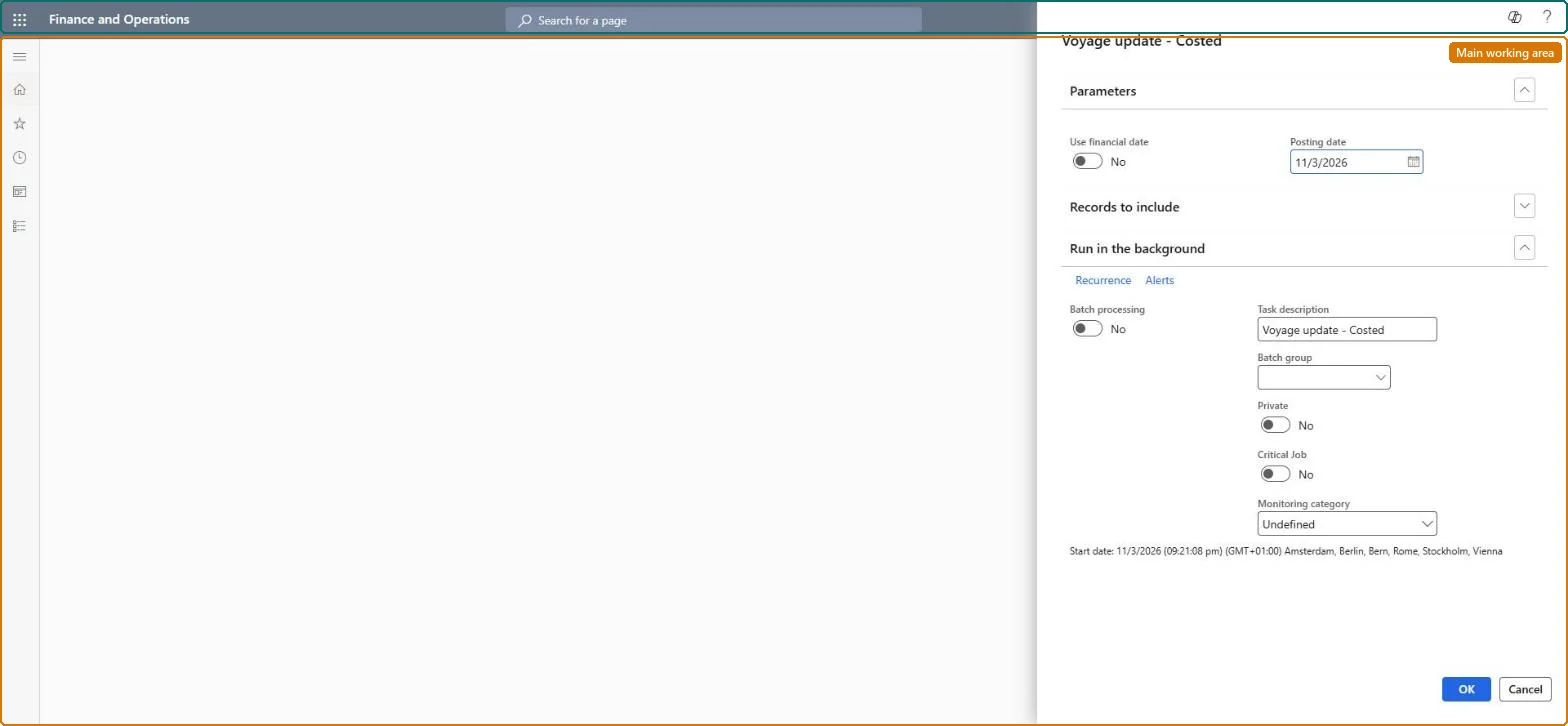
A periodic-task dialog that sets the Voyage status of voyages that have been fully invoiced and costed, but not yet updated, to the costed status defined in Landed cost parameters.
Process freight invoice in Dynamics 365 Supply Chain Management
Menu item
ITMUpdate_Costed
Show what matters for
PAGE GUIDEWhat the page does and how to use it7 sections. Choose a role to highlight what matters to you.
Everyone
1What it is and why
What it is
A periodic-task dialog that sets the Voyage status of voyages that have been fully invoiced and costed, but not yet updated, to the costed status defined in Landed cost parameters.
What you do here
Use this page, usually as a scheduled batch job, to finalise voyages by clearing any costing irregularities and marking them Costed once invoices exist for all purchase orders and voyage costs.
Example
For example, a finance team runs the task every night so that voyages whose freight and duty invoices were posted that day are closed as Costed.
The page in Dynamics 365. page title tab to open what to set or check
About the examples: Examples and screenshots in this guide use BEAT, a demo company in a Dynamics 365 test environment. Use your own company's codes and values instead of copying them.
When to run it
When to run it
When invoices exist for the stock and for all voyage costs of a voyage, so costing irregularities can be cleaned up and the voyage finalized.
How often
On a regular schedule as a batch job; the update can be rerun as many times as needed.
Batch settings
Run it as a recurring batch job so voyages are costed as soon as all their invoices exist.
What the output shows
Voyages set to the costed status from Landed cost parameters, with costing irregularities cleaned up on the posting date you chose. A voyage that stays at Ready for costing has no invoice yet for its stock or for at least one voyage cost.
No: Costed is the final voyage status. If a new cost is added to a costed voyage later, the voyage moves to Pre-costed rather than back to its earlier status. Microsoft Learn
If you change it later
A voyage cannot reach Costed until invoices for the stock and all voyage costs exist; voyages that fail the costed run stay at Ready for costing, and adding a new cost to an already costed voyage moves it to the Pre-costed status. Microsoft Learn
Technical architect
5Technical
Menu item
ITMUpdate_CostedChecked in Dynamics 365
Form
SysOperationTemplateFormChecked in Dynamics 365
Roles to set it up and use it
To use itLanded cost agent ITMAgentGive people one of these roles. On this system, 1 role can run this page.Checked in Dynamics 365