PAGE GUIDEWhat the page does and how to use it8 sections. Choose a role to highlight what matters to you.
Everyone
1What it is and why
What it is
A setup page where you keep information about the rooms in which training courses are held.
What you do here
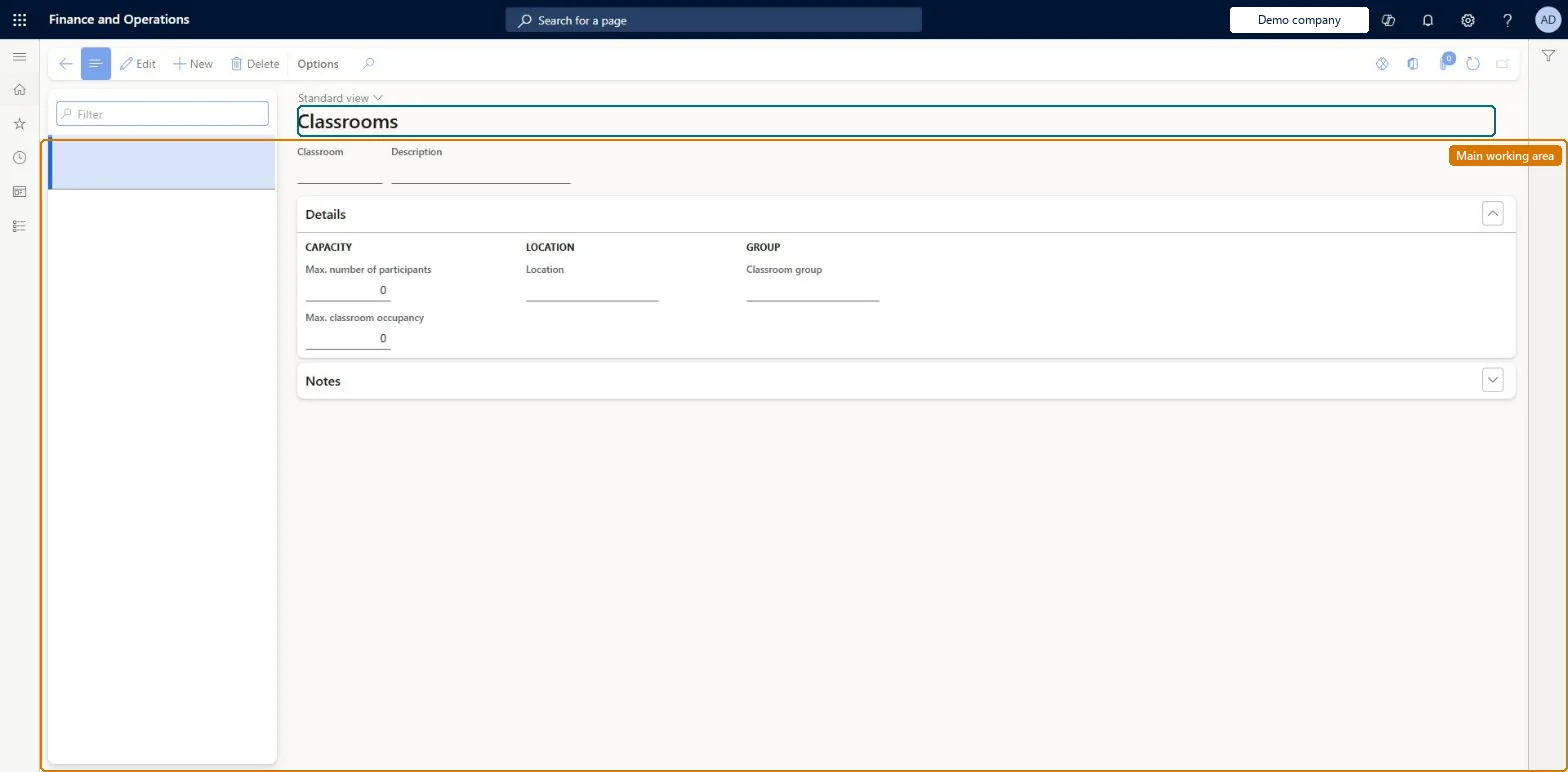
Use this page to record each classroom with its seats, occupancy, course location and classroom group.
Example
For example, BEAT's classroom R2 at Head office has 12 seats, occupancy 14 and the group Head office building; Excel for finance with a maximum of 12 participants is held in R2.
The page in Dynamics 365. page title tab to open what to set or check
About the examples: Examples and screenshots in this guide use BEAT, a demo company in a Dynamics 365 test environment. Use your own company's codes and values instead of copying them.
Setup steps on this page
Set up Classrooms
Use this page to record each classroom with its seats, occupancy, course location and classroom group.
Steps from Microsoft
Go to Human resources > Courses > Setup > Classrooms.
Use the Filter box to find a classroom in the list.
Select New and enter the Classroom and Description.
On the Details FastTab, enter the Max. number of participants, Max. classroom occupancy, Location and Classroom group, then expand Notes as needed.
Select Edit to change a selected classroom, or Delete to remove it.
Set up classroom groups and course locations first, then classrooms, all before you create in-person coursesLearn lists classroom groups, course locations and classrooms as optional course information to set up before you create course records.
Courses are kept by HR and the Training manager role; employees register in Employee self service and managers follow their reports' courses in Manager self service. No Feature management feature is needed for this page.
Per company: Data management lists the Classrooms entity as not shared, so the records belong to the legal entity you are signed in to. Checked in Dynamics 365
Can it be undone
Reversible: Classrooms are optional reference data. Learn does not document what happens to courses that already use a classroom if you change or delete it. Microsoft Learn
If you change it later
A classroom that a course is using cannot be deleted. Microsoft Learn
Technical architect
6Technical
Menu item
HRMCourseRoomChecked in Dynamics 365
Form
HRMCourseRoomChecked in Dynamics 365
Table
HRMCourseRoomShown as “CLASSROOMS” in Record infoChecked in Dynamics 365
Data entities
HcmCourseRoomEntityClassrooms Checked in Dynamics 365
Who can open it
PrivilegesMaintain course classrooms HRMCourseRoomMaintainView course classrooms HRMCourseRoomViewDutiesEnable training process HcmTrainingProcessEnableInquire into training process HcmTrainingProcessInquire2 security rolesHuman resource manager HcmHumanResourceManagerTraining manager HcmTrainingManagerChecked in Dynamics 365
Roles to set it up and use it
To set it up or change itTraining manager HcmTrainingManagerTo use itHuman resource manager HcmHumanResourceManagerGive people one of these roles. On this system, 2 roles can open this page.Checked in Dynamics 365
Developer
7Developer
Open it by URL
https://<your-environment>/?mi=HRMCourseRoom
Integrate with
HcmCourseRoomEntity data entity Checked in Dynamics 365
Data migration
HcmCourseRoomEntity Classrooms. Per company.Load order: Classrooms load in the Employee development template after classroom groups and course locations.Load first: HcmClassroomGroupEntity, HcmCourseLocationEntityMicrosoft Learn