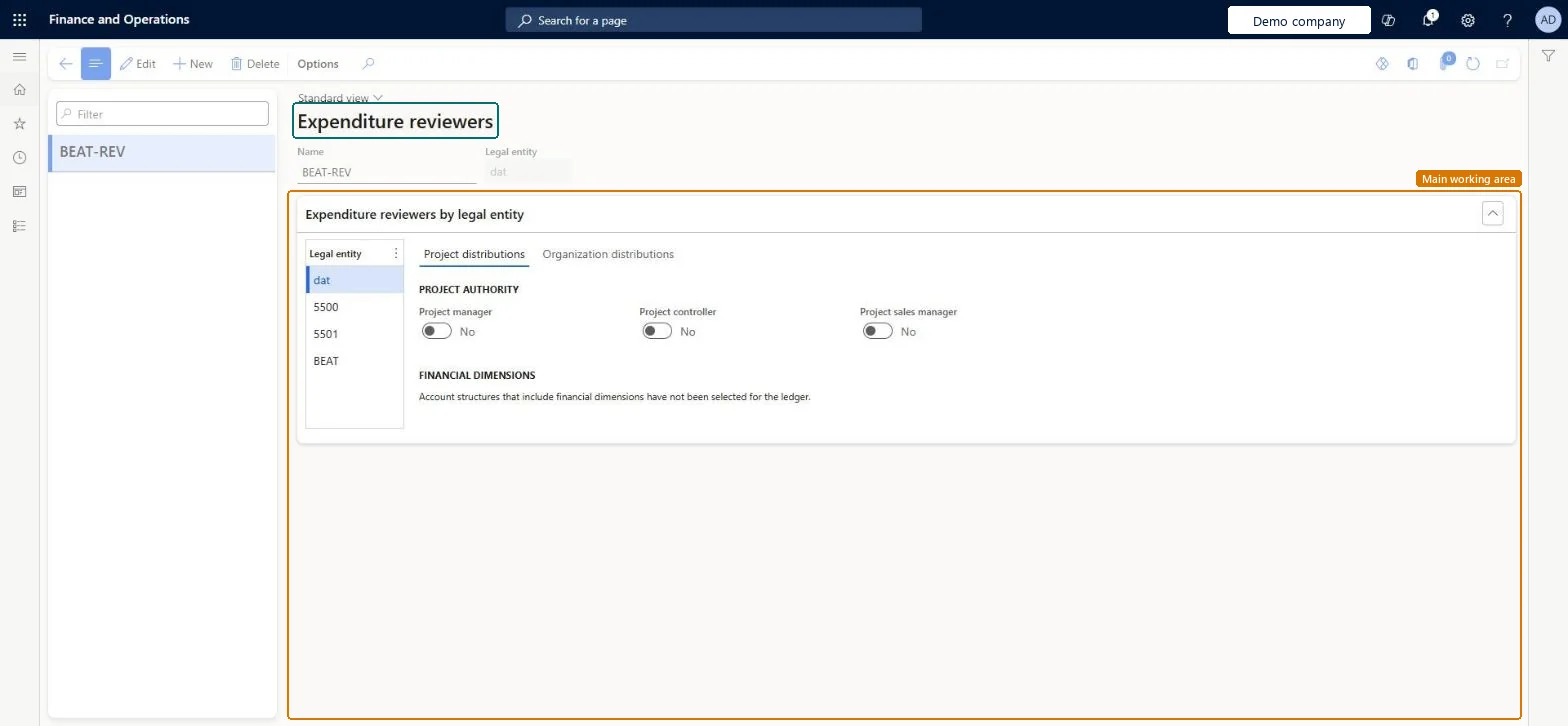
A setup page where you define expenditure reviewers that route expense reports for review based on a project role or the owner of a financial dimension.
PAGE GUIDEWhat the page does and how to use it8 sections. Choose a role to highlight what matters to you.
Everyone
1What it is and why
What it is
A setup page where you define expenditure reviewers that route expense reports for review based on a project role or the owner of a financial dimension.
What you do here
Use this page to give expense workflows a dynamic reviewer, set per legal entity, for tasks, approvals and manual decisions.
Example
For example, instead of a workflow condition for each cost center, you set an owner on each cost center value and the expenditure reviewer picks the right approver.
The page in Dynamics 365. page title tab to open what to set or check
About the examples: Examples and screenshots in this guide use BEAT, a demo company in a Dynamics 365 test environment. Use your own company's codes and values instead of copying them.
Step by step, with screenshots
Set up Expenditure reviewers1 screen
Use this page to give expense workflows a dynamic reviewer, set per legal entity, for tasks, approvals and manual decisions.
Screen 1
Create an expenditure reviewer token
Go to Expense management > Setup > Policies > Expenditure reviewers
Select New
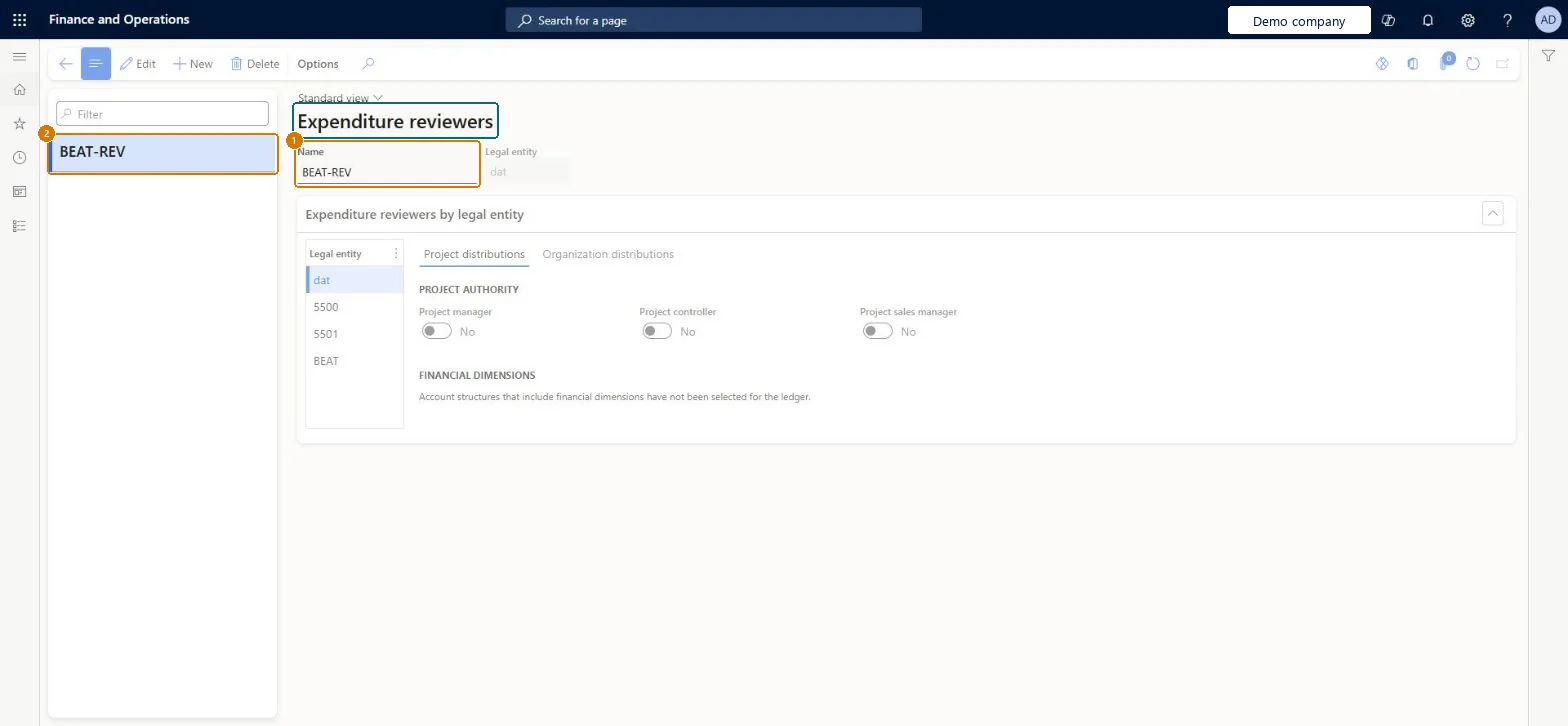
Enter the reviewer name
Select Save
For each legal entity, choose the project authority or organization distribution that supplies the reviewer
1Name
BEAT-REV
Show the full screen page title tab to open what to set or check
Steps from Microsoft
Go to Expense management > Setup > Policies > Expenditure reviewers.
Select New.
In the Name field, enter a name for the reviewer configuration, such as cost center.
On the Expenditure reviewers by legal entity FastTab, select the legal entity.
For a project distribution, select each project authority and set each financial dimension to use to Yes.
For an organization distribution, on the Organization distributions tab, set each financial dimension to use to Yes.
The name of the expenditure reviewer configuration.Microsoft Learn
Reviewers
Name
Project distributions
Routes by project authority (project manager, controller or sales manager) or by project financial dimensions.Microsoft Learn
Organization distributions
Routes by the financial dimensions on the document.Microsoft Learn
Common errors and fixes
Message
What to do
The workflow finds no reviewer
The dimension value on the report has no Owner, or the project has no person in the chosen role. Fill the owner or the project's Responsible fields. Microsoft Learn
Test checklist
Create a reviewer named Cost center, and for the legal entity set the Cost center dimension to Yes on Organization distributions.
On General ledger > Chart of accounts > Dimensions > Financial dimensions > Dimension values, set an Owner on the test cost center.
In the expense report workflow, assign the approval to Participant > Expenditure participants > Cost center.
Submit an expense report charged to that cost center and check the approval goes to the owner's user.
Change the Owner and check the next submitted report goes to the new owner.
Organization distributions on the dimension that owns the budget (for example Cost center), with an Owner set on every value of that dimension; add Project distributions (project manager) where project expenses need the project's approvalLearn recommends expenditure reviewers so you don't need one workflow condition per cost center: the workflow picks the dimension value's owner, and when ownership changes you only update the Owner field.
In this system Employee and Contractor enter their own expenses, and Expense administrator sets up the module and processes documents. The expense mobile app needs the Employee role, a company on the user account and a link to an employee with active employment. The expense administrator maintains reviewer configurations for each legal entity. No Feature management feature is needed for this page.
Reversible: Reviewer configurations, dimension owners and project managers can be changed at any time; new workflow steps pick up the current owner. Microsoft Learn
If you change it later
When cost center ownership changes, you only update the Owner field on the financial dimension value; the workflow doesn't need to change. Microsoft Learn
Technical architect
6Technical
Menu item
action:TrvWorkflowParticipantProviderExpenTokenChecked in Dynamics 365
Form
WorkflowParticipantExpenTokenChecked in Dynamics 365
Table
WorkflowParticipantExpenTokenShown as “Workflow participant expenditure token” in Record infoChecked in Dynamics 365
Data entities
PurchPurchaseRequisitionExpenditureReviewerConfigurationEntityPurchase requisition expenditure reviewer configurations (backed by WorkflowParticipantExpenToken, the table this page edits; its name comes from purchase requisitions, which share the table) Microsoft data model
Who can open it
PrivilegesMaintain expense management policies TrvPolicyDetailsMaintainDutiesEnable expense management process TrvTravelAndExpenseProcessEnable1 security roleExpense administrator ExpenseAdministratorChecked in Dynamics 365
Roles to set it up and use it
To use itExpense administrator ExpenseAdministratorGive people one of these roles. On this system, 1 role can run this page.Checked in Dynamics 365
Actions on the page
Options: Personalize, Page options, ShareChecked in Dynamics 365
PurchPurchaseRequisitionExpenditureReviewerConfigurationEntity (Expenditure reviewer configuration): loads the reviewer configurations.Load order: Load dimension value owners and project authorities first, then the configurations, then the workflows that use them.Load first: Financial dimension owners, Project authoritiesMicrosoft Learn
Checked in a working Dynamics 365 system, version 10.0.49: the menu item, form, table and security, the page, the demo records and the values in the screenshots.