Business Performance Planning app role, Data management administrator, Data management migration user and 3 more roles
Business process
Develop people strategy
Menu item
TrvApprEmplSub
Main table
TrvAppEmplSub
Data entity
TrvExpenseDelegateEntity
Setup steps
1 on this page
Show what matters for
PAGE GUIDEWhat the page does and how to use it8 sections. Choose a role to highlight what matters to you.
Everyone
1What it is and why
What it is
A setup page where you name a delegate who can create and manage expense reports for another employee during a set period.
What you do here
Use this page as the expense administrator to let one employee create and manage expense reports for another between a start and end date. Approval is delegated separately in the workflow.
Example
For example, a CFO travels for three weeks and their executive assistant needs to file the trip's receipts; the expense administrator adds the assistant as the CFO's delegate from 2 to 23 March.
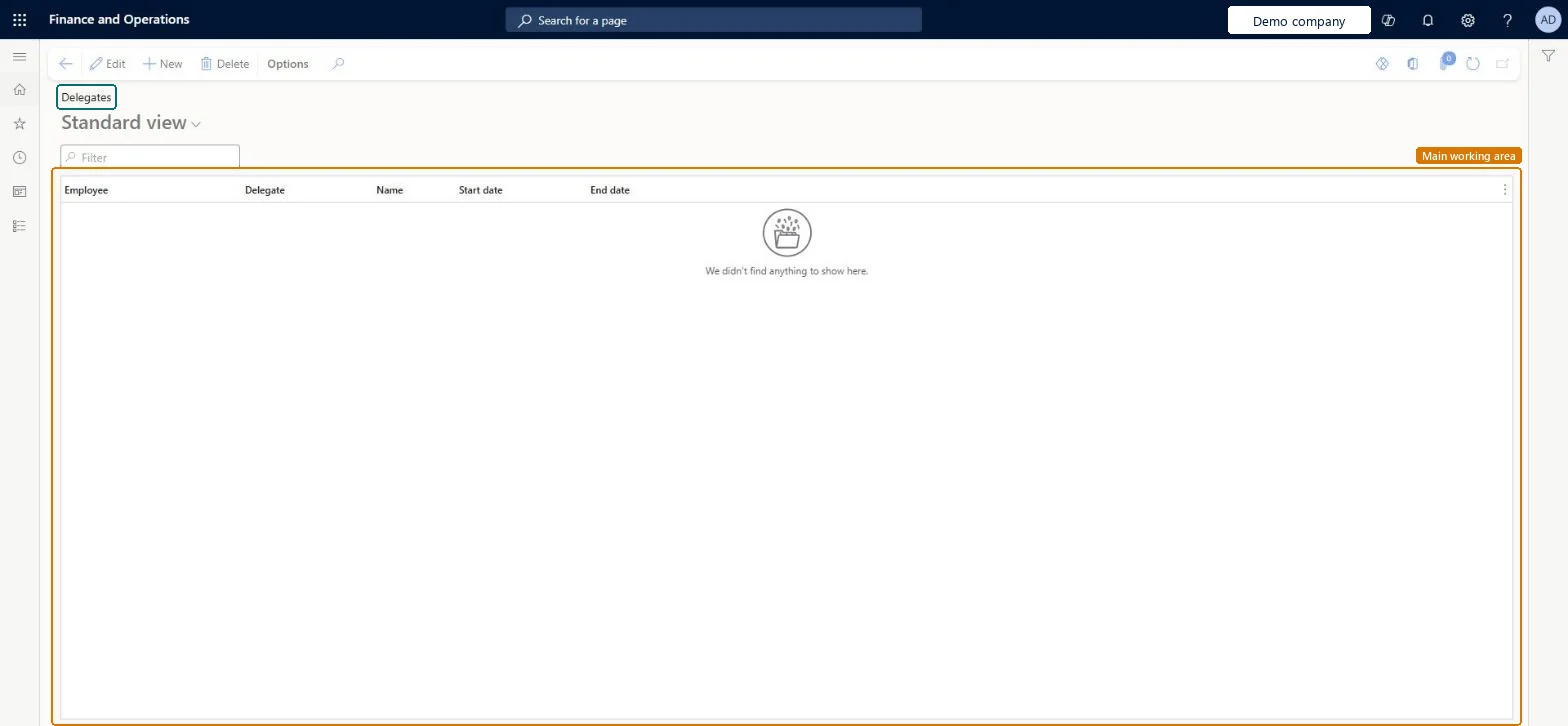
The page in Dynamics 365. page title tab to open what to set or check
About the examples: Examples and screenshots in this guide use BEAT, a demo company in a Dynamics 365 test environment. Use your own company's codes and values instead of copying them.
Setup steps on this page
Set up Delegates
Use this page to let someone else enter expenses, or approve them, on an employee's behalf between a start and end date.
Steps from Microsoft
Go to Expense management > Setup > General > Delegates.
Select New.
In the Employee field, select the employee who is delegating.
In the Delegate field, select the person who will act for them.
Select a Start date and an End date for the delegation.
Check the start and end dates; the delegate uses Expenses delegated to me (with Enable expense delegates list page on) or Open other user's expenses. Microsoft Learn
Test checklist
On Delegates, select New, select the employee, enter the delegate user and a start and end date that include today.
Sign in as the delegate, go to My expenses > Expense reports and select Open other user's expenses.
Create an expense report for the employee and check it is saved under that employee.
Set the End date to yesterday and check the delegate can no longer open the employee's expenses.
One delegate line per employee and delegate, with a Start date and End date that cover only the period the delegate needs to actLearn sets up delegation per employee with a start and end date for the delegation period, so the delegate's access stops by itself when the period ends.
In this system Employee and Contractor enter their own expenses, and Expense administrator sets up the module and processes documents. The expense mobile app needs the Employee role, a company on the user account and a link to an employee with active employment. The expense administrator maintains delegations for anyone; employees maintain their own on Expense entry delegates.
PrivilegesMaintain expense report delegates TrvApprEmplSubMaintainView expense report delegates TrvApprEmplSubViewDutiesMaintain Master entity data for data management DataManagementApplicationMasterEntitiesMaintainView Master entity data for data management DataManagementApplicationMasterEntitiesViewEnable expense management process TrvTravelAndExpenseProcessEnableMaintain expense management process TrvTravelAndExpenseProcessMaintainInquire into expense management reference data TrvTravelAndExpenseReferenceDataInquire6 security rolesBusiness Performance Planning app role BPPBudgetPlanningAppRoleData management administrator DataManagementAdministratorData management migration user DataManagementMigrationUserExpense administrator ExpenseAdministratorDemand planning app role ScpDemandPlanningAppRoleInformation technology manager SysServerITManagerChecked in Dynamics 365
Roles to set it up and use it
To set it up or change itExpense administrator ExpenseAdministratorInformation technology manager SysServerITManagerBusiness Performance Planning app role BPPBudgetPlanningAppRoleData management migration user DataManagementMigrationUserDemand planning app role ScpDemandPlanningAppRoleGive people one of these roles. On this system, 6 roles can open this page.Checked in Dynamics 365
Actions on the page
Options: Personalize, Page options, ShareChecked in Dynamics 365
TrvExpenseDelegateEntity (Delegate): the delegations, per company.Load order: Load delegations after employees and users; only current and future date ranges matter.Load first: Employees, UsersMicrosoft Learn