PAGE GUIDEWhat the page does and how to use it8 sections. Choose a role to highlight what matters to you.
Everyone
1What it is and why
What it is
A self-service page where an employee names the people who may enter and manage expense reports for them, each for a start and end date.
What you do here
Use this page to let an assistant or colleague enter your expenses while you travel or are on leave; approval delegation is set separately in the workflow.
Example
For example, a sales director names their assistant as expense entry delegate from 1 to 31 July, so the assistant can build the director's expense reports from the July trip receipts.
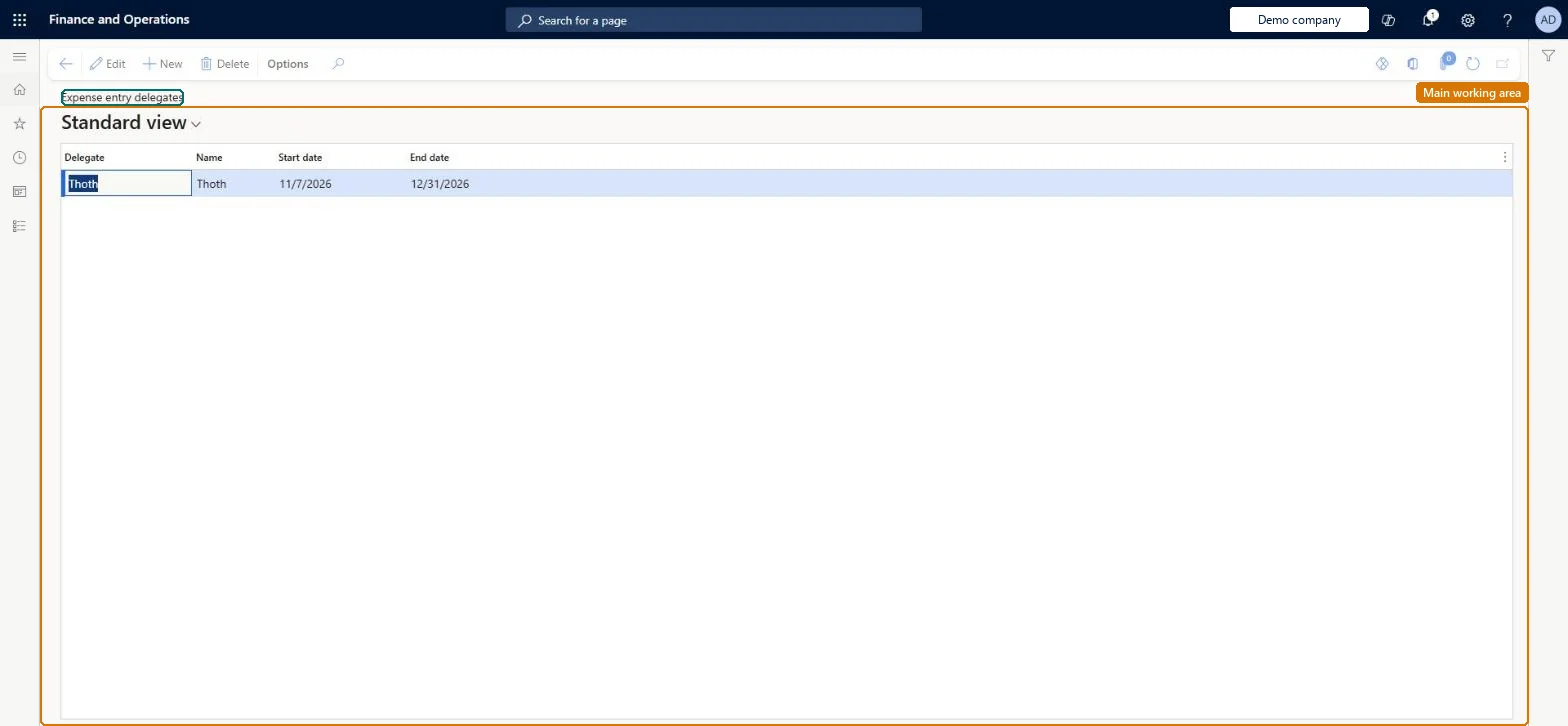
The page in Dynamics 365. page title tab to open what to set or check
About the examples: Examples and screenshots in this guide use BEAT, a demo company in a Dynamics 365 test environment. Use your own company's codes and values instead of copying them.
Setup steps on this page
Set up Expense entry delegates
Let an employee name who may enter expenses for them, for a date range.
Steps from Microsoft
Go to Expense management > My expenses > Expense entry delegates.
Select New.
Select the delegate and enter the start date and end date.
Save. The delegate then opens your reports from Expenses delegated to me or with Open other user's expenses.
You do not have access to enter expenses because you are not mapped to an employee record. Contact your manager or support team for assistance.
Link the user to an employee with active employment and set a company on the user account. In the live system the pages under My expenses, Process expense reports and Process cash advances showed this message for a user with no employee record. Checked in Dynamics 365
The delegate can't see the employee's reports
Check the start and end dates, and turn on Enable expense delegates list page, or have the delegate use Open other user's expenses on the Expense reports page. Microsoft Learn
Test checklist
Add a delegate with today's start date and an end date next week.
Sign in as the delegate and open Expenses delegated to me.
Create an expense report for the employee and check it belongs to the employee.
Set the end date to yesterday and check the delegate can no longer open the employee's reports.
Name the delegate for a fixed date range, such as the trip or the leave period, rather than open-ended.The delegate can create and manage every expense report of the employee while the line is valid, so a closed date range limits that access.
In this system Employee and Contractor enter their own expenses, and Expense administrator sets up the module and processes documents. The expense mobile app needs the Employee role, a company on the user account and a link to an employee with active employment. Employees maintain their own delegates here; the expense administrator can do it for anyone on Setup > General > Delegates.
Per employee: each delegation is for one employee and one delegate, for a date range. Microsoft Learn
Can it be undone
Reversible: Change the end date or delete the line to stop the delegation; reports the delegate already created stay. Microsoft Learn
If you change it later
The delegate can create and manage the employee's expense reports between the start and end date. Approving work items is not delegated here; that is done in the workflow. Microsoft Learn
To set it up or change itExpense administrator ExpenseAdministratorInformation technology manager SysServerITManagerBusiness Performance Planning app role BPPBudgetPlanningAppRoleData management migration user DataManagementMigrationUserDemand planning app role ScpDemandPlanningAppRoleGive people one of these roles. On this system, 8 roles can open this page.Checked in Dynamics 365
TrvExpenseDelegateEntity (Delegate): the same delegations as Setup > General > Delegates.Load order: Load delegations after employees and users; only current and future date ranges matter.Load first: Employees, UsersMicrosoft Learn