PAGE GUIDEWhat the page does and how to use it8 sections. Choose a role to highlight what matters to you.
Everyone
1What it is and why
What it is
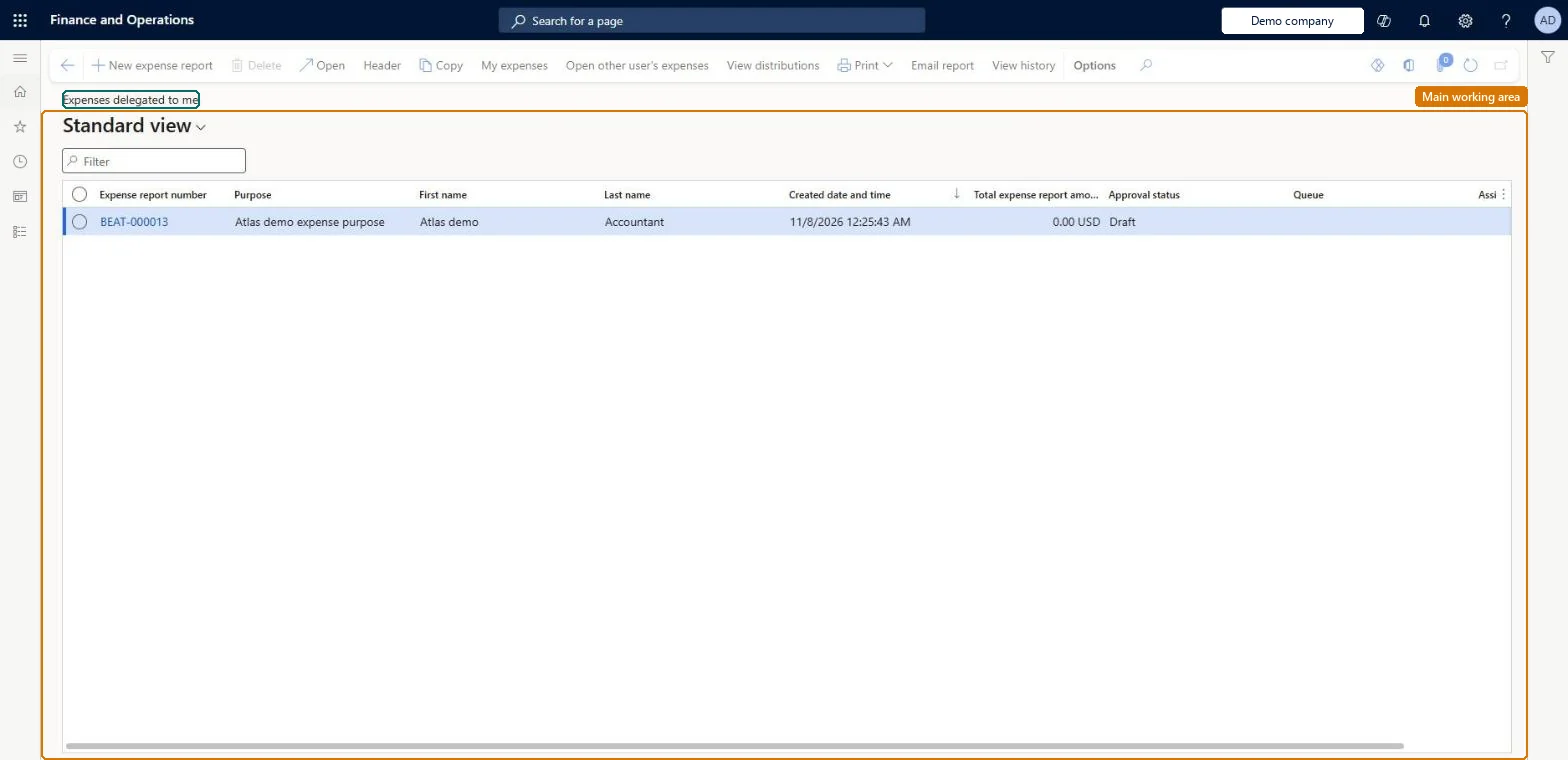
A list page where a delegate sees the expense reports that other employees have delegated to them.
What you do here
Use this page to filter and search delegated expense reports and to create new expense reports on behalf of other employees.
Example
For example, an assistant who is delegate for two managers opens this page, filters on the second manager and selects New expense report to enter that manager's conference costs.
The page in Dynamics 365. page title tab to open what to set or check
About the examples: Examples and screenshots in this guide use BEAT, a demo company in a Dynamics 365 test environment. Use your own company's codes and values instead of copying them.
Setup steps on this page
Enter expenses as a delegate
Create and manage expense reports for the employees who delegated to you.
Steps from Microsoft
Go to Expense management > My expenses > Expenses delegated to me.
Filter or search to find the employee's expense reports.
Open a report to add expenses, or select New expense report to create one for the employee.
Submit the report; it goes to the employee's approver.
Creates an expense report for the employee who delegated to you.Microsoft Learn
Employee
The person the expense report belongs to; filter on it to see one employee's reports.Microsoft Learn
Common errors and fixes
Message
What to do
You do not have access to enter expense reports because you are not mapped to an employee record. Contact your manager or support team for assistance.
Link the user to an employee with active employment and set a company on the user account. In the live system the pages under My expenses, Process expense reports and Process cash advances showed this message for a user with no employee record. Checked in Dynamics 365
The page isn't in the menu
Turn on Enable expense delegates list page in Feature management. Without it, use Open other user's expenses on My expenses > Expense reports. Microsoft Learn
Test checklist
Turn on Enable expense delegates list page in Feature management.
On Expense management > Setup > General > Delegates, make the tester a delegate for another employee with a current start and end date.
Open Expense management > My expenses > Expenses delegated to me and check that employee's expense reports are listed.
Select New expense report and check the new report belongs to the other employee.
Work from this list rather than Open other user's expenses, and check the employee on the report header before you submit.The list shows every employee who delegated to you in one place, so you don't pick the wrong person when you create a report.
Per delegate: the page lists only the expense reports of employees who named the signed-in user as their delegate, within the delegation dates. Microsoft Learn
Can it be undone
Reversible: This is a list of the expense reports other employees delegated to you. What appears depends on the delegation set up on the Delegates page, including its start and end dates. Microsoft Learn
If you change it later
This page is available only when the Enable expense delegates list page feature is turned on. Microsoft Learn
Technical architect
6Technical
Menu item
TrvExpRptListPage_DelegatedToMeChecked in Dynamics 365
Data entities
TrvExpTableMobileEntityExpense reports Checked in Dynamics 365
Roles to set it up and use it
To set it up or change itExpense administrator ExpenseAdministratorGive people one of these roles. On this system, 1 role can open this page.Checked in Dynamics 365
TrvExpTableMobileEntity data entity Checked in Dynamics 365
Data migration
Load order: The delegated list has no data entity in Data management, so it can't be loaded from a file or a configuration template. It is built from the delegations; load those with the Delegate entity (TrvExpenseDelegateEntity).Microsoft Learn